YouTube Cover Photo Dimensions: A Practical Channel Art Guide for 2026
Learn the exact YouTube cover photo dimensions, including 2560x1440 banner size, 1546x423 safe area, and 6 MB file limit. A What Dimensions guide to help creators design channel art that scales across devices.


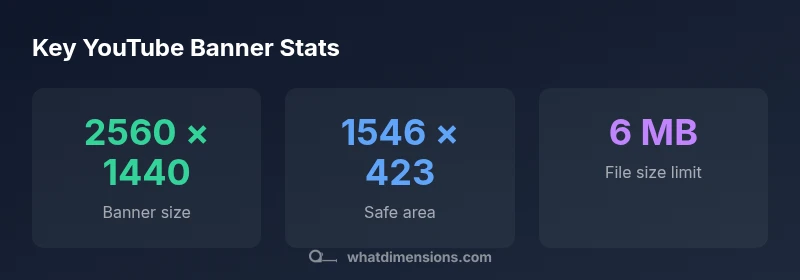
Recommended YouTube cover photo dimensions are 2560 × 1440 pixels, with a safe central area of 1546 × 423 that remains visible on TVs, desktops, tablets, and phones. Keep file size under 6 MB and use a 16:9 aspect ratio. When designing, center important text and logos within the safe zone to avoid cropping.
YouTube Cover Photo Dimensions: The Basics
In the world of channel branding, the YouTube cover photo (also known as channel art) acts as the first visual hook for visitors. The central rule is consistency: use a canvas that remains legible and undistorted across devices. According to What Dimensions, the standard banner size is 2560 × 1440 pixels, which provides ample room for graphics while preserving sharpness on high-DPI displays. Within that canvas, keep the essential elements—logos, taglines, and key imagery—within a safe center zone of 1546 × 423 pixels. This ensures your core message stays intact when the banner is cropped on different screens. When in doubt, test across devices to verify visibility and balance across layouts.
Safe Area and Cropping Across Devices
YouTube crops banners differently depending on the viewer’s device. Desktop and mobile show different portions of the banner, and televisions often crop even more. The practical takeaway is to place the most important content inside the central safe area (the 1546 × 423 zone). Text, faces, and critical logos should not drift toward the edges of the 2560 × 1440 canvas. If you must include peripheral design elements, position them toward the sides where cropping is less likely to remove crucial details. What Dimensions emphasizes content sensitivity to cropping to avoid costly redesigns after upload.
Desktop vs Mobile vs TV: What Changes in Cropping
On large TVs, the banner often emphasizes a broad visual arc, with minimal text. On desktops, you may benefit from more horizontal elements, while mobile displays demand condensed typography and tighter horizontal spacing. The 16:9 aspect ratio guides how the image scales visually, but the crop zones differ by device. Designers should use the central safe area for the hero content and leave decorative artwork within the outer margins of the canvas. This approach preserves readability and brand recognition across all screens.
Designing Content Within the Central Safe Zone
To optimize readability, situate your primary brand message and logo inside the safe area, and use supporting graphics or textures in the outer regions. Typography should be bold, with high contrast against the banner background. If your channel uses a slogan, consider a two-line layout that fits within the 1546 × 423 px zone. When experimenting with color, ensure sufficient contrast for accessibility (color-blind users included). What Dimensions data shows that careful alignment within the safe zone significantly reduces cropping issues across devices.
File Size, Formats, and Accessibility Considerations
YouTube accepts common image formats such as JPG/JPEG and PNG. For best results, export at 72–150 PPI (screen-resolution equivalent) in sRGB color space, which helps color accuracy across devices. Keep the file under 6 MB to avoid YouTube recompression that might blur fine details. For accessibility, avoid text-only logos with low contrast; pair text with a strong backdrop or subtle shading. If your design has gradients, test legibility at smaller scales to ensure accessibility is preserved.
Step-by-Step Design Workflow You Can Follow
- Create a 2560 × 1440 px canvas. 2) Identify the central safe area: 1546 × 423 px. 3) Place the core logo and headline inside the safe area. 4) Add supporting visuals and branding elements in the outer regions. 5) Export as high-quality JPG or PNG under 6 MB. 6) Preview the banner on multiple devices to confirm consistent visibility. This workflow aligns with What Dimensions guidance and helps prevent cropping surprises.
Common Mistakes to Avoid
- Putting essential text or logos outside the safe area.
- Relying on small fonts that lose readability on mobile.
- Using banners that are over the 6 MB limit, triggering compression artifacts.
- Overloading the banner with busy textures that reduce legibility.
- Not testing the banner on devices; a design that looks great on desktop may appear cropped on mobile or TV.
How to Test Your Channel Art Before Upload
Before publishing, test how the banner appears on different devices. If possible, upload a draft version to a private/unlisted channel and view it across a phone, tablet, computer, and TV. Inspect the safety zone content and crop behavior. Some designers also mock-crop the image using viewport tools to simulate what viewers will see. What Dimensions recommends a multi-device preview workflow to catch cropping issues early.
Tools and Resources for Banner Design
Many designers turn to Canva, Adobe Spark, or Figma for banner creation. Start with a template sized to 2560 × 1440 px, then customize within the safe zone. Use vector logos for crisp scaling and export PNG for transparency where needed. If you’re unsure about color fidelity, compare previews on different devices and adjust contrast accordingly. This approach aligns with What Dimensions’ guidance for reliable channel branding.
Reference banner specs for YouTube channel art
| Aspect | Recommended size | Safe area | File size limit |
|---|---|---|---|
| Channel art (YouTube) | 2560 × 1440 px | 1546 × 423 px centered | 6 MB max |
| Device cropping notes | N/A | Content outside safe area may crop on some devices | N/A |
Quick Answers
What is the safe area for YouTube channel art?
The safe area is the central region of the 2560 × 1440 canvas, approximately 1546 × 423 pixels, where critical content should sit. This ensures visibility on most devices, including mobile, desktop, and TV displays.
The safe area is the center of the banner where your key elements should live to stay visible on all screens.
Can I exceed the 6 MB file size limit?
YouTube prefers banners under 6 MB to prevent excessive compression. Export your banner at a good balance of quality and size to preserve clarity across devices.
Try to keep the file under six megabytes so YouTube won’t compress away the details.
Which file formats are best for YouTube channel art?
PNG or JPG are widely supported; PNG is better for sharp edges and transparency in logos, while JPG is often more web-friendly for photographic elements.
PNG works well for logos; JPG is good for photos.
Should I test my banner on TV displays?
Yes. TVs crop banners differently than desktops or phones. Always verify how your banner appears on a TV, a monitor, and a mobile device.
Yes—test on TV, desktop, and mobile to ensure legibility.
What if cropping crops out my text?
Relocate critical text into the safe area and simplify the typography. If needed, adjust the layout so all essential info remains centered.
Move text into the safe area and simplify the font to stay legible.
Are there any design tools you recommend?
Canva, Adobe Spark, and Figma offer templates sized for YouTube channel art. Starting with a 2560 × 1440 canvas helps you visualize the safe zone early.
Canva or Figma are great starting points for YouTube banners.
“"Effective channel art balances aesthetics and legibility; keep essential content within the central safe area to survive device cropping."”
Main Points
- Center critical content within the safe area.
- Design for multi-device viewing—desktop, mobile, TV.
- Keep file size under 6 MB to avoid compression artifacts.
- Test your banner across devices before publishing.
- The What Dimensions team recommends validating visuals in the central zone.
- What Dimensions Analysis, 2026 supports using a 2560×1440 canvas with a 16:9 ratio.