How to Reduce PNG Dimensions: A Practical Guide for Web Use
Learn step-by-step how to shrink PNG dimensions for faster loading without sacrificing essential quality. Resize, crop, adjust color depth, and optimize PNGs with a proven workflow.


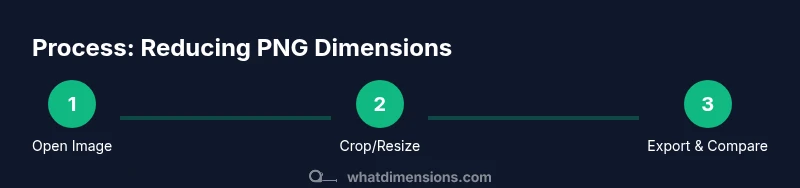
You can reduce PNG dimensions by resizing the image, cropping excess areas, and adjusting the resolution and color depth before saving. Start with a specific target width and height in pixels, preserve aspect ratio, and choose an appropriate PNG mode (PNG-8 or PNG-24) to balance quality and file size. Consider exporting multiple previews to compare quality.
What reducing PNG dimensions means and when you should do it
According to What Dimensions, the pixel dimensions of an image are the most direct driver of file size and rendering cost. Reducing dimensions means fewer pixels to store and display, which often yields smaller file sizes and faster loading on websites. PNG is a lossless format, but resizing or cropping changes the data structure and can affect perceived sharpness if done improperly. Before you adjust, define your target use: hero images, thumbnails, or icons; each requires different dimensions. Also consider the display density of your audience; mobile users benefit from smaller, crisply scaled images. In short, dimension reduction is a balancing act between visual fidelity, file size, and load performance. This is especially important for dashboards, portfolios, and storefronts where speed correlates with engagement. Throughout this guide we’ll reference practical workflows that balance quality with efficiency, helping you maintain crisp edges and legible details even after downsizing. What Dimensions Analysis, 2026, underlines that thoughtful dimension management can significantly improve page performance without a heavy hit to user experience.
When you’re faced with a PNG that feels too large in width, height, or file size, start by clarifying the goal: is this for responsive web layouts, social previews, or app icons? Each use case has a different optimal dimension profile. If you’re resizing for the web, you’ll often prioritize pixel dimensions over physical DPI, because screens render at fixed pixel grids. It’s also valuable to consider how the image is displayed across devices: a 1200-pixel-wide hero image will render differently on a 1080p monitor than on a high-density mobile display. By framing the task around end-use and device compatibility, you’ll avoid over- or under-shrinking and preserve essential detail where it matters most.
note”:null},
Tools & Materials
- Graphics editor (Photoshop, GIMP, Affinity Photo, or equivalent)(Essential for resizing, cropping, and adjusting color depth.)
- Original PNG file(Keep a backup copy before making changes.)
- Export dialog with PNG options(Set color depth and compression settings during save.)
- Optional batch tool or script(Useful for applying consistent settings to multiple files.)
- Reference targets (width x height in px)(Have a list of target dimensions for different use cases.)
Steps
Estimated time: 15-40 minutes
- 1
Open the PNG in your editor
Launch your chosen graphics editor and open the PNG file you want to resize. Verify the current pixel dimensions and confirm you’re working on a duplicate copy to preserve the original.
Tip: Always work on a duplicate to avoid accidental loss of the original image. - 2
Set target dimensions
Decide the final width and height in pixels based on your use case (web hero, thumbnail, or icon). Enable the aspect ratio lock to keep proportions intact unless you intentionally want to crop.
Tip: If you’re unsure, start with a conservative reduction (e.g., halve the width) and adjust after preview. - 3
Crop to the necessary area
If your PNG includes unused margins or blank space, crop tightly around the content to reduce unnecessary pixels. Cropping can drastically lower both dimensions and file size without changing core details.
Tip: Crop away empty borders first; it often yields bigger gains than resizing alone. - 4
Choose color depth wisely
PNG supports various color depths (PNG-8, PNG-24). Selecting PNG-8 can dramatically reduce file size for simple images, while PNG-24 preserves more color information for photographic content.
Tip: Test both options when possible to find the best balance for your image. - 5
Resample and resize
Use the editor’s resampling option (Lanczos or Bicubic depending on the tool) to resize. Preview sharpness and artifacts at 100% zoom and adjust if edges look blurry or halos appear around text.
Tip: Avoid nearest neighbor for photos; it creates blocky edges. - 6
Adjust export settings
Open the PNG export dialog and confirm color depth, interlacing, and compression options. If available, enable lossless compression presets or choose a moderate level of compression to maintain quality.
Tip: Disable features that aren’t needed (e.g., interlacing) to reduce file size. - 7
Save with a descriptive filename
Save your optimized PNG with a clear name that includes the new dimensions (e.g., image-800x600.png) to prevent confusion later. Keep a backup of the original in case you need to revert.
Tip: Use versioning if you’ll generate multiple variants. - 8
Validate the result
Compare the original and resized PNG side-by-side to ensure edges remain sharp and essential details are intact. Check the file size difference and ensure the image still meets your accessibility needs (contrast, legibility).
Tip: Use visual checks and file size metrics, not just dimensions, to judge impact.
Quick Answers
What is the difference between PNG dimensions and file size?
PNG dimensions refer to the width and height in pixels, which determine how many pixels must be displayed. File size is influenced by those dimensions plus color depth, compression, and metadata. Reducing dimensions typically lowers file size, but confirming the impact with a quick check is wise.
Dimensional changes affect how many pixels you have to store; file size also depends on color depth and compression.
Will reducing dimensions degrade image quality?
Downscaling can blur fine details if not done with proper resampling. Use appropriate algorithms and preview at actual size to ensure edges stay sharp. For simple graphics, reducing dimensions with PNG-8 often preserves essential clarity.
Yes, but you can minimize it by choosing the right resampling method and testing previews.
Should I crop or resize first for best results?
Crop to remove unnecessary content before resizing. This minimizes the amount of data you’re resizing and can preserve detail in the important parts. Resize after cropping to achieve the target dimensions.
Crop first, then resize—it's usually more efficient.
Is PNG-8 always smaller than PNG-24?
PNG-8 can be smaller for images with limited colors (like logos or simple graphics). PNG-24 preserves more color detail, which is better for photographs. Choose based on color complexity and required fidelity.
Not always—choose based on color needs.
Does DPI affect PNG files for web?
DPI is mainly relevant for print. On the web, pixel dimensions matter most because screens render according to pixel grids. You can ignore DPI for web optimization unless preparing assets for print alongside digital use.
DPI is less relevant online; focus on pixel dimensions.
Watch Video
Main Points
- Define your target use and device contexts first.
- Crop before resizing to maximize gains with less distortion.
- Test multiple color depths (PNG-8 vs PNG-24) for best balance.
- Always back up originals and name outputs clearly for version control.