How to Check Image Dimensions: A Practical Guide
Learn to check image dimensions quickly across platforms and tools. This What Dimensions guide covers pixel-based checks, DPI considerations, and simple code methods to ensure your visuals are the right size for web, print, and design.


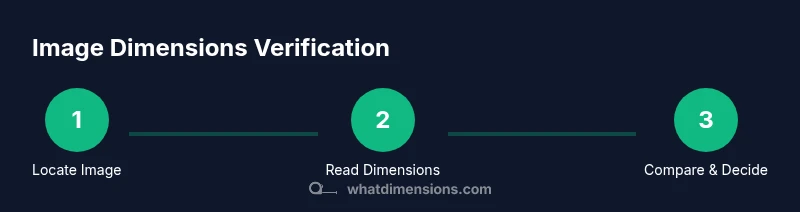
how to check dimensions of an image: this quick guide helps you confirm the exact width and height in pixels (and DPI if needed). Locate the file, view its properties, and read the dimensions in a viewer or editor, then verify they meet your target size. Repeat for all images in a batch if consistency matters.
What image dimensions mean
Image dimensions describe how wide and tall an image is in a digital space. They are most commonly expressed as width x height in pixels for on-screen use, and can also be expressed in inches or centimeters when preparing for print. Understanding exact dimensions helps ensure your visuals display correctly on websites, apps, and devices with varying screen densities. The What Dimensions team emphasizes that having precise numbers prevents scaling artifacts, ensures layout stability, and supports accurate cropping and composition. In practice, you’ll frequently encounter two numbers: the width and the height, which together define the image's canvas. If you know these measurements, you can plan responsive layouts, select appropriate file sizes, and communicate requirements clearly with designers and developers.
Why accurate image dimensions matter for web, print, and accessibility
Dimensions influence how fast a page loads, how images scale across breakpoints, and how content aligns with typography and grids. Oversized images waste bandwidth, while undersized images can look blurry on high-resolution displays. For print, the physical size of an image is determined by its pixel dimensions in combination with the target DPI, so modest changes can alter the final print outcome. According to What Dimensions, many workflows benefit from documenting exact image sizes to avoid miscommunication and rework. Clear dimension specifications also improve accessibility, because correctly sized images reduce layout shifts and ensure consistent presentation for users relying on assistive technologies.
Quick platform-agnostic ways to check dimensions
Begin with basic file properties to get an initial read on width and height. Use your system’s built-in image viewer to view a readout labeled as dimensions or image size. If you need more detail, open the image in an editor—Photoshop, GIMP, or Affinity—and inspect the canvas or image size. For batch verification, consider a script that prints the dimensions for a folder and flags images that don’t meet your target. This approach keeps your workflow fast and repeatable, especially when managing multiple assets for a project.
Checking dimensions on Windows,
Using image viewers and editors to read dimensions
Most image viewers show a size readout in the status bar or a dedicated panel. Editors provide precise canvas dimensions in the Image Size or Canvas Size dialog, often with additional details like resolution/DPI. When accuracy is critical, prefer editors that display the exact pixel width and height, not just the file size. For designers, keeping a habit of checking canvas size before exporting saves time and avoids back-and-forth revisions.
Understanding DPI vs. pixel dimensions for print
Pixel dimensions tell you how many picture elements exist, while DPI (dots per inch) influences physical print size. A higher DPI yields a smaller printed dimension for the same pixel size, and a lower DPI yields a larger printed piece but potentially less detail. For digital displays, DPI generally matters less, but for print workflows, always align image dimensions with target print size and resolution requirements. What Dimensions notes that clarifying both metrics helps teams avoid miscommunications during production.
Checking dimensions programmatically with Python
If you regularly verify many images, a small script saves time and eliminates manual checks. Example:
from PIL import Image
import sys

path = 'path/to/your/image.jpg'
im = Image.open(path)
print('size:', im.size)  # (width, height)
This snippet prints the exact pixel dimensions. You can loop through a folder and report images whose size deviates from a defined target. For web projects, integrate this into your build process to catch size issues automatically.
Common pitfalls and how to avoid them
Relying on file size rather than actual dimensions leads to errors; image files can be resized without changing their pixel footprint. Metadata can be inconsistent after format changes. Always verify the displayed canvas size in a trusted editor rather than assuming from thumbnails. For print work, don’t ignore DPI—dimension alone doesn’t guarantee print quality.
Final workflow for image dimension checks
Adopt a repeatable workflow: locate the file, read basic properties, confirm with an editor, and, if necessary, validate with a small script. Document outcomes for future reference and batch-check large sets to maintain consistency. This disciplined approach helps designers, developers, and students ensure every image is fit for its intended medium.
Putting it all together: quick-reference workflow
- Start with the file’s properties to estimate size and format.
- Confirm dimensions in a viewer or editor.
- If printing, check DPI and target physical size.
- Use a script for batch checks to scale efficiently.
- Record results for future reuse and audits.
Tools & Materials
- Computer or mobile device with file access(Any operating system works)
- Image file to measure(The exact asset you need to verify)
- File explorer or Finder(To view basic properties quickly)
- Image viewer with metadata display(e.g., built-in viewer; alternative: quick-look tools)
- Image editing software (optional)(Photoshop, GIMP, or Affinity for precise canvas size)
- Code editor or scripting environment (optional)(For programmatic checks (Python, JS))
- Ruler or on-screen measurement tool (optional)(Helpful for print layout checks)
- DPI reference for print (optional)(Useful when planning printed outputs)
Steps
Estimated time: 15-25 minutes
- 1
Locate the image file
Find the asset you need to verify in your project folder. If you’re batch-checking, prepare a clearly labeled list or folder. This step sets the scope for the rest of the process.
Tip: Keep source images in a dedicated folder to simplify batch checks. - 2
Open basic properties
Right-click (or Control-click) the file and view its properties or info panel to read initial width and height. This quick read helps you decide if deeper checks are necessary.
Tip: Note the format and color depth as additional context. - 3
Check with a viewer/editor
Open the image in a viewer or editor and locate the canvas or image size dialog. Read the pixel width and height exactly as displayed, not from the thumbnail.
Tip: Prefer editors that show exact canvas size rather than implied display size. - 4
Validate against target size
Compare the read dimensions with your target specifications. If they don’t match, decide whether to resize or recapture the image.
Tip: Document any deviations for project records. - 5
Optional: batch check with code
If you’re handling many images, run a small script to print sizes and flag outliers. This scales your quality checks without manual effort.
Tip: Automate reporting to avoid human error. - 6
Verify DPI if printing
If the image will be printed, confirm the DPI setting and how it relates to the desired physical size. Pixel dimensions alone don’t tell the whole story for print.
Tip: Document the target print DPI alongside dimensions. - 7
Update or export as needed
If resizing is required, use a precise resampling method in your editor and export with a clean name reflecting the new dimensions.
Tip: Avoid recompression that degrades quality. - 8
Store Provenance
Keep a note of where the image came from, its original dimensions, and any edits performed. This aids future audits and design handoffs.
Tip: Maintain a simple dimension log for your projects.
Quick Answers
What are image dimensions and why do they matter?
Image dimensions define the pixel width and height of an image and influence how it renders across devices and media. They impact loading speeds, display clarity, and layout behavior in design workflows. Understanding them helps you design with precision and avoid unnecessary edits later.
Image dimensions are the width and height of an image in pixels, and they affect how sharp the image appears on screens and in print.
How can I check dimensions on Windows?
On Windows, right-click the image file and select Properties, then the Details tab to view width and height. You can also use a viewer with a dimensions display for a quick read. This approach is fast and commonly available.
Right-click the image, pick Properties, then Details to see width and height.
Is DPI the same as image dimensions?
No. Pixel dimensions describe the image’s grid of dots, while DPI relates to how many of those dots fit into an inch for printing. For digital use, dimensions matter most; for print, DPI and physical size are essential in tandem.
DPI affects print size; image dimensions are the pixel width and height.
Why might images show different dimensions in apps?
Some apps display scaled metadata or crop previews, which can mislead you about true canvas size. Always verify with the source editor or a trusted readout showing the actual pixel dimensions.
Different apps can report slightly different sizes; check the actual canvas size in a trusted editor.
How do I batch-check dimensions?
Use a small script (Python or a shell tool) to loop through images in a folder, read their sizes, and flag any that don’t meet your target. This speeds up audits and reduces human error.
Run a script to list sizes for many images and flag outliers.
What if an image is resized later?
If an image is resized, the original dimensions may no longer be valid for your needs. Re-check the new size and, if necessary, re-export at the correct dimensions to preserve quality.
If you resize, verify the new dimensions and adjust as needed.
Watch Video
Main Points
- Identify exact width and height in pixels.
- Use multiple tools to verify consistently.
- Consider DPI for print workflows.
- Document results for reproducibility and audits.
- Batch-check large sets to save time.