Change Image Dimensions: A Practical How-To
Learn how to change image dimensions accurately for web, print, and social media. This step-by-step guide covers pixel size, DPI, aspect ratio, and quality preservation with free and paid tools.


You’ll learn how to change the dimensions of an image across common file types (JPEG, PNG, GIF) while preserving quality and intent. This guide covers pixel dimensions, DPI implications, aspect ratio, and practical tool choices—free and paid. You’ll finish with a reproducible workflow you can apply to photos, graphics, and documents, plus tips for batch resizing and accessibility considerations.
What changing dimensions means (and why it matters)
Changing the dimensions of an image refers to altering its width and height in pixels, which directly affects file size, display behavior, and print quality. The What Dimensions team emphasizes that the way you resize can change how crisp an image looks on different devices or media. Before you resize, identify the final use: a social post, a website banner, or a printed flyer. The intended display medium should guide your choices for width, height, and aspect ratio. Understanding these basics helps prevent common issues like blurry prints or awkward cropping. This foundational knowledge makes it easier to plan your workflow and pick the right tool for each job.
Understanding pixel dimensions, resolution, and DPI
Pixel dimensions measure image width × height in pixels (e.g., 1920 × 1080). Resolution, often expressed as DPI (dots per inch) for print, describes how densely pixels are packed when printed. A high-resolution image can be large in file size but print crisply, while web use usually prioritizes file size and load speed. When you change dimensions for web, aim for appropriate pixel width while keeping file size reasonable. For print, you may increase resolution to 300 DPI or higher—but you also need to consider the printer’s capabilities and file format. What Dimensions Analysis, 2026, emphasizes balancing pixel count with effective resolution to meet target media.
Raster vs vector: how resizing affects quality
Most common images (photographs) are raster graphics, composed of a fixed grid of pixels. Resizing raster images, especially enlarging them, can lead to pixelation or blur because new pixels must be interpolated. Vector graphics, in contrast, scale without losing clarity because they’re math-defined. If your project requires heavy resizing, consider keeping source material as vector where possible or use high-resolution raster sources and apply smart upscaling with edge-preserving algorithms. This distinction matters for logos, icons, and illustrations that appear across sizes.
Step-by-step overview of the resizing workflow
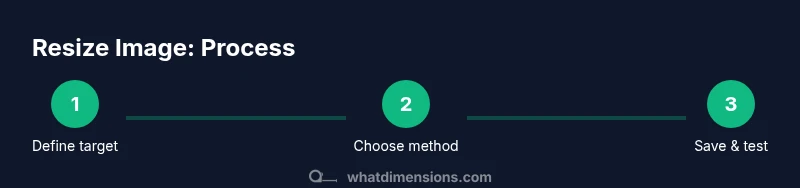
A consistent workflow produces reliable results. Start by defining your target dimensions and aspect ratio. Then choose a resizing method (dtype-based, nearest-neighbor, bilinear/bicubic, or advanced upscaling). Open the image in your editor, apply resize, and review the result at 100% magnification. Check DPI if you intend to print, and sharpen only if the image looks soft after resizing. Finally, save in the appropriate format with deliberate compression to balance quality and file size. This workflow keeps changes reproducible across projects and teams.
Free tools and paid options: pros and cons
Free tools (online editors, GIMP, or built-in apps) are accessible and cost nothing, but may lack advanced resampling algorithms or batch processing features. Paid tools (Photoshop, Affinity, or Lightroom) offer sophisticated interpolation, color management, and robust batch workflows—ideal for professionals. For quick tasks, an online resize tool can handle one-off adjustments, while desktop software shines for large batches and precise control. Always verify color profiles (sRGB for web, Adobe RGB or CMYK for print) when changing dimensions across formats.
Maintaining aspect ratio to avoid distortion
Maintaining aspect ratio prevents stretched or squashed images. When you resize, ensure the width and height scale proportionally or lock the aspect ratio in your editor. If you must alter aspect ratio for a specific frame (like a 16:9 banner), plan for cropping rather than stretching, and consider padding with a neutral background to preserve composition. Cropping may remove important details, so preview before finalizing.
Output intents: web, print, and social sizing guidelines
Different outputs demand different dimension strategies. Web images should balance dimensions with file size to ensure fast loading and responsive design. Print images require higher DPI and larger pixel counts for sharp results at observed distances. Social media often has platform-specific dimensions; start with a safe max width (e.g., 1080–2000 px) and adjust height to meet the platform’s aspect recommendations. Always test how your resized image appears in the target medium and device.
Batch resizing: workflow for large sets
Batch resizing saves time when you have many images. Use a batch processing feature in desktop software or script a small pipeline to apply the same dimensions to all files, preserving color profiles and metadata when possible. During batch work, run a quick quality check on a subset of outputs to catch scaling artifacts, and keep a log of parameters used for reproducibility. This reduces manual effort while maintaining consistency across your project.
Quality checks: ensuring consistency before publication
After resizing, compare the resized image to the original to ensure no unintended crop or distortion occurred. Verify color appearance under your target viewing conditions and test the image at its intended display size. For print, generate a proof to confirm output dimensions align with the final print size and dotted line guides. If issues arise, revert to the original and adjust the resize settings or try a different interpolation method.
Common mistakes and how to fix them
Common mistakes include enlarging too much beyond the original size, ignoring aspect ratio, and saving with aggressive compression. Fixes involve resizing in smaller steps, preserving the aspect ratio, using a high-quality interpolation, and adjusting compression levels to retain detail. Remember to always work on a duplicate file so the original remains intact, and document the exact settings used for future reference.
Tools & Materials
- Computer or mobile device with internet(Access to online editors or download software)
- Image editing software or online editor(Examples: Photoshop, GIMP, Canva, or built-in editors)
- Original image file(Keep a high-resolution source if possible)
- Backup copy of the image(Always preserve the original before resizing)
- Target dimensions and platform requirements(Know the exact width x height and DPI if printing)
Steps
Estimated time: Total time: 25-60 minutes
- 1
Define target dimensions and aspect ratio
Decide the final width and height in pixels and whether to maintain the original aspect ratio. If the target medium requires a specific aspect ratio, plan cropping or padding beforehand to avoid surprises later.
Tip: Document the required dimensions for future projects. - 2
Choose the resizing method
Select an interpolation method suitable for your image type (e.g., bicubic for photos, nearest neighbor for pixel art). The right method minimizes artifacts when reducing or enlarging images.
Tip: For batch tasks, apply a consistent method to all files. - 3
Open the image in the editor
Load the source image in your preferred tool. Confirm the color profile matches your intended output (sRGB for web, CMYK for print).
Tip: Work on a duplicate to protect the original. - 4
Apply the resize operation
Enter the target width and height, and lock the aspect ratio if required. Preview the result at 100% zoom to verify details are preserved.
Tip: If cropping, frame important elements before applying crop. - 5
Adjust color and sharpness if needed
Resize can soften details; apply light sharpening if the image looks blurred after resizing. Avoid over-sharpening which creates halos.
Tip: Compare with the original to keep natural appearance. - 6
Choose the correct file format and compression
For web, use JPEG for photos, PNG for graphics with transparency, or WEBP for modern browsers. Balance quality and file size to optimize load times.
Tip: Keep a lossless version if future edits are likely. - 7
Save and document settings
Save using a clear naming convention and note the exact dimensions, DPI, and interpolation method used. This aids reproducibility.
Tip: Maintain an archive of prior versions for reference. - 8
Test output in target medium
Open the image on devices or print proofs that match your intended medium. Check for distortion, color shifts, or unexpected cropping.
Tip: Always test on real devices or printed proofs when possible.
Quick Answers
What is the difference between changing pixel dimensions and changing physical size?
Pixel dimensions refer to the image's width and height in pixels. Changing physical size typically involves printer DPI (PPI) settings and can alter print dimensions without changing pixel count. For web use, adjust pixel dimensions; for print, plan DPI and print size together.
Pixel size controls on-screen dimensions, while print size depends on resolution (DPI). When you resize for print, you must consider DPI and the physical output size.
Can I resize an image without losing quality?
Some quality loss is often unavoidable when enlarging raster images. Use higher quality interpolation, start from the highest resolution available, and avoid repeated resizing. For best results, resizing should be done only once and with care.
Enlarging can blur details; use smart upscaling and avoid multiple successive resizes.
Which tool is best for beginners?
Many beginners start with free editors like GIMP or built-in photo apps. Online tools are convenient for quick tasks. For consistent professional results, consider a desktop editor with batch processing and color management.
Beginners can start with free editors; professionals often use desktop apps with batch features.
Should I batch resize multiple images at once?
Yes, batch resizing saves time, but verify a few outputs first to ensure consistent quality and color profiles. Maintain the same dimensions and interpolation method across the batch.
Batch resizing is efficient, just test a sample first to catch issues.
Do different file formats affect resizing results?
Yes. JPEG uses lossy compression that can introduce artifacts when resizing; PNG preserves edges better for graphics with sharp lines. Choose format based on image content and final use, then adjust quality settings accordingly.
Format choice affects artifact visibility after resizing; pick JPEG for photos, PNG for graphics.
Watch Video
Main Points
- Define target dimensions before resizing.
- Preserve aspect ratio to avoid distortion.
- Choose the right tool and interpolation method.
- Test output in the intended medium before final delivery.