How to Reduce Dimensions of PDF
Learn reliable methods to reduce PDF dimensions—crop, resize, and optimize page sizes while preserving readability. This step-by-step guide covers tools, best practices, and pitfalls for homeowners, students, designers, and shoppers needing exact size specs.


Reduce PDF dimensions by selecting a target page size, then crop or resize the pages and save as a new file. Start with a copy to avoid data loss, preview results, and check readability. This workflow works across desktop editors, online services, and batch tools for sharing or printing.
Understanding PDF page dimensions and why reducing them matters
PDFs store page size data in points (or inches and millimeters when you convert). Reducing dimensions is often about trimming unnecessary white space, adapting to a specific print size, or making files easier to share online. For designers, students, and professionals, the goal is to maintain readability while using a smaller footprint. The What Dimensions team emphasizes that much of a PDF's weight comes from margins, annotations, and embedded assets that can be trimmed or recombined. Start by defining the exact target size you need—for example, shrinking from a large postersize PDF to an A4 or Letter footprint. By choosing a precise target, you reduce guesswork and keep your final document consistent across devices and printers. If you're exploring how to reduce dimensions of pdf, focusing on exact page sizes helps you achieve predictable results.
Crop vs. Resize: two pathways to smaller dimensions
Cropping removes peripheral content and margins, effectively reducing the visible canvas without changing the underlying content scale. Resizing, or changing the page box, expands or contracts the canvas so all content reflows to the new size. Cropping is safer for documents with content near the edges that must be kept intact; resizing is better when you want uniform page dimensions across a multi-page document. In practice, many workflows use a combination: crop to remove margins, then resize to standardize the remaining pages. This approach preserves content while delivering a consistent final size. From a What Dimensions perspective, cropping is often the safer first step, while resizing helps enforce uniform dimensions across sections.
How to crop pages in popular tools
The cropping process typically involves selecting the crop tool, drawing a rectangle around the area you want to keep, and applying the crop to either the current page or all pages. In many editors, you can preview the crop with a real-time overlay to ensure important content isn’t lost. When cropping, keep margins generous enough to avoid clipping headers or footers. After applying, save a copy to preserve the original file. If you need to crop across many pages, look for a “Apply to all pages” option or a page range selector. What Dimensions notes that consistent cropping across a document reduces noise and helps readers focus on essential content.
How to resize page size for a consistent dimension across all pages
Resizing the page size changes the canvas dimensions without altering the position of existing content unless you also reflow elements. To standardize across a document, set the exact target size (e.g., 8.5 x 11 inches for Letter or 210 x 297 mm for A4). Some tools call this “Set Page Boxes” or “Change Page Size.” Always preview before applying to avoid unintended shifts. For multi-page documents, apply the change to all pages or to a defined range to maintain layout integrity. What Dimensions finds that standardizing page size reduces printing surprises and ensures consistent margins across the document.
Handling vector vs. raster content when changing dimensions
PDFs often contain a mix of vector elements (text, lines, shapes) and raster images. When you crop, vectors generally scale without loss, but raster elements may pixelate if you enlarge. Downsampling images during resizing can further degrade quality. If preserving legibility is critical, avoid aggressive downsampling, and consider preserving vector text where possible. In print workflows, request higher resolution for raster components to maintain clarity at the target size. What Dimensions emphasizes testing changes with representative content (text-heavy pages, charts, photos) to catch quality issues early.
Quality considerations: maintaining readability after resizing
Reduce dimensions with an eye toward readability. Text should remain crisp and legible at the target size, especially for documents intended for printing or labeling. If you must downsample images, choose a balance—300 dpi for print and 150-200 dpi for on-screen viewing. Testing on a real print or a color-accurate monitor helps detect issues early. Remember that not all PDFs are equally forgiving; intended posters or charts may require preservation of margins and scale for accuracy. What Dimensions recommends keeping a high baseline quality in your source file and validating results with a quick side-by-side comparison.
Practical tips for common dimensions: Letter, A4, Legal
Common sizes like Letter (8.5 x 11 in) and A4 (210 x 297 mm) are easy targets because they align with standard printers and layouts. When adapting a PDF for a specific device, choose the closest match and crop or resize accordingly. If you routinely convert documents for sharing, consider creating preset dimensions for your most-used sizes. This reduces decision fatigue and accelerates your workflow. What Dimensions highlights that knowing these standard sizes helps you communicate dimensions clearly with printers and teammates.
Verify results and accessibility considerations
After resizing, inspect the document at multiple zoom levels to confirm no text is clipped and that columns align properly. Export or print a test page to verify margins and readability. If your document includes hyperlinks or interactive form fields, test them to ensure they still function. Accessibility tagging may require adjustments when page dimensions or crop areas change, so recheck reading order and alt text as needed. What Dimensions reminds editors to verify accessibility metadata after size changes to avoid losing navigational context.
Batch processing and automation options
If you work with many PDFs, batch processing can save hours. Many tools offer actions or scripts to crop, resize, and save copies in a single run. Create a folder with source files, then run a batch job that applies your standard page size and cropping settings. For repeatable results, document your exact target sizes, crop margins, and quality settings. Automation reduces human error and ensures consistency across projects. What Dimensions confirms that repeatable presets are invaluable for teams handling large document sets.
When to resize vs when to compress: choosing the right approach
Resizing changes the visible area, which is useful when the document must fit a specific page footprint. Compression reduces file size without altering page dimensions, perfect for sharing online or via email. In many scenarios, you’ll perform both—resize to target dimensions and then apply compression to reduce file size while maintaining legibility. Always compare before-and-after proofs to confirm you’ve met your quality thresholds. What Dimensions notes that compression is especially effective for image-heavy PDFs, while resizing is better for layout-controlled documents.
Security, metadata, and best practices
Resizing or cropping should preserve metadata, bookmarks, and accessibility tags where possible. Before finalizing, review document properties and ensure metadata like title, author, and subject remain accurate. If your workflow involves redacting or removing content, confirm you’re not inadvertently deleting critical information. As with all document edits, maintain a master copy to revert to if needed. The What Dimensions team recommends documenting the changes and keeping a log of target sizes for audit purposes.
Tools & Materials
- PDF editor software(Examples: Adobe Acrobat Pro, Foxit, or free editors)
- Original PDF copy(Keep an unmodified backup)
- Ruler or page-size templates(Helpful for visual checks)
- Batch processing tool or script(Use built-in actions for multiple files)
Steps
Estimated time: 25-60 minutes
- 1
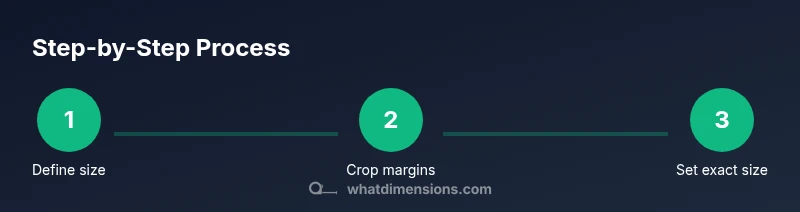
Define target page size and orientation
Decide the final dimensions (for example, Letter or A4) and whether orientation should be portrait or landscape. This upfront choice guides the rest of the workflow and prevents unnecessary edits later.
Tip: Use a standard size to simplify printing and sharing - 2
Open the PDF in your editor
Launch your chosen editor and open the original PDF. Make sure you are editing a duplicate rather than the original to avoid data loss.
Tip: Always work on a copy first - 3
Crop margins to remove unused space
Select the crop tool, draw a safe rectangle around the content, and apply to the entire document or a page range. Preview to ensure no critical content is cut.
Tip: Keep a small safety margin around text and images - 4
Set the page size to the target dimension
Use the Set Page Boxes or Change Page Size option to apply the exact target size to all pages. Confirm uniform dimensions across the document.
Tip: Choose 'Apply to all pages' for consistency - 5
Review content layout after resizing
Check that text lines, tables, and images align properly. If needed, adjust margins or reflow tricky sections, especially near edges.
Tip: Look for content that shifted toward the margins - 6
Save as a new PDF version
Export or Save As a clearly named file that indicates the new dimensions. Avoid overwriting the original until you verify the result.
Tip: Include the target size in the filename - 7
Verify results across devices and print
Open the new file on different devices and run a print preview to confirm the dimensions hold and printing looks correct.
Tip: Test on a printer and on a tablet or monitor - 8
Batch process additional PDFs if needed
If you have many files, apply the same settings via batch processing. Save presets to speed up future work.
Tip: Document your steps for repeatable results
Quick Answers
Can I reduce PDF dimensions without cropping content?
Yes. You can resize the canvas or crop margins while preserving critical content. Some elements may shift, so preview and adjust as needed.
Yes. You can resize the canvas or crop margins while keeping important content intact; always preview.
Crop vs resize: what's better for consistency?
Crop is safer for preserving content near edges; resize ensures uniform page sizes across the document but may require layout tweaks.
Crop is safer near edges; resize keeps uniform sizes but may need layout tweaks.
Will reducing dimensions affect print quality?
It can if resolution or downsampling isn’t handled carefully. Aim for high-res sources and test prints to ensure legibility.
Yes, it can affect print quality if you downsample or crop aggressively; test before distributing.
Can I batch process multiple PDFs at once?
Yes. Many tools support batch cropping and resizing. Create a consistent preset to apply to all files.
Yes, batch processing is possible with a preset to ensure consistency.
What page sizes should I target for common tasks?
Common targets include Letter and A4. Choose the closest match to minimize distortion and adjust margins as needed.
Target common sizes like Letter or A4 and adjust margins accordingly.
Is resizing reversible after saving?
If you kept the original copy, you can revert. Always save edits as a new file before replacing the original.
Yes, if you kept a copy and saved edits as a new file.
Watch Video
Main Points
- Define a target size before editing
- Crop margins safely to avoid content loss
- Test readability after resizing
- Use batch processing for many PDFs
- Preserve original backups for reversibility