Which Size for YouTube Video: A Practical Guide
Learn the best YouTube video sizes, when to pick 720p, 1080p, or 4K, and how to export for reliable playback across devices. What Dimensions analyzes current trends for 2026 to help you choose the right export size.


1920x1080 (1080p) with a 16:9 aspect ratio is the primary YouTube video size you should aim for. For faster uploads or limited bandwidth, 1280x720 (720p) is acceptable, while 3840x2160 (4K) offers top-tier detail on large screens. YouTube re-encodes uploads, so exporting at these standard sizes helps preserve quality across devices and keeps your visuals sharp on all platforms.
Why YouTube video size matters
If you’re evaluating which size for youtube video, the answer affects how your content is compressed, streamed, and displayed across a wide array of devices—from smartphones to desktops to living-room screens. The size you export determines how efficiently YouTube can transcode your file and how well it scales when viewed by viewers with varying bandwidth. According to What Dimensions, starting with a standard resolution helps prevent excessive compression artifacts and dynamic range losses when YouTube re-encodes the clip. A consistent, widely supported size also reduces the risk of pillarboxing or letterboxing on different platforms, ensuring your composition remains intact on mobile apps and smart TVs.
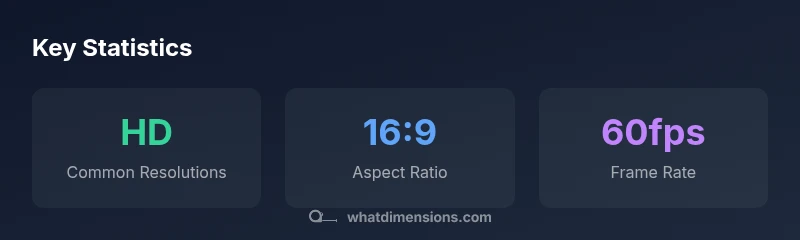
For most channels, sticking to common presets makes production and distribution smoother. You’ll avoid surprises on smaller screens while preserving the overall aesthetic on larger displays. If your audience tends to watch on mobile, consider testing vertical formats for Shorts while keeping a 16:9 master for longer videos. What Dimensions’ analysis shows a clear preference for HD in everyday viewing, with 4K gradually gaining traction as bandwidth and devices improve.
Recommended sizes and when to use them
Choosing the right export size starts with your goals and audience. For a broad, evergreen library, export at 1080p (1920x1080) with a 16:9 aspect ratio to maximize compatibility across devices and platforms. If you need quick turnaround or have limited upload bandwidth, 720p (1280x720) remains a reasonable baseline that still delivers a clear image on most screens. If you’re producing content for high-end displays or a video-centric channel, 4K (3840x2160) can future-proof your uploads, especially for professional portfolios, cinematic vlogs, or tutorial series where fine detail matters. YouTube’s encoding process will downscale to various resolutions for viewers, but starting with a high-quality source minimizes the loss of detail during transcoding.
In addition to resolution, align your export with the intended aspect ratio. The default is 16:9 for standard videos, while Shorts use a 9:16 format. If you shoot 16:9 content but want to leverage Shorts, you can crop or reframe in post, but be mindful of important visual elements that might be cropped in the vertical frame. Maintaining consistency in aspect across your library helps with branding and viewer expectations.
Aspect ratios and framing: 16:9 vs 9:16
The aspect ratio determines how your image is framed on the viewer’s screen and how YouTube crops or letterboxes the video during playback. The 16:9 standard has long been the default for most YouTube content, ensuring wide-screen composition that feels natural on computer monitors and TVs. For Shorts, the platform emphasizes vertical video, typically 9:16, which fills the screen on mobile devices. When planning, consider a “safe action” area within the frame so that essential elements remain visible when viewers crop or rotate devices. If your primary audience consumes content on phones, you may prioritize 9:16 for new uploads while keeping a horizontal master to repurpose content for longer-form uploads. Your video’s headline and key visuals should remain legible and balanced within the chosen frame, reducing the risk of important details being cropped or lost in display.
Frame rate, color, and encoding basics
Frame rate and color settings influence fluidity and realism. A common target is 24, 30, or 60 frames per second (fps), with 30 fps suitable for conversational videos and 60 fps preferred for fast-paced scenes or gaming content. When exporting, aim for a color space appropriate to your source footage—Rec. 709 is standard for HD content, while 10-bit color can improve gradations in high-sample footage, though many viewers won’t notice a difference on lower-end displays. For most creators, exporting at 8-bit or 10-bit within an MP4 container preserves compatibility while providing ample color information for the compression pipeline. Remember that YouTube re-encodes uploads, so choose a robust bitrate target that preserves detail without creating excessive file sizes. In practice, export at a bitrate that keeps file size reasonable while maintaining the sharpness of textures and fine lines in your shots.
Practical export presets for popular editors
Export settings can vary by editor, but the general workflow remains consistent. For Premiere Pro or After Effects:
- Create a 1080p sequence with a 16:9 frame, then add your edits.
- Export using MP4 format with H.264, target a bitrate of approximately 10 Mbps for 1080p content (adjust upward for 4K).
- Use audio at least 192 kbps AAC for clean sound.
For Final Cut Pro:
- Create a 1920x1080 project, ensure a 16:9 canvas, and use the Share -> Master File with an MP4/H.264 export preset.
- Increase bitrate slightly for 1080p if your footage contains a lot of detail.
For DaVinci Resolve:
- Deliver in a single MP4 container with H.264 and a reasonable bitrate; verify color management matches your source.
In all cases, keep your source project clean (no heavy compression during editing) and export a high-quality master file before creating smaller renditions for YouTube.
Upload, encoding, and why YouTube re-encodes
YouTube re-encodes every video to serve a broad audience with varying bandwidth. This re-encoding is why starting with a clean, standard size matters. If you export with inconsistent metadata, variable frame rates, or nonstandard color spaces, you may see undesirable artifacts after processing. To minimize quality loss, export with consistent frame rate (30 or 60 fps) and a stable color space. The MP4 container with H.264 is widely supported and ensures broad compatibility across devices, browsers, and apps. If you’re targeting niche audiences with high-end playback devices, you can experiment with HEVC (H.265) in some cases; however, compatibility can be inconsistent, and some browsers may not support it natively. Always test a short sample upload to confirm there are no surprises in YouTube’s processing pipeline.
Validating size after upload and quality checks
After uploading, verify the final appearance by checking the video in multiple devices and network conditions. YouTube Studio's built-in analytics, along with the
Stats for Nerds
show the actual resolution delivered to viewers. If you notice downscaling or scaling artifacts, consider re-exporting with a higher bitrate or re-capturing at a higher resolution to preserve detail when YouTube re-encodes. It’s also worth testing a 4K export if your channel consistently uses upscale content or produces cinematic pieces. The key is to confirm the video’s visual clarity remains strong across screens and bandwidths.
Common mistakes and how to fix them
Common mistakes include exporting at a nonstandard size (e.g., 3:2 instead of 16:9), neglecting to set the 16:9 frame in the export, cropping important elements when resizing for Shorts, and over-encoding with excessive bitrate that bloats file size without perceptible gains in quality. To fix: standardize your master to 16:9 and export a separate 9:16 version for Shorts; test on a range of devices; and keep bitrate within practical limits to balance quality and performance. Regularly review your uploads and adjust presets based on audience feedback and device trends.
Future-proofing your video size strategy
Invest in scalable exports that accommodate both current and emerging devices. Start with a high-quality master at 4K when feasible, then generate 1080p and 720p renditions for broader accessibility. Maintain consistent naming conventions and metadata across versions to simplify distribution and repurposing. As devices evolve, the ability to adapt to new resolutions and aspect ratios without re-editing is valuable. What Dimensions recommends maintaining a flexible export workflow that can be updated as new YouTube playback norms emerge and audience viewing habits shift.
Common YouTube export sizes and their use cases
| Size category | Resolution | Best use |
|---|---|---|
| HD (720p) | 1280x720 | Lightweight uploads, fast processing |
| Full HD (1080p) | 1920x1080 | Everyday content, wide compatibility |
| QHD (1440p) | 2560x1440 | High-detail displays, higher bitrate |
| 4K (2160p) | 3840x2160 | Highest detail, large displays |
Quick Answers
What is the recommended export resolution for YouTube?
For most channels, export at 1080p (1920x1080) in a 16:9 aspect ratio. Use 720p if you need smaller file sizes or bandwidth, and reserve 4K for audiences with high bandwidth.
Export at 1080p by default; 4K if your audience has fast internet.
Can I upload 4K videos to YouTube?
Yes. YouTube supports 4K uploads; ensure your export settings preserve 4K quality and that your file size is practical for upload time.
Yes, you can upload 4K, but be mindful of file size.
Should I export in MP4 or MOV?
MP4 with H.264 is the most compatible choice for YouTube; MOV can work but tends to produce larger files and less universal compatibility.
MP4 is the best default for YouTube.
What about vertical video for Shorts?
For Shorts, export at 9:16 (vertical) to fill the frame; verticals perform best.
Use 9:16 for Shorts.
How can I verify the size after uploading?
Check YouTube Studio's 'Stats for Nerds' or the video details page to confirm the final resolution visible to viewers.
Use Stats for Nerds to confirm resolution.
“The right video size isn't a luxury—it's essential for consistent quality across devices. Start with standard HD and test 4K only if your audience can access high bandwidth.”
Main Points
- Export at 1080p (1920x1080) as the default for broad compatibility
- Use 4K (3840x2160) for high-detail content when your audience has bandwidth
- Prefer 16:9 for standard videos and 9:16 for Shorts
- Export as MP4 with H.264 for maximum compatibility
- Test uploads across devices to confirm visual integrity