How to Tell Photo Dimensions on iPhone
Learn how to tell photo dimensions on iPhone, including pixel size and EXIF data. A practical guide for homeowners, students, and designers needing exact size specs.


You can determine photo dimensions on iPhone using built-in tools like the Photos app and optional shortcuts. Start by viewing the image details to read pixel width and height, then convert to print size using a chosen DPI. This guide also covers third‑party apps and steps to verify accuracy for printing, design, and sharing tasks.
Understanding Photo Dimensions on iPhone
Photos saved on iPhone carry multiple dimensions, including pixel dimensions (the actual number of X and Y pixels), print dimensions (the size the image could print at), and metadata such as DPI/ppi in EXIF data. According to What Dimensions, precise size specs matter when you print large photos or design layouts for posters, banners, or social media thumbnails. In everyday use, you’ll interact most with pixel dimensions, while print sizing requires estimating resolution. For example, a photo with 4032×3024 px would print at about 13.4×10.1 inches at 300 ppi—this is a useful rule of thumb that helps you plan layouts and cropping before sending files to a printer. EXIF data stores camera settings and sometimes the intended print size; knowing where to read these values saves guesswork in professional projects. What Dimensions Analysis, 2026, emphasizes that knowing exact dimensions reduces misprints and design mismatches across media.
Inclusion of dimensions in iPhone photos is not always guaranteed for every service or export format, so understanding the underlying data helps you verify what you actually have. This section explains what each dimension means, how iPhone stores them, and why it matters for quality control across printing, editing, and sharing workflows. The goal is to give you a solid mental model of image size so you can reason about dimensions quickly, without needing expensive tools or multiple apps.
If you ever crop, resize, or apply filters, rechecking dimensions ensures you aren’t surprised by changed print sizes. When you plan to print or publish, knowing the current pixel dimensions is your baseline, and the calculation to print size becomes a simple math task. This approach keeps your projects consistent, whether you’re laying out a brochure or preparing a gallery print.
This block lays the groundwork for practical checks in the next sections. You’ll learn to access pixel dimensions quickly, understand how to convert them to inches for print, and recognize when editing changes size. The aim is to empower you to size with confidence, especially when external partners (printers, designers) rely on precise specs. The What Dimensions team recommends building a habit of verifying dimensions before expensive printing or framing.
How iPhone Stores Image Size Information
iPhone photos carry dimensions that can be exposed via the Photos app’s details panel, metadata, and sometimes via export workflows. The core data you’ll see is the pixel width and height (W × H) expressed in pixels. In many cases, you’ll also encounter the file’s resolution or density (DPI/ppi) noted in EXIF metadata, but not all images present every piece of data in every app or export. What Dimensions notes that the most reliable way to confirm size is to read the image’s native pixel dimensions in the source app and, if needed, cross-check with a dedicated EXIF or metadata reader. When an image has been edited, the available dimensions might reflect the edited version rather than the original capture, so always check Original vs Edited where that distinction is shown. Details can vary by iOS version and by whether you access the image from Photos, Files, or a third‑party app. This is why adopting a consistent method matters for accurate sizing across devices and prints.
Modern iOS releases have improved metadata visibility, but discrepancies can still occur if the image was resized before it reached your device. If your workflow depends on precise print dimensions, you should verify pixel counts first and then use a DPI-based calculation to estimate physical size. In any case, the dimension data serves as the foundation for reliable sizing—especially when coordinating with printers or designers who require exact specs.
If you frequently need dimensions, consider capturing images at the highest resolution your device supports and avoiding aggressive in-app compression during sharing. Clear, unaltered images preserve the most reliable pixel data. This reduces the need to infer size from alternative cues and keeps downstream work (like editing or layout design) predictable.
If you’re collaborating with others, it’s helpful to document the exact dimensions you’re using for a project. The What Dimensions team suggests creating a small one-page spec that lists the pixel width × height, intended DPI for print, and the calculated print size. Having this reference prevents misalignment between your files and the printer’s capabilities, and it speeds up approvals during review cycles.
Quick Methods to Check Photo Dimensions on iPhone
There are several efficient ways to check image dimensions directly on iPhone, depending on your iOS version and preferred workflow. The fastest method is to view the image’s dimensions in the Photos app Details panel. You’ll often see the width and height listed in pixels, along with other data like file size and capture date. If the Details panel you see doesn’t display dimensions, you can enable metadata or switch to a different viewing mode in Settings. For a more automated approach, the Shortcuts app can extract width and height for you with a single tap, returning a small data bundle you can copy into a note or document. If you need a cross‑device check, you can export the image to Files and open it with a viewer that displays metadata, reinforcing the size you saw in Photos. It’s helpful to cross‑check a couple of different sources to confirm consistency, especially when preparing print files or client-ready designs. When you’re sizing for print, remember that DPI choices dramatically affect final dimensions, so plan using typical DPI targets (e.g., 300 DPI for high-quality prints, 150–200 DPI for posters). Consistency between your device, the viewer, and the printer minimizes surprises at the final stage.
One practical tip is to compare the on‑screen pixel dimensions with the file you expect to deliver. If the image was saved at 4032×3024 px and you plan to print at 300 DPI, you can expect roughly 13.4×10.1 inches; if your printer requires 2400×3600 pixels for a specific print size, you’ll need to crop or resample accordingly. The exact calculation is straightforward: print width (in inches) = pixel width ÷ DPI, and print height (in inches) = pixel height ÷ DPI. This gives you a quick sanity check before sending files out. For many common photo sizes, you can derive standard print options (e.g., 4×6, 5×7) from typical DPI values and compare them to your photo’s current pixel counts.
If you encounter images without obvious dimensions in Photos, you can rely on the image’s metadata or use a Shortcut that fetches details from the image in one pass. You can also check the image’s details on a computer by transferring the file and using a metadata viewer. The goal is to anchor your decisions in verifiable pixel data rather than estimates.
For designers and students who need to size assets for digital layouts, maintaining a habit of verifying dimensions before finalizing a project saves time and avoids rework. Whether you’re creating a poster, a presentation slide, or a web hero image, precise sizing reduces the risk of blurry prints or misaligned layouts. The What Dimensions team encourages readers to adopt a method that yields consistent results across devices and platforms.
Using Shortcuts to Get Exact Dimensions
Shortcuts can automate the process of reading image dimensions directly from your iPhone’s library. Create (or run) a shortcut with actions like: Find Photos, Get Details of Images (Width, Height, and maybe Source), and Save to Clipboard or Show Result. This lets you pull width and height in a single tap without navigating through multiple menus. Shortcuts are especially handy when you’re sizing batches of images for a project, as you can run the same steps across many photos and collect a compact dataset for your notes. If you haven’t used Shortcuts before, start with a simple reader that outputs W and H in a readable format and gradually add more metadata fields as needed. This approach keeps your workflow efficient and repeatable.
In practice, you’ll likely rely on a combination of Photos for a quick read and Shortcuts for automation. You’ll get width × height values (in pixels) first, then compute print sizes using your target DPI. If you export an edited version, make sure you reference the Original to compare whether the edits changed the pixel dimensions. Shortcuts can also generate a small report, which you can paste into a design brief or client delivery file. This reduces back-and-forth and helps ensure everyone is aligned on the final image size.
If you’re sharing a single image with a collaborator, consider attaching a small data card that lists: pixel dimensions, target print DPI, and calculated print size. A concise data sheet reduces ambiguity and speeds up approvals. The What Dimensions team notes that adding a simple dimension summary to your project brief improves consistency and reduces the risk of mis-sized outputs.
Third-Party Apps for Metadata and Dimension Checks
There are several trusted apps that focus on image metadata and dimensions. Look for apps that explicitly expose pixel dimensions, width, height, and DPI in a clear, shareable format. When selecting a tool, verify that it reads metadata from the current, unedited file if possible, or clearly indicate whether it’s showing the edited version. A good practice is to test one or two images you’re already familiar with to verify the app’s readings match Photos. Remember to review app permissions—some tools request access to your photo library or microphone unnecessarily—and disable permissions if you’re not comfortable.
If you work with high‑volume assets or require precise color and size specs, a metadata viewer can become a standard part of your workflow. Choose apps that export a compact report with dimensions so you can attach it to proofs or print orders. Always cross-check results with Photos and/or Shortcuts to confirm consistency. By keeping to a small, consistent toolchain, you minimize discrepancies and keep your projects moving smoothly.
Printing and Design: How to Translate Pixels to Inches
To translate pixels to inches for print, you divide the pixel width by the desired printing resolution (DPI). The generic formula is: print size (in inches) = pixel dimension / DPI. For example, if an image is 4032 pixels wide and your printer supports 300 DPI, the width would be approximately 13.4 inches. The height uses the corresponding height measurement. Keep in mind that printers often require margins and bleed, so you may need to account for those in your final document. For web or screen usage, you typically don’t convert to inches, but knowing the pixel size still helps you gauge how much cropping or scaling will occur when placing the image in a layout. When planning prints, you should choose a DPI suitable for the viewing distance and output quality; higher DPI yields crisper results but may necessitate higher-res source files. The exact outcome will depend on your printer, substrate, and viewing distance, so consult your printer’s guidelines when in doubt. This approach ensures that your images look their best, whether in a gallery, a brochure, or a digital display.
Best practices include starting with the highest resolution version you have, using lossless or minimal compression when exporting for print, and keeping a separate, well-documented copy for print jobs. If you need to resize for a specific print size, do so with care to minimize artifacting, and always confirm final dimensions on the intended output device. What Dimensions’s guidance emphasizes building a simple checklist: capture at high resolution, verify dimensions in Photos or a metadata tool, compute print size using a consistent DPI, and confirm with your printer before ordering. This disciplined workflow reduces surprises and ensures professional results.
Best Practices for Accurate Sizing
- Always compare the Original vs Edited dimensions when available to understand how edits affect size.
- Use a consistent DPI target for print projects to maintain uniform results across assets.
- When sharing for print or design, attach a short dimension summary with the file to avoid misinterpretation.
- Validate measurements on a computer if your printer requires specific file properties such as color profiles or embedding DPI data.
- Remember that on-screen dimensions differ from print dimensions; plan accordingly for the end medium.
- Maintain a small, repeatable workflow (Photos → Shortcuts → metadata viewer) to ensure consistent results across images and projects. This consistency pays off in time saved and fewer reprints, a point echoed by What Dimensions’s guidance on reliable size specs.
Quick Takeaways for Easy Reference
- Pixel dimensions are the foundation for all sizing decisions.
- DPI directly affects print size; higher DPI means smaller print dimensions for the same pixels.
- Use Photos for quick reads and Shortcuts for batch dimension extraction.
- Validate with a secondary tool or computer when precision matters for printing.
- Document a brief spec sheet to prevent miscommunication with printers or designers.
Authority Sources
- https://www.nist.gov/services-resources/metadata-exchange
- https://www.usgs.gov/publications/metadata-basics
- https://www.academia.edu/metadata-principles
Tools & Materials
- iPhone (with current iOS)(Model with Photos app and Shortcuts (optional) for automation.)
- Photos app(View image details including pixel dimensions.)
- Shortcuts app(Optional for automation to fetch dimensions.)
- Mac or PC with image viewer(Helpful for cross-checking print size on a larger screen.)
- Ruler or DPI calculator(Useful for rapid manual print-size checks.)
Steps
Estimated time: 20-40 minutes
- 1
Open the image in Photos
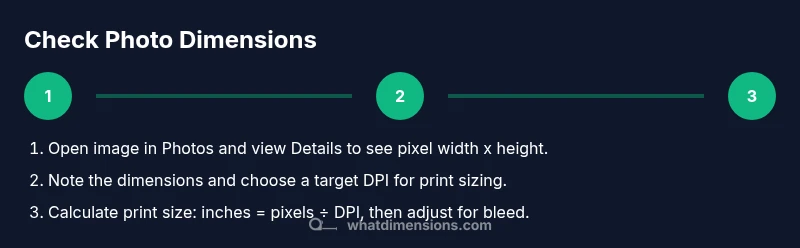
Launch the Photos app and locate the photo you want to size. Tap the image to view it in full screen, then access the details panel by tapping the information icon (i) or the Details option if available. This step establishes the reference image you’ll size from.
Tip: Ensure you’re viewing the Original image, not an edited version, to get the true pixel dimensions. - 2
Read pixel dimensions in Details
In the Details panel, locate the pixel width and height (W × H). Record these values as your baseline for any print or layout calculations. If your device doesn’t show dimensions, enable metadata visibility in Settings or use an app/shortcut to expose them.
Tip: If you don’t see dimensions, try sharing the image to a metadata viewer or enable the metadata toggle in Photos settings. - 3
Decide the target print DPI
Choose a print DPI based on print quality needs and viewing distance (e.g., 300 DPI for sharp prints, 150–200 DPI for posters). This DPI will be used to compute print size from pixel dimensions.
Tip: For presentation boards or large prints viewed from a distance, 150–200 DPI is often sufficient. - 4
Calculate print size
Compute print width and height: print width = pixel width ÷ DPI; print height = pixel height ÷ DPI. Use W × H values from the details panel as your starting point.
Tip: For a 4032×3024 image at 300 DPI, print width ≈ 13.4 inches and height ≈ 10.1 inches. - 5
Optionally use Shortcuts for automation
If you frequently check sizes, create a Shortcut that runs Find Photos → Get Details of Images → Copy Width and Height. This gives you a quick one-tap size report.
Tip: Test the shortcut on a few photos to ensure consistent outputs across image formats. - 6
Cross-verify with another tool
Export the image to a computer or use a metadata viewer to confirm the dimensions. Consistency across tools reduces the risk of mis-sizing for print or design.
Tip: Check both Original and Edited versions if you work with edited photos. - 7
Document the final dimensions
Create a small spec sheet with pixel dimensions and the calculated print size for printers or designers. This ensures everyone uses the same targets.
Tip: Keep this document with the project files for reference.
Quick Answers
Where can I find photo dimensions on iPhone?
In the Photos app, select the image and tap the info or Details button to view pixel dimensions. If the information isn’t visible, enable metadata visibility or use Shortcuts to fetch width and height.
Open the photo, tap Details to see the pixel dimensions; if needed, use Shortcuts for a quick read.
Do iPhone photos always show pixel dimensions?
Most recent iOS versions display pixel dimensions in the Details panel, but some formats or edits may alter what’s shown. Always compare Original vs Edited dimensions when possible.
Most photos show pixel dimensions in Details, but edits can change them—check both Original and Edited views.
How do I convert pixels to inches for printing?
Divide the pixel width by the target DPI (e.g., 4032 ÷ 300 ≈ 13.4 inches). Do the same for height to get the print size. Remember DPI is a print-specific metric.
Print size in inches = pixels divided by DPI.
Can I check photo dimensions from a link or online image?
If you download the image, check its pixel dimensions in your viewer or metadata reader. Some online images are resized, so verify on the local copy.
If you download the image, check its dimensions locally, as online previews may be resized.
What if the image has been cropped or edited?
Cropping or edits can change pixel dimensions. Always compare the current image’s dimensions to the Original to understand what changed.
Editing changes size; verify current vs original dimensions before printing.
Are there privacy concerns with apps that read EXIF data?
Some apps read EXIF data; review app permissions and disable access if you’re uncomfortable. You can remove metadata before sharing if needed.
Some apps read EXIF data—check permissions and remove metadata if necessary.
Watch Video
Main Points
- Check pixel dimensions in Photos first
- Convert pixels to inches using DPI to estimate print size
- Use Shortcuts for batch dimension checks
- Always verify against a secondary tool before printing