How to Fit Size in Instagram Posts: A Precise Guide
Learn pixel-perfect sizing for Instagram posts across feed, stories, and carousels. This guide from What Dimensions covers aspect ratios, safe zones, and export best practices to ensure your visuals look sharp on all devices.


By following this guide you will learn how to fit size in instagram post with pixel-perfect dimensions for feed, stories, and carousels. Accurate sizing prevents cropping, preserves important details, and improves engagement. What Dimensions analysis shows that consistent sizing supports clean branding across all formats. This page also highlights practical steps and common pitfalls.
Why Precision Matters for Instagram Sizing
When you’re posting to Instagram, size isn’t just about looking neat—it affects how your content is displayed, cropped, and even how quickly your audience engages. If you’re wondering how to fit size in instagram post, you’ll benefit from consistent, tested dimensions that preserve essential details across feeds and devices. According to What Dimensions, precise sizing reduces unexpected cropping and minimizes real-time compression that can blur text and fine details. This section explains why correct sizing matters and how it impacts reach and readability on high-contrast mobile screens. By starting with the right canvas, you build a foundation for top-quality visuals that maintain brand integrity, whether you’re a homeowner sharing room decor or a designer presenting a concept board.
Instagram Size Standards by Format
Instagram supports several primary post formats, each with preferred dimensions and aspect ratios. For most feed posts, aim for a width of 1080 pixels. The height varies by ratio: square (1:1), portrait (4:5), and landscape (1.91:1) are common choices. Stories and Reels require a tall 9:16 frame at 1080x1920. Carousel posts let you mix formats but keep each slide within a compatible ratio and ensure your most important content lives in the center. Keeping these standards in mind helps you avoid last‑minute cropping and ensures your message reads clearly on mobile devices. What Dimensions’ analysis shows that alignment across formats supports stronger visual consistency and easier cross-posting.
Calculating Pixel-Perfect Sizes for Instagram Posts
The core principle is to fix the width at 1080 pixels and adjust height according to the chosen aspect ratio. For a 1:1 square post, set height to 1080 pixels. For a 4:5 portrait, use 1080x1350. For a 1.91:1 landscape, use 1080x562 (rounded to the nearest whole pixel). If you’re creating a multi-slide carousel, maintain the same width for all slides and match height to the slide format. Verify color profiles are sRGB, export at high quality, and avoid upscaling from low-resolution sources. By computing sizes in advance, you minimize post-production edits and cropping surprises on publication day.
Aspect Ratios and Safe Zones Across Devices
Aspect ratios are how tall an image appears relative to its width. A 1:1 square displays identically on most devices, while 4:5 renders taller on mobile feeds, leaving extra whitespace on some screens. The safe zone is the region where important text and faces stay within the center portion of the frame to avoid edge cropping on different displays. For stories, ensure key elements are centered so overlays and UI elements don’t obscure them. Testing on multiple devices confirms whether the content remains legible and on-brand.
How to Optimize Post Performance with Correct Sizes
Posts sized correctly load quickly and appear sharp, improving user experience and engagement. When you use consistent sizes, your grid looks neat, encouraging followers to browse more slides. Use high-resolution sources but balance with compression to keep file sizes reasonable. If you’re using text overlays or small fonts, increase contrast and ensure accessibility. Finally, maintain a consistent style and palette so your audience recognizes your content at a glance.
Common Pitfalls and Quick Fixes
Common mistakes include ignoring the safe area, relying on automatic cropping, and uploading non-standard aspect ratios. Quick fixes: keep critical content away from edges, test thumbnails, and use platform presets or templates. If your image is too tall, crop to 4:5 before posting. For video, ensure the key message appears within the first seconds and that subtitles are easy to read. Regularly audit past posts to spot drift in sizing and update templates.
Accessibility and Brand Consistency
Accessibility matters on social media. Use high-contrast text, legible fonts, and descriptive captions. Maintain brand consistency by using the same typography, color palette, and logo placement across posts. Provide alt text for accessibility; Instagram supports alt text to describe images to screen readers. Consistency with your brand helps you project a professional, trustworthy presence and makes your posts easier to recognize at a glance.
Quick-Launch Checklist for Your Next Post
Before you publish, run through this checklist: confirm the canvas width is 1080 px, verify the ratio, check the safe zone, preview on mobile, export in a web-friendly format, and write a caption with alt text. A quick test post can prevent surprises during peak engagement times. Following these steps reduces last-minute edits and supports a strong, cohesive feed.
Tools & Materials
- Graphic design software (e.g., Canva, Photoshop, or Figma)(Set the canvas width to 1080 px and adjust height per format (1:1, 4:5, 1.91:1).)
- High-resolution source images or assets(Use sources at least 300 DPI for quality; export in sRGB.)
- Color profile reference (sRGB)(Exported graphics should use sRGB to preserve color accuracy on Instagram.)
- Device or browser for cross-device testing(Test how your post looks on mobile and desktop.)
- Export presets/templates(Templates speed up consistent sizing across posts.)
Steps
Estimated time: 15-25 minutes
- 1
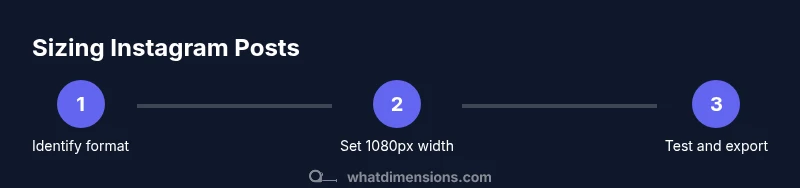
Identify the post format
Choose whether you’re creating a square, portrait, landscape, or story. This decision determines the target aspect ratio and height. Knowing this upfront avoids later resizing and cropping work.
Tip: Decide the format before you start designing to prevent unnecessary edits. - 2
Set the canvas to 1080 px width and apply the chosen height
Create a canvas with a width of 1080 pixels. Apply the height according to the selected ratio (e.g., 1080x1080 for square, 1080x1350 for portrait, 1080x562 for landscape).
Tip: Keep important content within the central area to avoid edge cropping. - 3
Place content within the safe area
Position text and key visuals away from the edges. For stories, check how overlays may cover sides and adjust accordingly.
Tip: Use guides or margins to maintain consistent safe zones across slides. - 4
Export and test across devices
Export to a web-friendly format (JPEG/PNG) in the sRGB color space. Preview on mobile to confirm no unintended crops or blur.
Tip: Share a draft post to a private account for quick checks before publishing.
Quick Answers
What is the recommended image size for Instagram posts?
The standard width is 1080 pixels. Height varies by aspect ratio (1:1, 4:5, 1.91:1). Keep critical content centered to avoid cropping on different devices.
Use 1080 pixels in width for feed posts, with height matching your chosen aspect ratio.
Can I upload higher resolution images and still avoid compression?
You can upload higher resolution files, but Instagram will compress to its display width. Design at 1080px width for best results and avoid upscaling from low-resolution sources.
Yes, but Instagram will compress; designing at 1080 px width gives the best balance of quality and size.
Which aspect ratios are supported in feed posts?
Feed posts support 1:1 (square), 4:5 (portrait), and 1.91:1 (landscape). Maintain the same width across slides in carousels.
Feed supports 1:1, 4:5, and 1.91:1 aspect ratios.
How do I ensure text isn’t cropped in a portrait post?
Place essential text and faces within the center area, away from the edges. Preview on mobile to confirm legibility.
Keep important text centered and test on mobile to avoid cropping.
Are there size differences between feed and stories?
Yes. Stories use a 9:16 frame (1080x1920); feed posts use 1:1, 4:5, or 1.91:1. Carousels must keep consistent slide sizes.
Stories are 9:16; feed posts use 1:1 or similar, with consistent slide sizes in carousels.
Is it okay to use non-standard sizes for experimental campaigns?
Non-standard sizes can crop differently across feeds. Use them sparingly and preview on multiple devices to avoid surprises.
Non-standard sizes crop differently; test before you publish.
Watch Video
Main Points
- Start with a 1080 px canvas width for consistency
- Choose the correct aspect ratio for each format
- Keep important elements within the safe zone
- Test across devices before posting