Pixel Dimensions Calculator: Convert Inches to Pixels
Learn how to convert physical sizes into pixel dimensions using a dimensions calculator pixels. Understand DPI concepts, aspect ratios, and best practices for print and digital work.


What the dimensions calculator pixels actually does and why it matters
In design workflows, translating physical measurements to digital pixel dimensions is essential. A dedicated calculator makes this conversion precise by applying the chosen DPI (dots per inch) to width and height. This keeps print quality aligned with screen expectations and helps you scale assets for posters, banners, websites, or apps. According to What Dimensions, many teams underestimate required pixel counts when moving from print drafts to digital delivery, which can lead to blurry outcomes or wasted assets. By understanding the core idea behind the calculator, you gain a reliable framework for planning every stage of a project.
The role of DPI and PPI in pixel planning
DPI (dots per inch) is a printer-centric concept, while PPI (pixels per inch) relates to digital displays. When you feed a width and height in inches into a calculator with a given DPI, you obtain the corresponding pixel width and height. The relationship is linear: pixels = inches × DPI. The higher the DPI, the more pixels are produced, which increases file size and potential image clarity. What Dimensions emphasizes that consistency across outputs is key—use the same DPI for print proofs and final digital assets to avoid surprises.
A practical walk-through with a simple example
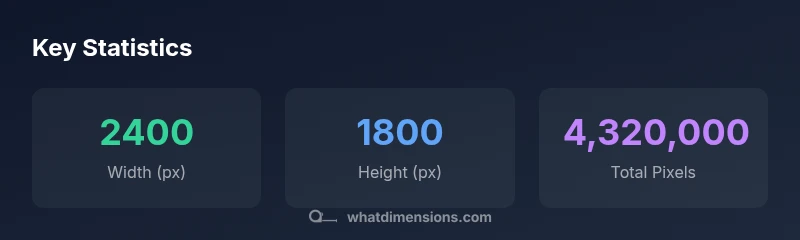
Imagine you need an image 8 inches wide and 6 inches tall for a print banner at 300 DPI. The width in pixels is 8 × 300 = 2400, and the height in pixels is 6 × 300 = 1800. The total pixel count would be 2400 × 1800 = 4,320,000 pixels. This example demonstrates why a pixel-dimensions calculator is useful: it quickly translates physical measurements into a precise digital footprint, helping you pick the right canvas size and resolution before exporting files.
Using the calculator in your design workflow
Begin by entering the physical width and height in inches, and select a DPI that matches your output target (print or digital). The calculator outputs a total pixel count, which you can compare against your desired asset specs. Designers should note that for print work, printers often require a minimum DPI (commonly 300), while web and apps typically settle for lower DPI values but larger pixel dimensions. This tool supports quick scenario testing without trial-and-error exports.
Practical data considerations: aspect ratio, file types, and color space
Pixel dimensions alone don’t guarantee quality. Preserve the original aspect ratio when resizing to avoid distortion. If you change one dimension, adjust the other proportionally. For print, choose lossless file types like TIFF or PNG for sharpness, and for web, JPEG can save space at acceptable quality. Color space matters too: CMYK is standard for many printers, while RGB is typical for screens. Always verify color output in your final file.
Common pitfalls and how to avoid them
One frequent mistake is resizing based solely on pixel dimensions without considering the physical size or viewing distance. Upsampling can create soft edges and visible artifacts. Another pitfall is assuming a single DPI fits all devices—screens vary widely, so plan assets at multiple target DPIs when necessary. Finally, neglecting to lock aspect ratio during edits leads to stretched images; keep aspect ratio locked or use proportional scaling.
Advanced tips: print vs digital, scaling for different use-cases, and performance considerations
For print, stress the importance of 300 DPI or higher, especially for large banners viewed up close. For digital, focus on pixel dimensions aligned with the target canvas size and device pixel ratio (DPR) where applicable. When distributing assets across platforms, build versions at several DPIs to optimize file size and loading times. Remember that raster images lose quality when scaled beyond native dimensions, so start with a higher resolution when possible.
Choosing the right tool for consistent results across projects
A reliable dimensions calculator pixels helps standardize how you translate physical sizes into digital specs. Look for tools that offer clear input validation, units support (inches, cm), and explicit outputs in pixels. Consistency across projects improves collaboration and reduces back-and-forth with printers and developers. The What Dimensions team recommends selecting a calculator that integrates with your design software and fits your typical workflow.