Dimensions of a Photo: How to Size for Print and Web
Discover how to size photos for print and online use. This guide covers physical dimensions, pixel dimensions, DPI, aspect ratios, upscaling, and practical workflows from What Dimensions.


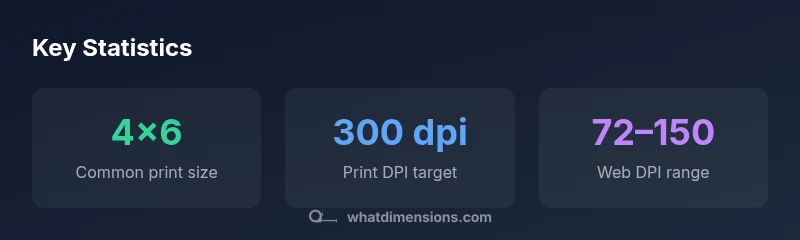
Photos have two main dimensions: physical size (inches or centimeters on the print) and digital dimensions (width × height in pixels). For printing, aim 300 dpi; common sizes include 4×6, 5×7, and 8×10 inches. For online use, target 72–150 ppi depending on display and compression.
Why dimensions matter in photography
Understanding the dimensions of a photo is fundamental to how it will be perceived in the final medium. The What Dimensions team emphasizes that you must consider both physical dimensions (the print size) and digital dimensions (the pixel grid) to ensure your image remains sharp, correctly framed, and true to intent across outputs. When you plan a project—whether a wall gallery, a family album, or a social post—defining target dimensions at the outset guides compression, color management, and cropping decisions. This dual-dimension mindset minimizes surprises during printing or display and helps you communicate expectations with clients, printers, and designers. The broader takeaway is simple: dimensions shape composition, clarity, and impact, so size with purpose from the start.
Physical dimensions: prints and frame sizing
Physical dimensions refer to the actual size of the final print or artwork. Common consumer print sizes are 4×6, 5×7, and 8×10 inches, with metric equivalents such as 10×15 cm and 20×25 cm. When selecting a frame or mat, always account for a border around the image. If you know the frame size, you can calculate the safe printable area by subtracting mat width on all sides. For wall displays, consider large-format options like 11×14, 16×20, or even bigger, keeping in mind viewing distance. Maintaining consistent aspect ratios helps preserve subject balance and avoids awkward cropping during presentation.
Digital dimensions: pixels, aspect ratios, and resolution
Digital dimensions describe how many pixels an image contains: width × height in px. Common aspect ratios include 3:2, 4:3, and 16:9, each affecting composition and cropping behavior on different devices. For online use, targeting 72–150 ppi depends on the display medium and compression; however, pixel dimensions are the primary driver of image quality on screens. For print-ready digital files, plan for higher pixel counts, then translate to print size via DPI. A 6000×4000 px image offers flexibility across several print sizes while retaining detail when downscaled. The science here is straightforward: pixels define detail, aspect ratio preserves composition, and resolution governs perceived sharpness across media.
Calculating target dimensions for your project
To size for a given output, start with the desired print size in inches and multiply by the target DPI (pixels per inch). Pixel dimensions = print width (inches) × DPI and pixel height = print height (inches) × DPI. For example, printing at 8×10 inches at 300 DPI requires 2400×3000 pixels. If you must fit within a fixed pixel file (e.g., 4000×2667), divide to determine maximum print size at 300 DPI. Aspect ratio protection is crucial when cropping: lock the ratio before resizing to avoid distortions. This calculation method keeps your workflow predictable and scalable.
Upsampling, downsampling, and quality considerations
Upsampling a photo (increasing pixel count) often degrades detail unless you use advanced algorithms. When scaling, prefer downsampling to reduce artifacts rather than upscaling beyond the original resolution. If upsampling is unavoidable, document the expected print size and reassure stakeholders about possible softness in fine details. When preparing images for web, apply appropriate compression and a suitable quality setting to balance file size and perceptual sharpness. Always preview on target devices or print proofs to validate the final appearance.
Practical workflows for photographers and designers
A repeatable workflow helps maintain consistent dimensions: 1) define output intent (print, web, social, gallery); 2) choose target aspect ratio; 3) calculate required pixel dimensions; 4) crop or resize in a non-destructive workflow; 5) convert color profiles (sRGB for web, Adobe RGB or P3 for print) and manage soft-proofing; 6) save assets with clear naming conventions. Using layers and non-destructive edits preserves flexibility for future outputs and helps teams align on the final look.
Common outputs and recommended sizes
Different outputs demand different dimension strategies. For web, 1920×1080 or 2560×1440 px are common starting points for HD and QHD displays. For social media, consider platform-specific formats (e.g., square 1080×1080 for Instagram, vertical 1080×1920 for stories). For prints, 4×6, 5×7, and 8×10 inches are standard, while larger formats like 11×14 or 16×20 offer bold wall presence. Always document the intended medium and maintain a consistent aspect ratio across related assets.
Illustrative mapping of digital dimensions to print expectations
| Output Type | Recommended Pixel Dimensions | Recommended Print Size / DPI |
|---|---|---|
| Web and Social | 1920x1080 to 2560x1440 | 72–150 ppi; adjust per platform |
| Print Photo | 3000x2000 or higher | 4x6 inches @ 300 dpi; 8x10 inches @ 300 dpi |
| Large Format | 6000x4000+ | 13x19 inches or larger @ 300 dpi |
Quick Answers
What is the difference between DPI and PPI?
DPI (dots per inch) relates to print resolution, while PPI (pixels per inch) refers to digital image resolution on screens. In practice, you convert desired print size by multiplying inches by the print DPI to determine the necessary pixel dimensions.
DPI is for prints; PPI is for screens. Use DPI to size for prints and PPI to size for displays.
How do I convert inches to pixels?
Pixels = inches × DPI. For example, to print 6 inches wide at 300 DPI, you need 1800 pixels in width. If you have a fixed pixel width, you can calculate the maximum print size by dividing by the DPI.
Multiply inches by the DPI to get pixels; if you know pixels, divide by DPI to get inches.
What aspect ratios are common for photos?
Common photo aspect ratios include 3:2 (typical for DSLR), 4:3 (classic for many point-and-shoots), and 16:9 (widescreen). Choosing an aspect ratio early helps you crop consistently across outputs without surprises.
Most photos use 3:2, 4:3, or 16:9. Pick one and crop consistently.
Why should I preserve the original image dimensions?
Preserving the original dimensions gives you flexibility for future outputs, non-destructive editing, and better control when resizing for different outputs. It also protects against irreversible cropping that could compromise composition.
Keep the original as your baseline so you can resize later without losing flexibility.
Can you upsample photos without quality loss?
Upsampling can introduce blur and artifacts. If you must upscale, use high-quality interpolation and test proofs; otherwise, crop or work from a higher-resolution original.
Upsampling can hurt sharpness; crop or start from a bigger file if possible.
Is there a universal standard for photo sizes?
There is no single universal standard. The best practice is to define your output, maintain consistent aspect ratios, and choose widely supported sizes for each medium (print, web, or gallery).
There isn’t one standard size for everything; tailor sizes to your output.
“Understanding both physical and digital dimensions empowers you to print, display, and share photos with confidence. It’s the core of precise sizing from screens to walls.”
Main Points
- Define the final output first to drive sizing
- Understand both physical and digital dimensions
- Use DPI to translate print sizes into pixel counts
- Preserve aspect ratio to avoid unwanted crops
- Avoid aggressive upscaling; crop strategically instead