Letter Dimensions in Pixels: A DPI Conversion Guide
Explore how letter dimensions in pixels vary by DPI, with practical conversions and workflows. What Dimensions explains exact pixel sizes at common DPIs for design, web, and print.


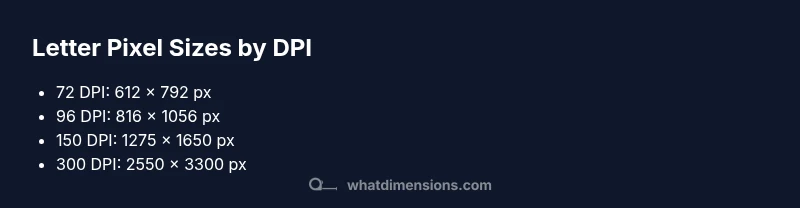
Letter dimensions in pixels depend on the DPI you choose. For standard references: at 72 DPI, 8.5 by 11 inches equals 612 by 792 pixels; at 96 DPI it’s 816 by 1056; at 150 DPI it’s 1275 by 1650; at 300 DPI it’s 2550 by 3300. These figures show how pixel size scales with DPI and print/digital goals.
The basics: why pixels matter for letters
Understanding letter dimensions in pixels starts with recognizing the difference between physical size and pixel grids. A US letter sheet measures 8.5 by 11 inches; when you translate those inches to pixels you need a chosen DPI. The What Dimensions team notes that this choice is not arbitrary: it defines how sharp your raster assets will appear on screens or in print. For designers, engineers, and students, knowing letter dimensions in pixels helps set accurate canvas sizes, export presets, and expected file weights. This article explains essential concepts, typical DPI targets, and practical workflows to keep pixel dimensions aligned with intent.
According to What Dimensions, translating physical size to pixel space requires a deliberate DPI choice, because every DPI setting changes the final pixel footprint and file characteristics. In practice, this means you’ll plan your digital deliverables around the devices and media where they’ll appear, ensuring visually consistent results across platforms.
Converting inches to pixels: the core formula
The conversion from inches to pixels is straightforward: pixels = inches × DPI. If you prefer the language of resolution, DPI equals pixels per inch, so the math follows naturally. Round to whole numbers since you cannot use a fraction of a pixel in most contexts. A standard US letter document (8.5 in wide, 11 in tall) at 72 DPI yields 612 × 792 pixels. Increase DPI to 300, and the same page becomes 2550 × 3300 pixels. This simple rule—multiply physical dimensions by the target DPI—works for any print or digital project. Always document the DPI used so teammates reproduce the same pixel footprint.
From a design systems perspective, clarity about DPI supports consistent typography, image sharpness, and alignment across devices. What Dimensions emphasizes recording both the physical size and the chosen DPI at project outset to avoid drift during handoffs.
Practical DPI targets for digital documents
Different outputs require different DPIs. For quick web previews and on-screen proofs, 72–96 DPI is common, yielding smaller file sizes and faster loads. For email thumbnails and social previews, 96–150 DPI balances clarity and performance. For final web images used in large banners, 150–300 DPI can be appropriate if you expect high zoom or retouch. When your work is destined for print or high-fidelity reproduction, 300 DPI is the industry standard. Remember that increasing DPI increases pixel counts and file sizes, so plan exports around the final display medium and user expectations. What Dimensions recommends building a DPI plan into your asset specs at the start of each project.
Letter dimensions in pixels by use case
Different contexts dictate different pixel targets. For web banners and hero images, start around 150–300 DPI effective pixel density when you anticipate zooming or detailed visuals. For social thumbnails and thumbnails in apps, 96–150 DPI often suffices. For print proofs and PDFs intended for professional evaluation, prepare at 300 DPI or higher. In all cases, preserve the aspect ratio of 8.5:11 and keep margins consistent to avoid unexpected crops. These guidelines help ensure your letter-sized visuals render crisply across platforms while keeping file sizes manageable.
Common mistakes and how to avoid them
A frequent error is treating pixels and inches as interchangeable without fixing the DPI first. Always document your target DPI and multiply both width and height by that number. Another pitfall is exporting raster assets from vector sources without re-sampling; vectors are resolution-independent, but the raster export will reflect the chosen DPI. Bleed, margins, and trim marks also affect how the final pixel footprint appears in print or on a page, so account for these before export. Finally, test assets on representative devices to verify perceived sharpness and legibility, not just pixel counts.
Worked examples: converting sample sizes
Example 1: 8.5 inches × 11 inches at 72 DPI → 612 × 792 pixels. Example 2: 8.5 × 11 at 96 DPI → 816 × 1056 pixels. Example 3: 8.5 × 11 at 150 DPI → 1275 × 1650 pixels. Example 4: 8.5 × 11 at 300 DPI → 2550 × 3300 pixels. These concrete calculations show how pixel dimensions scale with DPI and confirm the general rule.
Workflow tips: from design to export
Start by defining the target medium (screen, email, print) and select a DPI accordingly. In your design tool, set document units to inches and lock the 8.5 × 11 page size; note the resulting pixel footprint. Create export presets for each target DPI (e.g., 72, 96, 150, 300). Always export at the exact DPI you documented, and verify pixel integrity by inspecting a zoomed-in view to ensure sharp typography and clean edges.
Authority sources
Frequently asked questions
Letter pixel sizes at common DPIs (8.5 x 11 in)
| DPI | Letter Pixel Dimensions (8.5 x 11 in) | Notes |
|---|---|---|
| 72 | 612 x 792 | Screen display baseline |
| 96 | 816 x 1056 | Common Windows default |
| 150 | 1275 x 1650 | High-quality digital proofs |
| 300 | 2550 x 3300 | Print-ready high-res |
| 600 | 5100 x 6600 | Professional print/large displays |
Quick Answers
What is the standard letter size in inches, and how does that relate to pixels?
The standard US letter size is 8.5 by 11 inches. To convert to pixels, multiply each dimension by the target DPI. For example, at 300 DPI the size becomes 2550 by 3300 pixels.
US letter is 8.5 by 11 inches; multiply by DPI to get pixels.
How does DPI relate to print vs digital outputs?
DPI determines pixel density. Print generally uses 300 DPI for sharp results, while digital outputs often use 72–150 DPI depending on screens and use-case.
Print needs higher DPI; digital can be lower depending on the device.
Are vector images affected by DPI?
Vector images are resolution-independent and do not have a fixed DPI. DPI affects raster exports created from vectors.
Vectors don’t have DPI until you export to pixels.
Can I export letter-sized assets at multiple DPIs at once?
Yes. Designers use export presets to generate multiple DPI variants (e.g., 72, 150, 300) from a single source.
You can export at several DPIs from one file.
Why do my pixel dimensions look different on different screens?
Different screens have different pixel densities (PPI). Ensure you target a consistent DPI for export and test on representative devices.
Screens differ in density; test assets across devices.
“Pixel accuracy is the backbone of reliable size references; choosing the right DPI aligns output with intent, whether on screen or in print.”
Main Points
- Define your DPI before designing to ensure pixel accuracy
- Use DPI ranges matched to output (72–96 for screens, 300 for print)
- Convert sizes with pixels = inches × DPI, preserving aspect ratio
- Test exports in real display conditions to verify sharpness