A4 Paper Dimensions in Pixels: DPI and Conversion Guide
Discover how many pixels an A4 sheet yields at different DPIs, with practical conversion tips for print and screen workflows. This What Dimensions guide explains a4 paper dimensions pixels, DPI ranges, and conversion methods for designers and developers.


The standard A4 sheet measures 210 × 297 millimeters. In pixels, the value depends on resolution. At 300 PPI, a4 paper dimensions pixels are about 2480 × 3508 px; at 600 PPI, roughly 4960 × 7016 px. For screen work (72–96 PPI), expect about 595–794 px by 842–1122 px. These references help align print and digital assets.
Understanding A4 dimensions and DPI
According to What Dimensions, the physical size of an A4 sheet is fixed at 210 × 297 millimeters. The phrase a4 paper dimensions pixels describes how that same size grows or shrinks when converted to digital form. Pixel dimensions depend on resolution, measured in DPI (dots per inch). To translate millimeters to pixels, you first convert to inches (divide by 25.4), then multiply by the target DPI. This makes it possible to plan assets that align across print and digital workflows. For designers and developers, knowing the mapping between millimeter measurements and pixel counts helps avoid scaling surprises down the line. The core idea is to preserve aspect ratio (210:297, or 0.707) while choosing a resolution appropriate for the intended medium. When you document a4 paper dimensions pixels for a project, you create a reliable bridge between print-ready sheets and on-screen layouts. For homeowners, students, and designers, this knowledge reduces guesswork during asset creation.
Converting millimeters to pixels: the math
Converting from millimeters to pixels requires two steps: convert millimeters to inches, then multiply by the target DPI. The formula is simple: inches = millimeters / 25.4; pixels = inches × DPI. For A4, 210 mm × 297 mm converts to approximately 8.27 inches × 11.69 inches. At 300 DPI, that yields about 2480 × 3508 pixels. At 72 DPI, it’s roughly 595 × 842 pixels. These values form the baseline for planning both print and digital assets, ensuring consistent aspect ratio across media. Remember, crisp image edges depend on selecting a DPI that matches your final output so a4 paper dimensions pixels remain predictable across devices.
Pixel dimensions at common DPIs
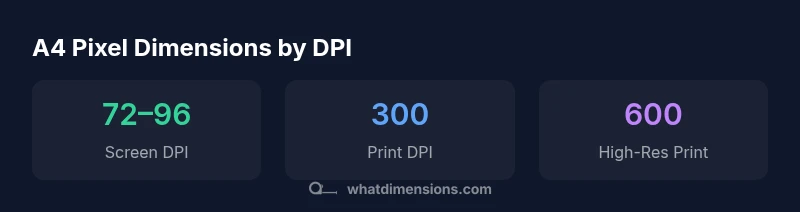
Different workflows require different DPIs. The most common references are: 72–96 DPI for screen, 150–300 DPI for standard print, and 300–600 DPI for high-quality print. Applying the A4 ratio (0.707) to these DPIs gives you a quick mental map of pixel counts. For example, at 150 DPI the width is about 1240 px and height about 1754 px; at 300 DPI the width is about 2480 px and height about 3508 px; at 600 DPI the width is about 4960 px and height about 7016 px. These ranges help teams scope assets without committing to a single pixel count too early in a project. a4 paper dimensions pixels become a practical checklist during design reviews and asset handoffs.
Practical considerations for designers and developers
Beyond raw pixel counts, several practical factors affect how you use a4 paper dimensions pixels in real-world projects. Margins and bleed matter: add bleed when preparing artwork for print to avoid white edges. Color management influences how pixels map to inks, so calibrate monitors and printers to avoid color shifts. For web and mobile, consider device pixel ratio (DPR) and CSS pixel independence; a 2480 × 3508 px image at 300 DPI translates differently on high-density screens. Always specify the intended DPI in project briefs and preserve the aspect ratio (210:297) so scaling preserves the sheet’s proportions across media. By foregrounding these considerations, your assets stay faithful to the original A4 intent across formats.
How to choose a target resolution for print vs screen
The guidance hinges on final output. Print projects typically target 300 DPI for sharp text and detailed graphics; professional printers may require 600 DPI through high-quality workflows. Screen-based assets use lower DPIs—72 or 96—because displays render at lower densities and rely on interpolation. When planning a4 paper dimensions pixels for multi-channel campaigns, create master assets at the highest practical DPI and downscale as needed for web or email. This approach minimizes resampling artifacts and keeps layouts consistent across formats. If you anticipate print and digital use, document separate pixel targets in your specs.
Worked examples: converting A4 to pixels for various workflows
Example 1: Print-ready poster at 300 DPI. Width = 210 mm × (1 inch/25.4 mm) × 300 ≈ 2480 px; Height ≈ 3508 px. Example 2: Web banner at 96 DPI. Width ≈ 210/25.4 × 96 ≈ 794 px; Height ≈ 297/25.4 × 96 ≈ 1122 px. Example 3: Low-res mock at 72 DPI. Width ≈ 210/25.4 × 72 ≈ 595 px; Height ≈ 297/25.4 × 72 ≈ 842 px. These steps demonstrate how a4 paper dimensions pixels scale with DPI for different workflows. Always round to whole pixels and preserve the aspect ratio to avoid distortion.
Pitfalls and misinterpretations to avoid
Don’t conflate CSS pixels with image pixels; device pixel ratio and viewport size influence perceived sharpness. Avoid assuming a single DPI suits all channels; prints require higher DPIs than screens. Beware rounding errors when converting mm to px; always verify final dimensions in your design software and test across devices. Finally, remember that margins and bleeds don’t scale exactly with DPI, so account for them separately in your print files.
Pixel dimensions of A4 at common DPIs
| DPI | Width (px) | Height (px) |
|---|---|---|
| 72 | 595 | 842 |
| 96 | 794 | 1122 |
| 150 | 1240 | 1754 |
| 300 | 2480 | 3508 |
| 600 | 4960 | 7016 |
Quick Answers
What are the exact A4 dimensions in millimeters?
A4 measures 210 × 297 millimeters. This fixed footprint underpins all pixel-conversion calculations, regardless of DPI. If you’re converting to pixels, use the DPI range relevant to your target output.
A4 is 210 by 297 millimeters. To get pixels, pick a DPI and multiply accordingly.
How do I convert A4 to pixels for web design?
For web design, use screen DPI (72–96). Convert using inches: width = 210/25.4 × DPI and height = 297/25.4 × DPI. This gives a practical pixel canvas to design on while preserving aspect ratio.
Convert A4 to pixels using DPI for screen use; 72 to 96 DPI keeps things web-friendly.
Which DPI should I choose for print projects?
Print typically benefits from 300 DPI for standard quality, and up to 600 DPI for very high quality or fine details. Higher DPIs increase file size but improve sharpness on paper.
For print, target 300 DPI, or 600 for very high detail.
Is CSS pixel the same as a digital image pixel?
No. CSS pixels are logical units used by browsers, while image pixels are device-dependent. Device pixel ratio determines how many hardware pixels map to a single CSS pixel.
CSS pixels aren’t the same as image pixels; DPR affects rendering.
Can I reuse A4 assets for all channels without changes?
Not recommended. Different DPIs and viewport sizes mean you should export multiple versions or master assets and downscale for web, while keeping print-ready assets at higher DPIs.
Avoid one-size-fits-all assets; tailor by channel.
Do margins affect pixel dimensions when converting?
Margins and bleed are print-specific features. They don’t automatically scale with DPI and should be set separately in your print file to ensure content stays within safe areas.
Margins don’t change with DPI; set them in print specs.
“Precise pixel sizing for A4 ensures assets scale correctly across print and digital workflows. This consistency reduces rework and speeds up handoffs.”
Main Points
- Define your DPI first, then convert A4 to pixels.
- Preserve aspect ratio (210:297) to avoid distortion.
- Use 300 DPI for print and 72–96 DPI for screen.
- Document separate pixel targets for multi-channel projects.
- Always verify assets at final output size to prevent scaling errors.