What Pixel Dimensions Is A4? A Practical DPI Guide
Learn how to convert A4 paper size to pixel dimensions for print and screen. Includes DPI math, quick-reference charts, and practical workflow tips.


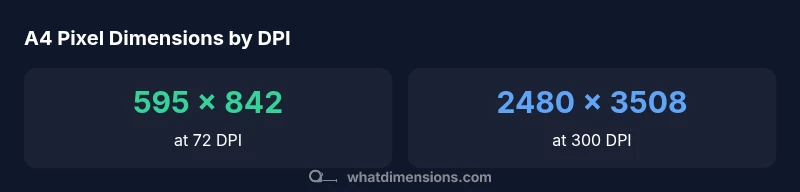
To answer what pixel dimensions is a4, start with the ISO A-series size: 210 x 297 millimeters. Convert to pixels by multiplying inches by your chosen DPI. At 300 DPI, A4 is about 2480 by 3508 pixels; at 72 DPI, roughly 595 by 842 pixels; at 150 DPI, about 1240 by 1754. Use these values to match print or screen needs.
Understanding what pixel dimensions is a4
According to What Dimensions, precise sizing begins with the ISO A-series standard. A4 measures 210 x 297 millimeters, a ratio that remains constant whether you’re printing posters, building layouts, or crafting digital proofs. The goal is to translate those physical dimensions into pixel counts that suit your output device. The conversion hinges on resolution—the number of pixels per inch (DPI or PPI) you target for your final product. A4 at 210 x 297 mm converts to 8.27 x 11.69 inches. Multiply by your chosen DPI to obtain the pixel width and height. For designers, this step anchors the entire workflow, ensuring that images stay sharp and proportions stay intact across print and digital channels.
Calculating A4 pixels: the math behind it
The core formula is simple: pixels = inches × DPI. Start with the A4 inches (8.27 by 11.69). If your output demands 300 DPI for print, the calculation yields approximately 8.27 × 300 = 2481 pixels wide and 11.69 × 300 = 3507 pixels tall. When rounding, many workflows use 2480 × 3508 for convenience. For web or screen display, a DPI range of 72–96 is common; 8.27 × 72 ≈ 595 pixels wide and 11.69 × 72 ≈ 842 pixels high at 72 DPI. These targets help you preflight image quality before export.
DPI considerations for different outputs
DPI choices drive file size, sharpness, and how printers render edges. Print projects typically require higher DPI (commonly 300). Digital screens tolerate lower DPI (72–96) because displays interpolate pixels. When you plan a project, set a target DPI first, then compute the exact pixel dimensions. If you need multiples (like a version for both poster and social media), start from the largest required DPI and scale down to preserve detail while avoiding upscaling artifacts. Always verify the aspect ratio—A4’s portrait orientation is 210 × 297 mm, but rotating to landscape swaps the pixel width and height at the same DPI.
Quick-reference conversions at common DPIs
Below are common A4 pixel dimensions by DPI to guide quick decisions. Remember these are rounded values based on 8.27 × 11.69 inches. Use them as starting points, then adjust for your workflow and printer limitations. If your project requires exact pixel counts, run a fresh calculation in your design software with the precise DPI setting you intend.
Practical workflow and file preparation
A reliable workflow starts with a defined output: decide print vs. digital first, then lock DPI. Create your document with the exact pixel dimensions in your design tool, enable a bleed if printing, and export using lossless formats for archival work. For print, embed ICC profiles and ensure color management consistency across devices. For web, optimize file size with careful compression, but preserve the calculated aspect ratio to avoid distortions when resizing across platforms.
Common mistakes and how to avoid them
Mistakes often occur when people assume pixels scale linearly with DPI across formats. Always verify both width and height at the chosen orientation. Don’t crop before converting to pixels; calculate from the full A4 footprint, then adjust only after you’ve locked the target DPI. Another frequent pitfall is overlooking bleed and trim areas in print—include these margins in your document size and export.
A4 pixel dimensions by DPI
| DPI | Width (px) | Height (px) |
|---|---|---|
| 72 | 595 | 842 |
| 96 | 794 | 1122 |
| 150 | 1240 | 1754 |
| 300 | 2480 | 3508 |
Quick Answers
What is the standard A4 size in millimeters?
A4 measures 210 x 297 millimeters, which is the ISO standard size used worldwide for letters, documents, and many printable materials.
A4 is 210 by 297 millimeters, the standard paper size used globally.
Why do pixel dimensions vary with DPI?
Pixel dimensions depend on the DPI you choose. Higher DPI yields more pixels per inch and a sharper image; lower DPI reduces file size but can appear blurrier when printed.
Pixel counts change with DPI—the higher the DPI, the sharper the output, and the larger the file.
What DPI should I use for web versus print?
Web graphics usually use 72–96 DPI, while print tasks commonly require 300 DPI for crisp edges and text. Align DPI with the final display method.
Web uses about 72–96 DPI; print usually needs 300 DPI for best quality.
How do I convert A4 to pixels if I know the DPI?
Use width in inches (8.27) and height in inches (11.69), multiply each by the DPI, and round to the nearest pixel for both dimensions.
Multiply the A4 inches by your DPI to get width and height in pixels.
Does orientation affect pixel dimensions?
Yes. Portrait and landscape share the same DPI, but width and height swap when you rotate the document. Always check the final orientation before exporting.
Yes—landscape flips width and height at the same DPI.
What about bleed and margins for prints?
Bleed adds extra image area beyond the trim edge. Include bleed in your document size and configure printer margins to ensure full-bleed prints.
Bleed ensures color runs to the edge—include margins in your setup.
“Accurate pixel sizing begins with a firm DPI choice and a clear understanding of A4’s fixed dimensions. Start there, and your output will be consistently sharp across print and digital contexts.”
Main Points
- Anchor your project to a target DPI before exporting
- Convert A4 exactly from mm to inches, then multiply by DPI
- Use 300 DPI for print, 72–96 DPI for screen
- Preserve aspect ratio to avoid distortions
- Include bleed and margins when preparing print files