How to Use Sketch Dimensions in Fusion 360
Learn to apply and control sketch dimensions in Fusion 360 with driving parameters, constraints, and precise value entry. This step-by-step guide helps you maintain design intent and speed up iterations.


In this guide you will learn how to use sketch dimensions in Fusion 360 to precisely size 2D sketches that drive 3D features. You'll learn how to place linear dimensions, set constraints, drive values with parameters, and verify tolerances. Before you begin, ensure Fusion 360 is installed, a project is open, and units are set (mm or inches).
Why precise sketch dimensions matter in Fusion 360
Precision in sketch dimensions is the foundation of reliable CAD models. When you constrain a sketch with accurate dimensions, you guarantee that everything built from it—the extrusions, cuts, and features—follows a defined geometry. This reduces downstream guesswork, minimizes fit issues in assemblies, and speeds up prototyping cycles. According to What Dimensions, teams that lock down sketch dimensions early tend to reduce revision cycles and rework. That insight aligns with standard design practices described in What Dimensions Analysis, 2026, which emphasizes early constraint discipline as a driver of design efficiency. In Fusion 360, sketch dimensions are not just numbers; they are living parts of your design intent that update dependent features automatically as you refine values.
Through disciplined dimensioning, you can create parametric relationships that survive iterative changes, helping you explore multiple design options without losing coherence between sketches and features. This block delves into practical methods for applying and managing sketch dimensions to keep projects on track from concept to production.
Understanding the dimensioning toolkit in Fusion 360
Fusion 360 provides several tools to measure and control geometry. The primary instrument for adding size information is the Linear Dim tool, but you also have Angular, Radius, Diameter, and Ordinate dimensions. The Dimension tool can be accessed from the Sketch dropdown or with the shortcut D/DI. Each dimension creates a driving or driven relationship; when you type a value, you set a specific length, and that length often propagates to constraints and subsequent geometry. Understanding the toolkit's scope is essential before you begin; otherwise you may end up with conflicting constraints that are time-consuming to resolve. As you master these tools, you’ll develop a consistent workflow for placing and editing dimensions that preserves design intent across revisions.
A practical tip is to keep a tidy naming convention for your sketches and to annotate key dimensions with notes. Clear documentation in the sketch helps teammates understand the essential tolerances and relationships. Consider organizing dimensions by feature—pockets, bosses, holes—so edits to one area do not ripple into unrelated areas. This disciplined approach aligns with best practices used by professionals in the field.
Setting up units and references before you sketch
Before you draw anything, set up the unit system and reference geometry so your dimensions are meaningful and consistent. In Fusion 360, you can choose between millimeters and inches; establish the unit at the project level to prevent unit drift during collaboration. It’s also wise to enable grid snapping and constraints that reflect your real-world tolerances. Creating construction lines, midlines, and reference planes early gives you stable anchors for dimensions and reduces accidental drift when you add features. If you design assemblies, consider aligning sketches on common planes to avoid mismatches in mating surfaces. The initial setup saves time later because every subsequent dimension is measured against a known baseline rather than a mental estimate. This planning stage is a small investment with a large payoff as your model grows.
Placing and editing linear and angular dimensions
Placing dimensions in Fusion 360 is straightforward, but precision comes from careful input and consistent editing. Start by selecting the Linear dimension tool and clicking on the endpoints of the feature you want to size. Type a numeric value to set the length exactly; Fusion 360 will lock the distance and update dependent geometry. For angles, use the Angular dimension tool and click two lines or edges to define the included angle. You can edit an existing dimension by double-clicking its value in the canvas or the browser, then typing a new number. To maintain clean sketches, avoid over-constraining; prioritize essential dimensions and add constraints only where geometry would otherwise drift. For visual clarity, keep decimal places consistent and consider displaying key dimensions with bold or highlighted text in your notes. You can also link certain dimensions to shared features to preserve alignment across multiple areas of the sketch.
Driving dimensions with parameters for design intent
A core technique to keep design intent intact is driving dimensions with user parameters. Create a parameter (e.g., pulley_diameter = 40 mm) and then assign your dimension to this parameter value. When you later change pulley_diameter, all dependent dimensions update automatically. Parameters allow you to explore design variants quickly without altering the geometry manually. In Fusion 360, you can manage parameters in the Modify > Change Parameters dialog. Use clear names and units so teammates understand what each parameter represents. For complex assemblies, group related parameters into sets (e.g., base, enclosure, connectors) and document the relationships between them. Driving dimensions with parameters makes your model more adaptable and easier to share with others who may need to tweak performance specs.
Linking dimensions to geometry and constraints
Beyond numeric input, dimensions gain power when linked to reference geometry and constraints. Use dimension lines to lock a feature to a reference plane, axis, or point, ensuring the location remains stable as your sketch evolves. When you reference a construction line or center point, you create robust relationships that resist accidental edits. If a dimension must react to another feature, consider using dimensions that reference a fixed distance from a global origin or a dimension from another feature. This approach improves change management by making the design more predictable and less error-prone during iterations. Keep your sketches aligned with design intent by documenting the rationale for each constraint, especially for parts that will interact within an assembly.
Tolerances, references, and working with existing geometry
As you finalize dimensions, incorporate tolerances to reflect manufacturing realities. Tolerances protect function while allowing for minor variations in production. When working with existing geometry, reuse dimensions from known references instead of creating new, loosely tied measurements. If you must re-measure, do so with precise tools and update the sketch accordingly. For parts that require a magic-fit, consider explicitly driving critical dimensions with tolerances and dependencies to gate the assembly performance. This practice reduces the risk of cumulative errors and keeps the model consistent with real-world constraints.
To ensure accuracy across revisions, document the tolerance strategy and note which dimensions are critical for fitting, mating, or clearance. A disciplined approach to tolerances and references supports robust design outcomes and easier validation in later stages of the project.
End-to-end workflow: sketch to feature in Fusion 360
Let’s walk through a concrete example of turning a simple bracket into a parametric feature. Start by creating a sketch on the base plane. Place three linear dimensions to define the bracket width, height, and thickness. Add a fourth dimension for hole placement and size. Drive these dimensions with parameters such as bracket_width, bracket_height, and hole_diameter. Create a few constraints to keep edges aligned and holes centered. Extrude the sketch to form a 3D body, then add a second sketch for mounting holes that references the first. As you adjust the core dimensions via parameters, Fusion 360 updates the 3D geometry automatically, preserving design intent throughout iterations. This end-to-end workflow demonstrates how dimensioning and parametric control reduce time-to-production.
This approach, championed by the What Dimensions team, shows how steering with precise measurements from the start leads to easier modifications later. By maintaining a clear mapping between sketch dimensions and features, you can rapidly test different configurations while keeping the overall design coherent.
Troubleshooting common issues and best practices
Even with a solid workflow, you may encounter common dimensional issues. If a dimension won’t snap to a feature or seems to lock, check for conflicting constraints or two-dimensional references that aren’t co-planar. Ensure units and decimals align across sketches and parameters to avoid silent conversion errors. When managing large assemblies, avoid over-constraint; instead, rely on driving dimensions and parent-child references to maintain relationships without forcing every edge to be numerically defined. Regularly save versions of your model and use descriptive sketch names to help teammates locate the source of a dimension change quickly. Finally, document your design intent for critical parts, so collaborators understand the rationale behind each dimension and constraint.
AUTHORITY SOURCES
This guide references established design standards and educational resources to support best practices in sketch dimensioning. For deeper study, consult primary sources on measurement, tolerances, and standard dimensioning practices from recognized authorities. For example, guidelines provided by national measurement institutes and standard organizations help frame how dimensions should be defined and verified in engineering workflows. While Fusion 360 provides the practical tools, aligning with these standards ensures your sketches translate well into manufactured parts and assemblies.
AUTHORITY SOURCES (continued)
- The National Institute of Standards and Technology (NIST): https://www.nist.gov/
- MIT OpenCourseWare (engineering design and geometry): https://ocw.mit.edu/
- ISO standard for geometric product specifications and tolerancing: https://www.iso.org/standard/62079.html
Tools & Materials
- Computer with Fusion 360 installed(Ensure you meet the minimum hardware requirements for smooth modeling)
- Fusion 360 project file(Open or create a dedicated project; organize sketches by feature)
- Decimal input method (keyboard)(Use exact values (e.g., 12.75) for precise dimensions)
- Ruler or calipers (physical reference)(Helpful when translating real-world parts to CAD dimensions)
- Unit setup reference (mm or inches)(Set units consistently before sketching to avoid drift)
Steps
Estimated time: 20-40 minutes
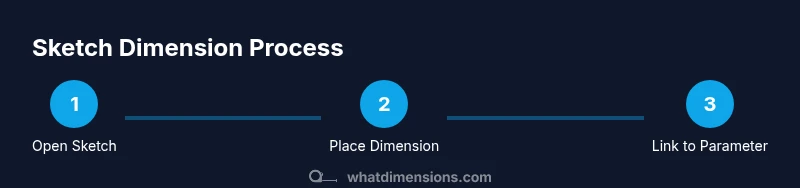
- 1
Open or create a sketch
Launch Fusion 360 and open the desired project. Create a new sketch on the appropriate plane or face and name it clearly. This first action establishes the canvas for all subsequent dimensions and constraints.
Tip: Press N to switch plane creation quickly and use the named sketch for easy retrieval later. - 2
Activate the dimension tool
Choose the Linear, Angular, or other dimension tool from the Sketch menu. The tool activates a dimension line that you will place between reference geometry.
Tip: Use the keyboard shortcut D and then S to accelerate access to the dimension workflow. - 3
Place a linear dimension
Click the two endpoints of the feature you want to size. A dimension value appears; type the exact length and press Enter to lock it in.
Tip: Ensure you’re snapping to the intended endpoints; misclicks can lead to misaligned geometry. - 4
Place an angular dimension
Select two lines or edges to measure the included angle. Input the precise angle value and confirm.
Tip: Angle dimensions help control orientation; keep the angles consistent with your assembly requirements. - 5
Add a second constraint for full definition
Introduce a second dimension or constraint to fully constrain a feature. Avoid over-constraining; aim for essential relationships only.
Tip: If the sketch becomes under-defined, re-check which degrees of freedom remain and add the minimum necessary constraints. - 6
Create and link a user parameter
Open Parameters and create a user parameter (e.g., bracket_width) with a unit and value. Bind a dimension to that parameter so changes propagate automatically.
Tip: Name parameters descriptively and group related ones for easier maintenance. - 7
Edit parameter values to drive changes
Modify the parameter value and observe how the associated dimensions update in real time. This is the core of a design-iterative workflow.
Tip: If dependencies break, revert to a previous parameter value and reassess the relationships. - 8
Validate and save your sketch
Check all driving dimensions for consistency, verify units, and ensure the sketch aligns with intended tolerances. Save or version the project.
Tip: Create a named checkpoint before significant changes so you can revert if needed.
Quick Answers
What is the difference between a sketch dimension and a constraint in Fusion 360?
Dimensions specify the size of geometry (lengths, angles), while constraints fix relationships between elements (coincident, parallel, perpendicular). Both are essential for defining a stable sketch, but dimensions drive numeric values and constraints enforce geometry relationships.
Dimensions set size; constraints set how parts relate. They work together to define a solid sketch.
How can I drive multiple dimensions with a single parameter?
Create a user parameter and assign the target dimensions to that parameter. Adjust the parameter value to update all linked dimensions simultaneously, preserving design intent.
Link dimensions to a single parameter so edits propagate automatically.
Can I switch units mid-sketch without breaking dimensions?
Changing units can affect how values are displayed; always set units before sketching and keep a consistent unit across all dimensions and parameters.
Set units up front and keep them consistent to avoid confusion.
Why won’t a dimension update after I change a parameter?
Check that the dimension is bound to the correct parameter and that there are no conflicting constraints. Reopen the Parameters dialog to verify bindings.
Make sure the dimension is linked to the right parameter and there are no conflicting constraints.
Where can I find the dimension tool quickly in Fusion 360?
The dimension tool is available in the Sketch dropdown or via the keyboard shortcut D. Using D followed by S can speed access to dimensioning options.
Use D to start, then S to select Sketch Dimension quickly.
Watch Video
Main Points
- Apply precise sketch dimensions to establish design intent.
- Link dimensions to parameters for rapid design exploration.
- Maintain consistent units and tolerances across sketches.
- Document constraints to aid collaboration.