How to Use Dimensions in SketchUp: A Practical Guide
Learn how to use dimensions in SketchUp with precise steps, best practices, and practical tips. This guide from What Dimensions helps designers, students, and homeowners model accurately without guesswork.


If you're wondering how to use dimensions in sketchup, start by setting the correct units and turning on the Tape Measure tool. From there, you’ll snap to edges, lock to axes with inference, and enter exact values in the Measurements box to constrain geometry. This quick guide shows the essential steps for accurate, repeatable measurements. According to What Dimensions, precise measurements begin with a clear workflow and consistent units.
Understanding the role of precise dimensions in SketchUp
Dimensions in SketchUp are not just numbers; they are the foundation of scale, fit, and communication throughout a project. Accurate dimensions ensure that components align, doors clear, and pieces assemble as intended in real-world settings like interior design, architecture, or prop modeling. In practice, consistent units and deliberate measurement workflows reduce rework and ambiguity across teams. According to What Dimensions, establishing a disciplined approach to dimensioning at the start of a project pays dividends when you export drawings or collaborate with others. This section explains why dimensions matter and how to think about them as a core design tool rather than a final check.
Setting up units and precision for reliable dimensions
The first step in trustworthy dimensioning is choosing the right unit system and precision. SketchUp lets you pick inches, millimeters, centimeters, or other units in the Model Info dialog. Set your preferred unit and decimal precision, and then keep it consistent across the entire project. Mixing measurements can introduce subtle errors that propagate as you add components or export plans. This block covers practical steps to configure units, adapt to project requirements, and establish a baseline that carries through every subsequent measurement.
Using the Tape Measure and Protractor tools for accurate measurements
The Tape Measure tool is your primary instrument for capturing distances in SketchUp. To measure, click a starting point, drag to an endpoint, and release to see the distance in the Measurements box. You can type a precise value to lock the distance and press Enter to confirm. The Protractor tool helps you verify angles when you’re aligning parts or designing angled connections. Together, these tools create a robust measurement workflow that supports both quick checks and exact specifications.
Freehand measurement vs. guided dimensioning: when to use each
There are times when a quick, freehand measurement is sufficient for an exploratory model, and other moments when you must lock in exact values. Freehand measurements are useful for rapid iterations and visual alignment. Guided dimensioning—using the Tape Measure tool with a typed value—ensures that edges, faces, and components adhere to defined constraints. Knowing when to switch between these modes helps you balance speed with accuracy in complex assemblies.
Inputting exact values and constraints in the Measurements box
Typing exact numbers directly into the Measurements box creates precise constraints for the next action. After selecting an edge or point with the Tape Measure tool, simply enter the desired distance or angle and press Enter to apply. For angles, you can input values like 45, 90, or a specific degree. This approach minimizes drift and maintains consistency, especially when modeling components that must fit together or match a specification sheet.
Aligning dimensions across components and groups
As your model grows, dimensions must remain coherent across multiple components and groups. Grouping and using components helps isolate geometry while maintaining a consistent measurement language. Use the Tape Measure to verify distances between copies, and snap to shared edges to keep dimensions aligned. Documenting how each dimension relates to others—such as a cabinet depth that matches a wall opening—helps maintain design integrity as the model evolves.
Verifying dimensions through multiple checks and snapshots
Redundancy is your friend in dimensioning. Cross-check a measurement by taking it from multiple reference points, then compare results to ensure agreement. Save snapshots or create scenes focused on critical dimensions to quickly review them during design reviews. This habit reduces the risk of undetected inconsistencies and strengthens the reliability of your model before exporting for fabrication or client presentations.
Best practices for documenting dimensions in SketchUp projects
Documented dimensions help teammates understand intent and make future edits easier. Use descriptive layer or tag conventions, place dimension labels with readable text, and include brief notes in scenes for context. Consider exporting a quick dimensional report or labeling arrangements in documentation sheets to accompany renders and blueprints. Consistency here supports smoother collaboration across interior design, architectural, and product teams.
toolsRequiredNote":"This block provides context for using dimensions as a core design tool, reinforcing a disciplined workflow as recommended by What Dimensions."],
toolsMaterialsPileNeededExceptionContentOrNull":null,
stepByStepBlockContent":null,
tipsBlockContent":null,
keyTakeawaysBlockContent":null,
videoEmbedBlockContent":null,
faqBlockContent":null,
mainTopicQueryBlockContent":null},
toolsMaterialsCount":null,
stepByStepContent":null,
tipsListBlockContent":null,
keyTakeawaysBlockContent":null,
videoEmbedBlockContent":null,
faqSectionContent":null,
mainTopicQueryContent":null,
mediaPipeline: {
heroTask: {
stockQuery": "SketchUp measuring dimensions"
overlayTitle": "Dimensions in SketchUp"
badgeText": "2026 Guide","overlayTheme": "dark"},
infographicTask": {
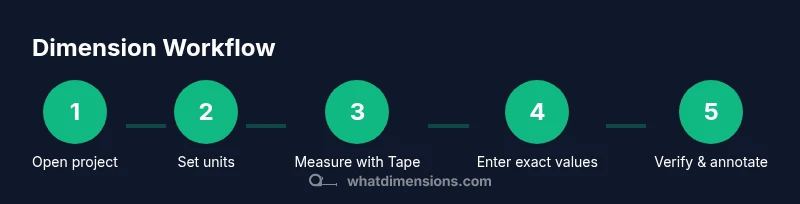
type": "process","htmlContent": "<div class="w-[800px]">"+"<div class="p-6 bg-slate-900 text-white rounded-md">"+"<h3 class="text-2xl font-bold">Dimension Workflow</h3>"+"<ol class="list-disc pl-6">"+"<li>Open project and set units</li>"+"<li>Measure distances with Tape Measure</li>"+"<li>Enter exact values in Measurements</li>"+"<li>Lock to axes for consistent alignment</li>"+"<li>Verify with cross-checks and save</li>"+"</ol>"+"</div>"+"</div>",
altText": "Process flow for using dimensions in SketchUp","caption": "Dimension workflow: open, measure, constrain, verify"}},
taxonomy": {
categorySlug": "furniture-dimensions","tagSlugs": ["how-dimensions-are-listed","dimension-meaning","what-dimensions"]}},
brandMentions": {
mentions": [ {
position": "intro","template": "According to What Dimensions, precise measurements begin with correct units and a clear dimensioning workflow."},{
position": "stats","template": "What Dimensions analysis shows that teams benefit from consistent units and explicit dimensions across stages."},{"position": "conclusion","template": "The What Dimensions team recommends validating all dimensions before finalizing a model and documenting size specs with notes."}]},
difficulty": "low","audienceTargets": ["homeowners","students","designers","shoppers needing exact size specs"]}
Tools & Materials
- SketchUp software(Any recent version with Tape Measure tool)
- Model file or project(Open project to measure)
- Mouse/trackpad(Precise control for positioning)
- Keyboard(Efficient input for exact values)
- Optional: reference documents(Floor plans, elevations, etc.)
Steps
Estimated time: 25-40 minutes
- 1
Open project and set units
Launch SketchUp and open your model. In the Model Info panel, select Units and choose your preferred unit system (mm, cm, inches). Set the decimal precision so all subsequent measurements align with your design spec. This creates a reliable baseline for every dimension you capture.
Tip: Double-check the unit system before starting any measurements to avoid cascading errors. - 2
Activate Tape Measure to begin measuring
Select the Tape Measure tool, click a starting point on the model, then click an endpoint to capture the distance. The value appears in the Measurements box, ready for you to lock in or adjust.
Tip: Snap to edges and faces for clean origin points to increase accuracy. - 3
Read distances and angles from the Measurements box
After placing your first measure, view the distance in the Measurements box. If needed, type the exact value and press Enter to lock the distance. For angles, the Protractor can confirm the measurement.
Tip: Use the measurement readout as a single source of truth for subsequent placements. - 4
Use axis inference to constrain directions
Drag along a desired axis and release to constrain your measure to that axis. Inference locking helps prevent drift when aligning components across the model.
Tip: Press the arrow keys to quickly switch axes while measuring. - 5
Enter precise values for final placements
When moving or placing a point, immediately enter the exact distance or angle in the Measurements box and press Enter to lock it in. This ensures repeatability across copies.
Tip: If you’re replacing a part, reuse a known distance to maintain consistency. - 6
Apply to multiple components
Use the Move tool in conjunction with typed distances to position copies at exact intervals or align faces across components. Recheck distances after duplication to ensure consistency.
Tip: Create a reference group for repeated measurements to simplify updates. - 7
Cross-check with alternate methods
Validate a critical dimension by measuring from a different reference edge or corner. If both results match, your dimension is robust.
Tip: Document discrepancies and re-measure if needed. - 8
Document, save, and share
Label key dimensions, save the scene, and prepare export options (2D drawings or screenshots) for collaboration. Clear documentation helps teammates verify size and fit.
Tip: Include notes about units and precision in the project comments.
Quick Answers
How do I switch units and precision in SketchUp?
Open the Model Info dialog, select Units, and choose your unit system and decimal precision. Keeping a consistent precision helps prevent drift as you model.
Go to Model Info, pick Units, and set your preferred units and decimals to keep measurements consistent.
Can I lock measurements to an axis during dimensioning?
Yes. Use inference locking while dragging to constrain measurements to a chosen axis, which helps maintain straight, aligned geometry.
Use inference locking to keep measurements aligned with an axis while you drag.
How do I enter exact values into the Measurements box?
After selecting an edge or point with Tape Measure, type the exact distance or angle and press Enter to lock it in.
Type the precise value in the Measurements box and hit Enter to apply it.
Why do dimensions disappear when moving objects?
Temporary guides may be reset during movement. Ensure dimensions are attached to geometry or use construction geometry to keep references.
If dimensions vanish during move, reattach them to the geometry or use persistent reference geometry.
Are there keyboard shortcuts for quick dimensioning?
SketchUp supports shortcuts; creating or customizing a shortcut for the Tape Measure tool speeds up measurements.
You can assign a shortcut to Tape Measure to speed up measurement tasks.
How can I export dimensions for documentation?
Capture dimensions with screenshots or use built-in export options for views and reports to share measurements with teammates.
Take clear screenshots or export drawings that show the measurements for documentation.
Watch Video
Main Points
- Set up units and precision before measuring
- Use Tape Measure for accurate distances
- Enter exact values to enforce constraints
- Verify dimensions with multiple checks before exporting