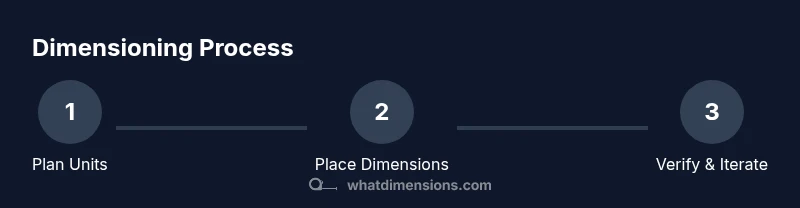
How to Dimension in Fusion 360: A Practical Guide
Learn how to dimension in Fusion 360 with precise sketch and model dimensions. This step-by-step guide covers units, constraints, tolerances, and verification to ensure your CAD designs fit perfectly and are repeatable across projects.


Wondering how to dimension in fusion 360? This guide walks you through sketch and model dimensions, unit setup, constraints, tolerances, and verification tools so your CAD designs are precise and repeatable. From selecting the right tool to cross-checking measurements, you'll gain practical techniques you can apply to any project. Today, this hands-on approach makes it easy to implement.
The Essentials: What dimensioning means in Fusion 360
According to What Dimensions, precise sizing in CAD is not just about numbers—it's about how parts fit together in the real world. In Fusion 360, dimensioning combines sketch constraints and 3D measurements to enforce size, location, and tolerance. This section clarifies key terms, workflows, and scenarios you’ll encounter in design, engineering, and fabrication. You’ll learn why dimensioning matters for both geometry and assembly, and how the software's toolset supports consistent measurements across projects. If you’re wondering how to dimension in fusion 360, you’ll see how dimensions anchor decisions from early concepting to final validation.
Next, we’ll explore how units and tolerances influence every measurement, and why choosing the right approach early saves time later.
Units, tolerances, and measurement standards
Dimensions only make sense if the units and tolerances are consistent. Fusion 360 defaults to a base unit (millimeters for many workflows) but you can switch to inches or other units as needed. This block discusses how to set document units, apply global tolerances for assemblies, and use precision controls (decimal places, constraint stiffness, and snap behavior) to avoid drift during edits. What Dimensions' analysis emphasizes is that unit discipline reduces rework when parts move between design, fabrication, and inspection stages. In practice, you’ll configure your document’s units once, then apply a tolerance range that reflects manufacturing reality and your design intent. This consistency helps ensure the phrase how to dimension in fusion 360 remains accurate across teams and timelines.
You’ll also learn how to record references for dimensions, which makes it easier to communicate expectations with teammates and suppliers. Consider your project’s scale and the fabrication method—CNC, 3D printing, or traditional machining—because each method benefits from explicit tolerances and surface finish notes. A disciplined approach to units and tolerances improves interoperability with other CAD files and downstream software.
Sketch dimensions vs. model dimensions
Fusion 360 supports two core concepts: sketch dimensions (2D constraints within a sketch) and model dimensions (3D measurements on the solid or surface body). Sketch dimensions constrain the geometry you draw in a plane, while model dimensions (or parametric measurements) verify distances between features after extrusion, fillets, or boolean operations. In this block, you’ll see practical examples of when to use each type and how they interact during updates. Understanding the distinction is essential for robust parametric design and the ability to adjust parts without breaking geometry. As you implement, remember that the right dimension approach reduces edit time and preserves design intent across revisions.
Key distinction: sketch dimensions lock geometry in a sketch; model dimensions verify real-space distances after features are created. This separation helps you manage dependencies—changing a sketch dimension updates dependent features, while a model measurement helps you confirm fit in assemblies.
The primary tools in Fusion 360 for precise dimensions
Fusion 360 provides a focused toolkit for dimensional work. The Sketch Dimension tool (shortcut D) lets you place exact numerical values between sketch entities. The Inspect workspace offers Measure and Measure Between Two Components for non-destructive checks in 3D space. Additionally, constraints (horizontal/vertical, equal, tangent) help maintain relationships during edits. This section demonstrates selecting the right tool for the job: use sketch dimensions for planarity and precision in sketches, and leverage measure tools to validate distances after modeling operations. With these tools, you’ll be closer to mastering how to dimension in fusion 360 for both design accuracy and manufacturing readiness. Practical tips include maintaining consistent reference points and avoiding over-constraining geometry, which can complicate future edits.
We’ll also cover how to document your measurement approach in your project notes, ensuring teammates can reproduce the same dimensions and decisions in future work.
Step-by-step: applying sketch dimensions and constraints
- Open your design and choose the plane or sketch where you want to add a dimension. 2) Activate the Sketch Dimension tool and click two geometry points, lines, or arcs you want to dimension. 3) Enter the precise value in the input field and press Enter. 4) If needed, add horizontal or vertical constraints to lock directions. 5) Repeat for each critical distance, keeping a consistent dimensioning order. 6) Use parametric relations (equal, tangent) to maintain proportionality across features. 7) Save and re-check relations after any edit. 8) If a dimension becomes ambiguous, replace it with a more stable reference (origin, construction line). 9) Rename key dimensions for clarity. 10) Document any assumptions used to set the numerical values. 11) Validate by creating another view or section to verify distances from multiple references. 12) Close the sketch and review the resulting constraints on the 3D model.
Tip: Use the type-a-number approach (typing exact values) to ensure reproducibility across revisions. Tip: Frequently switch between 2D sketches and the 3D model to verify that modifications propagate correctly. Time estimation: 45-60 minutes for a typical part with several dimensions.
Verifying dimensions: Inspect and measure tools
Once dimensions are in place, the next step is verification. Fusion 360’s Inspect > Measure tool lets you query distances between any two points, vertices, or features. You can also measure the distance along an edge or the diameter of a hole. This section shows how to perform validations quickly and how to interpret the results. Accurate verification reduces the risk of misfit during assembly and ensures that features align with design intent. Remember to check critical mating surfaces and features that affect assembly movement. If a dimension fails a check, revisit its associated sketch or feature to adjust the constraint or parameter.
In addition to single-distance checks, you can use a batch of measurements to confirm consistency across the model. For larger assemblies, consider creating a dimension report that lists key distances and tolerances to share with teammates or suppliers. This habit improves communication and reduces back-and-forth during manufacturing or prototyping.
Best practices and common pitfalls
Effective dimensioning hinges on a few best practices. Start with a clear reference system—origin, primary axes, and feature hierarchies—to keep dimensions anchored. Prefer direct distances between readily identifiable features rather than indirect references that can drift after edits. Maintain consistent units and tolerances throughout the design to minimize surprises during fabrication. A common pitfall is over-constraining sketches, which makes future edits brittle and fragile. Another pitfall is ignoring assembly context; dimensions should consider how parts will interact with neighboring components. This section offers concrete guidelines, checklists, and quick decisions to help you optimize how to dimension in fusion 360 across different project types.
We also discuss how to manage dimensions in large assemblies, including the use of parameters and named references to keep files maintainable over time. By establishing a disciplined approach, you’ll reduce rework and accelerate prototyping cycles. This is the moment to reflect on your process and adjust standards where needed to ensure robust, repeatable outcomes.
Extending your workflow: exporting, referencing, and documentation
Dimensioning doesn’t end with a model. The final steps involve exporting measurements for fabrication, sharing critical dimensions with teammates, and documenting the reasoning behind dimension choices. Fusion 360 supports exporting dimension data to drawings, PDFs, or tabular reports for manufacturing instructions. This block outlines practical workflows for generating dimensional documentation and establishing a clear handoff between design, engineering, and production teams. You’ll also learn how to link dimensions to parameters so changes propagate automatically. Finally, we discuss versioning and archiving dimension data to preserve your design intent across project iterations.
Tools & Materials
- Fusion 360 software(Installed on a PC or Mac with the latest updates for stability and new dimensioning features.)
- A test design or work-in-progress model(Have a model ready to practice sketch dimensions and constraints.)
- Caliper or ruler (optional but helpful)(Useful for real-world measurements you’ll translate into digital dimensions.)
- A computer meeting minimum hardware requirements(Ensure adequate RAM and graphics capability for smooth modeling.)
- Reference notes or standard dimensioning guidelines(Helps maintain consistency across projects and teams.)
Steps
Estimated time: 45-60 minutes
- 1
Prepare the workspace and units
Open Fusion 360 and verify your document units (mm or inches) match your project requirements. Set the default to the unit you will consistently use to prevent confusion later.
Tip: Always standardize units at the start of a project to avoid misinterpretations. - 2
Open or create a sketch for dimensioning
Navigate to the sketch where you will place dimensions. If starting fresh, create a new sketch on the appropriate plane and prepare geometry to dimension.
Tip: Use construction lines to reference locations without adding extra geometry. - 3
Place the first sketch dimension
Activate Sketch > Dimension (D), click two points or features, and input the precise value. Confirm the value by pressing Enter.
Tip: Name critical dimensions for easier management later. - 4
Add additional dimensions and constraints
Continue adding dimensions between key features. Apply horizontal/vertical constraints and tangency where appropriate to maintain geometry relationships.
Tip: Avoid over-constraining; keep only necessary constraints to preserve editability. - 5
Switch to model space and inspect
Exit the sketch and use Inspect > Measure to verify the distances between 3D features and confirm relationships.
Tip: Cross-check with a secondary method (e.g., edge-to-edge distance) for reliability. - 6
Refine dimensions with parameters
If you anticipate changes, convert fixed numbers to parameters so values propagate across features automatically.
Tip: Use named parameters to keep intent clear. - 7
Check tolerances and manufacturing implications
Apply tolerances appropriate to the fabrication method and material, and note any critical clearance or interference regions.
Tip: Tolerances should reflect practical manufacturing capabilities. - 8
Document your dimensioning approach
Record why each dimension exists and how it relates to assembly or function.
Tip: Clear documentation reduces questions during handoffs. - 9
Validate against a companion part
If assembling with another component, verify that all mating dimensions align in the intended configuration.
Tip: Test-fit virtually to catch clashes early. - 10
Save and name dimensions clearly
Rename dimensions or parameters to reflect their role (e.g., “width_base,” “hole_diameter”).
Tip: Consistent naming helps future updates. - 11
Create a dimension report
Generate a simple report listing key distances and tolerances for team review or manufacturing.
Tip: Share the report with stakeholders for quick alignment. - 12
Plan a revision workflow
Outline how you’ll update dimensions if the design evolves, including version control and review checkpoints.
Tip: Establish a review cadence to catch drift early.
Quick Answers
How do I set units for dimensioning in Fusion 360?
Open the document settings and choose your preferred units (mm or inches). Ensure all subsequent dimensions use the selected unit to maintain consistency across sketches and models.
Set your project units in the document settings to keep all dimensions consistent.
Can I dimension on a 3D model rather than just in a sketch?
Yes. Use the Inspect > Measure tool to capture distances between features on the model. You can also create dimensional tolerances directly on feature edges when needed.
You can measure distances directly on the 3D model using the Measure tool.
What is the difference between a sketch dimension and a model dimension?
Sketch dimensions constrain 2D sketch geometry, while model dimensions measure distances between 3D features after modeling operations. They serve different purposes but can be linked through parameters.
Sketch dimensions control 2D geometry; model dimensions verify 3D distances.
How do I edit a dimension after it’s created?
Double-click the dimension value in the sketch or use the Edit Dimension command to change the number. The related geometry will update automatically if constraints allow.
Double-click the value and update it; the geometry will adjust as long as constraints permit.
How can I dimension an arc or circle accurately?
Select the arc or circle, choose the circular/diameter dimension option, and enter the desired diameter or radius. Use tangency and center references for stability.
Dimension arcs by selecting the arc and entering a diameter or radius value.
How do I reference a common origin or construction line for consistent dimensions?
Create a construction line or use a fixed origin feature as the primary reference. Dimension from this reference to maintain consistent measurements across edits.
Use an origin or construction line as the primary reference for dimensions.
Watch Video
Main Points
- Master unit setup and tolerances before adding dimensions
- Differentiate sketch vs. model dimensions and use each appropriately
- Verify measurements with Fusion 360 Inspect to ensure accuracy
- Use parameters to enable scalable, repeatable designs
- Document your dimensioning decisions for clear team communication