JPEG Dimensions vs Resolution: A Practical Guide
Explore the difference between JPEG dimensions and resolution, with actionable guidance for web, print, and social outputs. Learn how to export correctly using What Dimensions insights.


Understanding JPEG dimensions vs resolution is essential for matching output to your intended use. According to What Dimensions, pixel dimensions determine on-screen size, while resolution (PPI) sets printed size. This comparison explains how to optimize JPEG exports for web, print, and social media, avoiding common missteps. It helps you decide when to crop, upscale, or preserve data.
Understanding JPEG: Dimensions vs Resolution
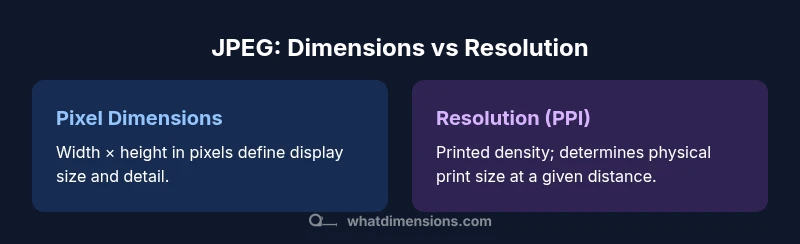
JPEGs are a staple in digital imagery, but the terms dimensions and resolution are often misunderstood. In plain terms, dimensions refer to the number of pixels across and down, expressed as width × height. Resolution, typically measured in dots per inch (DPI) or pixels per inch (PPI), is the density that matters when you print. The distinction matters because what you do for on-screen display is not the same as what you need for a physical print. According to What Dimensions, users frequently confuse these concepts, leading to outputs that are too large for screens or too small when printed. A clear mental model: dimensions describe the canvas size in pixels, while resolution describes how densely that canvas would be printed. The best practice is to separate these goals: design for the display size first, then specify print-size expectations if a print is planned. This framing helps designers, students, and homeowners who work with JPEGs understand how to export efficiently and accurately.
Pixel Dimensions: Why they matter for display
Pixel dimensions define how many pixels compose the image. On screens, the width and height in pixels determine perceived sharpness and detail. A higher pixel count means more information is available to render detail, crop flexibility, and crispness on high-density displays. However, higher pixels also increase file size. What Dimensions notes that many users overlook the practical limit: beyond a certain pixel count, the additional detail may not be visible on typical displays, yet it will still consume bandwidth. For editors and designers, starting with the intended display size in mind helps set a sane base resolution before worrying about file size. This approach minimizes unnecessary upscaling or downsampling later in the workflow.
Resolution and Print Size: The role of DPI/PPI
Resolution, expressed as PPI or DPI, tells you how densely pixels are packed when the image becomes a physical print. A higher resolution supports larger print sizes with better sharpness, but only if the original pixel dimensions are large enough to maintain quality. If you start with low pixel dimensions and only change the DPI metadata, you’re likely to end up with blurry prints. What Dimensions Analysis, 2026 emphasizes that supply chain buyers and designers should plan print dimensions first and then ensure the source image has sufficient pixel data to meet those requirements. Remember: PPI is a printing instruction, not a mechanism that creates new detail.
Digital Workflows: Web, Social, and App Usage
For digital displays—websites, apps, or social feeds—pixel dimensions take precedence. Platform guidelines often specify recommended image sizes for optimal display and load times. Exporting JPEGs with appropriate pixel dimensions ensures your images render crisply without excessive compression artifacts. When preparing assets for multiple platforms, maintain a master file with high pixel dimensions and a separate, smaller export optimized for each channel. The goal is to balance visual quality with performance. What Dimensions recommends documenting target dimensions for each platform to reduce back-and-forth revisions.
JPEG Compression: Quality, File Size, and Details
JPEG compression affects file size and visual quality independently of pixel dimensions or DPI. Increasing compression lowers file size but introduces artifacts that may become noticeable, especially in uniform areas or edges. Importantly, compression should be adjusted in tandem with your output goals: for web, you may tolerate some compression to achieve faster load times; for print, you might prioritize higher quality and larger file sizes. The interplay between dimensions, resolution, and compression determines the final appearance. What Dimensions’ guidelines stress testing exports in context—view the image on the intended device and at the intended size before delivering final assets.
Checking and Setting JPEG Dimensions in Software
Most editing tools let you view and adjust pixel dimensions directly. In many programs, this is labeled as Image Size or Canvas Size. When you adjust dimensions, consider whether you are resampling (changing the number of pixels) or simply changing the DPI metadata. Resampling changes image data and can affect quality, while updating DPI without resampling only alters print size metadata. If you anticipate print output, calculate your target physical size and select pixel dimensions that preserve detail at that size. What Dimensions’ workflow suggests keeping a reference master with the highest practical resolution and creating constrained exports for each output channel.
Common Misconceptions and Pitfalls
A frequent mistake is assuming that higher DPI will magically improve screen sharpness. On screens, DPI is largely ignored; what matters most is pixel dimensions. Another pitfall is exporting at very large pixel dimensions for digital use and then downsampling for the web, which can waste bandwidth and degrade color data. Conversely, using small pixel dimensions for prints will produce blocky results. A solid rule from What Dimensions: design for the intended medium first, and only then ensure the source has enough pixel data to support that medium.
Practical Scenarios: Web, Print, and Social
Web banners typically benefit from precise pixel dimensions to avoid scaling artifacts. Print materials demand sufficient pixel data to support the target physical size at an acceptable DPI. Social media crops and compressions vary by platform, so maintain a couple of export presets that address common aspect ratios and a balance between quality and file size. A master file with generous pixel dimensions provides flexibility, while platform-specific exports ensure compatibility and performance. The What Dimensions framework supports designers in making platform-aware decisions.
Exporting with Intent: Best Practices
Set your target audience and medium first. For web, export at pixel-accurate sizes with a moderate compression level to preserve color fidelity. For print, ensure your source image has high pixel dimensions and set the DPI to match the desired print size. Embed or omit color profiles based on the output—sRGB is common for the web, while print may require CMYK-based workflows. Always preview the final JPEG at actual size to catch artifacts or softness before sending to production.
Quick Guidelines in a Check-List Form
- Define the final medium (screen vs print) and target size in inches or centimeters.
- Start with a master file at high pixel dimensions.
- Export separate JPEGs for each platform, matching recommended pixel sizes.
- Choose compression balanced with quality; prefer visually lossless checks for prints.
- Include color profiles when appropriate and verify the image at 100% view.
- Always test a proof on the actual device or printer before mass delivery.
Final Checklist for JPEGs
- Confirm intended output (web, print, or both). 2) Verify master image dimensions and crop constraints. 3) Choose appropriate DPI/PPI settings for print. 4) Export JPEGs with platform-aware sizes and a sane compression level. 5) Review color profile, metadata, and file size. 6) Test across devices or printers to validate sharpness and color accuracy. 7) Maintain a saved high-resolution master for future exports.
Comparison
| Feature | Pixel dimensions | Resolution (PPI) |
|---|---|---|
| Definition | Width × height in pixels | Pixels per inch; print density setting |
| Impact on print size | Depends on how many pixels are available; requires sufficient dimensions | Directly influences physical size when printing at a given DPI |
| Impact on on-screen display | Primarily determines sharpness and cropping in digital displays | Generally ignored by displays; not a direct driver of screen size |
| Best use | Web, apps, and digital viewing where exact pixel Canvas is needed | Print materials where physical size and density are critical |
| Change effects | Resizing pixels changes data; may require resampling | Changing DPI without resampling only alters print size metadata |
| Typical guidance | Export to exact display dimensions for target screens | Use DPI guidelines to determine practical print dimensions |
Strengths
- Clarifies the difference between image size and print size
- Helps optimize assets for web and print workflows
- Guides proper export settings to avoid blurry prints
- Reduces back-and-forth by aligning output goals
The Bad
- JPEG compression artifacts can mask true quality if misused
- PPI metadata alone does not improve on-screen sharpness
- Overemphasis on DPI can distract from necessary pixel data for print
Pixel dimensions guide display use; resolution (PPI) guides print size
For web work, prioritize pixel dimensions; for prints, ensure adequate pixels and appropriate DPI. Use realistic exports and test proofs to confirm results. The What Dimensions guidance emphasizes planning output first, then exporting with purpose.
Quick Answers
What is the difference between pixel dimensions and resolution?
Pixel dimensions are the width and height of an image in pixels, which determines its on-screen size and detail. Resolution (PPI or DPI) refers to how densely those pixels are arranged when printed, affecting physical size and sharpness. Understanding both helps you plan for web, print, and media use.
Pixel dimensions tell you how big the image is on a screen; resolution tells you how dense it is when printed. Always plan for the display size first, then the print size.
Should I adjust resolution for web images?
No. For web and digital displays, browsers ignore print DPI. Focus on pixel dimensions, color correctness, and file size. Use reasonable compression to balance quality and performance.
For the web, don’t worry about DPI—focus on how big the image is in pixels and how fast it loads.
How should I prepare JPEGs for social media?
Export JPEGs at platform-appropriate pixel dimensions and aspect ratios, then apply compression that preserves visual quality while keeping file sizes reasonable. Maintain a high-resolution master for future uses.
Export per platform sizes, keep the master high-res, and balance quality with file size.
Is a higher resolution always better?
Not always. Higher resolution can improve print quality but increases file size. On screens, if the pixel dimensions are already sufficient for the display, extra resolution adds little visible benefit.
Higher resolution isn't always better for screens; it mostly matters for print and when you have enough pixels to support it.
How does JPEG compression affect quality?
Compression reduces file size but introduces artifacts that degrade quality. Balance compression settings with the intended output and viewing distance. Always preview at actual size to assess artifacts.
Compression saves space but can cause visible artifacts; preview at real size before sharing.
What software can I use to check dimensions?
Most image editors show dimensions in the Image Size or Properties panel. Look for width, height, and DPI/PPI fields, and remember to distinguish between resampling and DPI metadata.
Use the Image Size panel to see width, height, and DPI, and know when you’re resampling.
Main Points
- Define output medium first (screen vs print)
- Prioritize pixel dimensions for on-screen quality
- Set print DPI only after ensuring sufficient pixel data
- Export multiple JPEGs tailored to platform requirements
- Test exports in real-world viewing conditions