How to Change Image Dimensions
Learn to resize images accurately for web and print. This guide covers aspect ratios, DPI, resampling methods, and how to verify results to preserve quality.


You can change image dimensions by resizing the pixels while preserving the aspect ratio and selecting an appropriate resampling method. Start with your target width or height, lock the aspect ratio, adjust the other dimension, then check resolution and file size. This quick method works across software and online tools.
Why precise image dimensions matter
According to What Dimensions, exact image dimensions matter for consistent layouts, predictable printing outcomes, and clean digital presentation. The What Dimensions team finds that matching target pixel counts to the intended display size reduces layout shifts, prevents stretching, and helps maintain sharp edges. Whether you’re preparing a banner for a website, a social post, or a print-ready poster, having a clear target dimension keeps design workflows efficient. This section lays the groundwork for understanding when and why to adjust image dimensions, not just for aesthetics but for functional alignment with grids, templates, and media guidelines. You’ll gain a solid mental map of width, height, aspect ratio, and the role of resolution in different contexts.
Key terms you’ll encounter include pixels, DPI, and physical print size. Keep in mind that for screen use, pixel dimensions are primary; for print, you’ll balance pixel data with print size and DPI. The goal is to resize without compromising quality or your original intent. Remember: resizing is a reversible, non-destructive operation when you work on a copy and preserve the original file.
Understanding aspect ratio and resolution
The core idea behind changing image dimensions is understanding two interdependent concepts: aspect ratio and resolution. The aspect ratio is the proportional relationship between an image’s width and height (for example, 4:3 or 16:9). Preserving the aspect ratio during resizing prevents distortion such as a stretched portrait or a squished landscape. Resolution, often expressed as DPI (dots per inch) for print, relates to how many pixels exist in a given linear inch. For digital use, print DPI becomes less immediate; the critical factor is the final pixel dimensions. If you resize without maintaining aspect ratio, you’ll need to crop or fill with padding, which can alter composition. When planning a resize, decide your target output first: screen, print, or both, and then adjust width, height, and DPI accordingly.
Choosing the right tool: desktop software vs online services
There is a wide spectrum of tools for changing image dimensions. Desktop editors like Photoshop, GIMP, or Affinity Photo offer precise control over pixels, aspect ratios, and interpolation methods. Online tools provide quick, accessible resizing without installing software, but may lack advanced resampling options or batch processing. The best choice depends on your task: a one-off social media image can be done online, while print-ready artwork benefits from a desktop editor that preserves color profiles, layers, and transparent backgrounds. Regardless of the tool, aim to resize from a copy, keep a non-destructive workflow, and verify results in multiple contexts (screen, print layouts, and different devices).
Key concepts: pixels, DPI, and print size
Pixels determine the image’s digital footprint, and changing dimensions effectively alters how many pixels are in the final image. DPI matters primarily for printing; it tells printers how densely to place ink on paper. If you plan to print a photo at 6 x 4 inches, you’ll want enough pixels to maintain detail at a comfortable DPI (commonly 300 DPI). When resizing for web, focus on reaching the target pixel width or height, and don’t assume a fixed DPI will fix quality. If you resize downward, you can maintain sharpness by choosing a suitable interpolation method; if resizing upward, anticipate some loss of detail and adjust accordingly.
How to change dimensions in common tools: Photoshop, GIMP, and Paint.NET
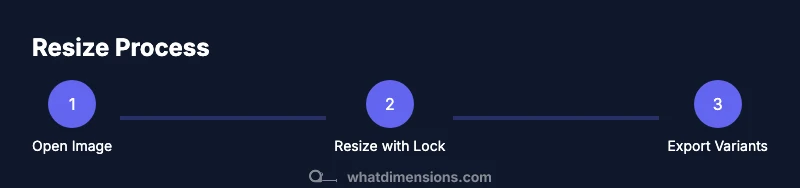
Regardless of the software, the general workflow is: locate the Image Size or Resize option, unlock or lock the aspect ratio as needed, enter the target width or height, choose an interpolation method, review the resulting pixel dimensions, and apply. If you’re resizing for print, ensure the DPI is appropriate and the image remains color-correct. In each tool, always keep a backup of the original image and consider performing a test export to verify color accuracy and sharpness before delivering the final file.
Resizing for web vs printing: dpi, compression, and file formats
Web images prioritize pixel dimensions and file size; you’ll often optimize for speed and bandwidth. Printing requires sufficient pixel data and appropriate DPI, plus color management and file format considerations. Common web formats include JPEG for photos and PNG for images with transparency. For print, TIFF or high-quality JPEG are typical, with color profiles embedded. When resizing, save a master file with intact layers or a lossless format, then export Web-optimized versions separately. This approach preserves the original data while providing platform-appropriate renditions.
Common pitfalls and how to avoid them
Some frequent mistakes include resizing without preserving aspect ratio, assuming DPI transfers between print and screen, and overwriting the original image. A safe workflow is to work on a duplicate, lock aspect ratio to prevent distortion, and verify results across sizes and devices. If you need multiple variants, create a dimensional matrix that lists width, height, and DPI requirements for each output, then batch process with non-destructive edits. Finally, test print proofs when preparing anything destined for physical media.
How to validate results: checks you should run
Validation should cover visual integrity, metadata integrity, and output specs. Visually inspect for distortion, blurring, or clipping. Check that the aspect ratio remains consistent with the target frame. Verify that the pixel dimensions meet the required width and height for each platform and confirm the DPI for print. Review file formats, color profiles, and transparency. A practical approach is to export from the exact stage you resized and compare it to the source at matching display scales to ensure fidelity.
Advanced tips: preserving quality during upscaling and downscaling
Upscaling often introduces blur; downscaling can lose fine detail. To minimize degradation, choose appropriate interpolation methods (e.g., bicubic or Lanczos variants) and avoid repeated resizing on the same image. When upscaling, consider sharpening after resizing, but apply it sparingly. For transparencies and layered artwork, maintain a copy with layers and neutral color adjustments in the original workspace, then export final versions. Lastly, consider using vector assets for logos or text where possible to avoid quality loss when scaling.
Quick-reference cheat sheet: dimension formulas and checks
- Maintaining aspect ratio:
Final considerations: storage, backups, and version control
Plan for versioned archives of resized images. Create a dedicated folder for each project with distinct filenames that reflect the target dimensions and output type (e.g., banner_1200x800_web.jpg). Backups guard against accidental overwrites or corrupted edits. When working in teams, adopt a consistent naming convention, document resizing decisions, and store masters with non-destructive edits for easy re-exports. Regularly audit media assets to ensure they still meet current requirements and standards.
Tools & Materials
- A computer with internet access(For downloading and editing images)
- Image editing software(e.g., Photoshop, GIMP, Affinity Photo)
- Original image file(Source file in a lossless or high-quality format)
- Access to a resizing tool(Can be desktop software or a reputable online service)
- Backup copy of original(Always keep an untouched version)
- Color profile awareness(Ensure sRGB or Adobe RGB when relevant)
Steps
Estimated time: 25-40 minutes
- 1
Open the image in your editor
Launch your chosen editor and open the image file you intend to resize. Verify you’re editing a duplicate to preserve the original. This initial step prevents accidental data loss and keeps a baseline for comparison.
Tip: Use a non-destructive workflow by duplicating layers or using a smart object in compatible software. - 2
Check current dimensions and aspect ratio
View the image’s current pixel dimensions and its aspect ratio. Note the width and height values to guide the resizing process and decide whether you’ll maintain the ratio or crop later.
Tip: If the target size isn’t the same aspect as the original, plan whether to crop or add padding before resizing. - 3
Lock the aspect ratio
Enable the aspect ratio lock to ensure proportional resizing when you input a new width or height. This keeps the image from looking stretched or squished.
Tip: If your target requires a specific final ratio, pre-calculate the needed crop or canvas size before resizing. - 4
Enter target width or height
Input the dimension you’re aiming for, letting the software compute the other side automatically if the aspect ratio is locked. Confirm that the resulting pixel dimensions align with your plan.
Tip: Prefer specifying the width for web assets that must fit a specific layout grid. - 5
Choose interpolation/resampling method
Select a resampling method that suits your goal (e.g., preserve details for downsampling, smooth for upsampling). The chosen method affects sharpness and artifact risk.
Tip: Common choices are bicubic for general use and nearest neighbor for pixel art; consult tool-specific guidance if needed. - 6
Adjust DPI for print when needed
If your output targets print, set the DPI to a suitable value (commonly 300 DPI). For web, DPI is less critical; focus on pixel dimensions instead.
Tip: Do not change DPI for screen-focused images; that setting primarily affects print outcomes. - 7
Preview and compare to original
Zoom in to compare sharpness, edges, and color fidelity with the original. Look for halos, blur, or pixelation signs that indicate over-resizing.
Tip: Toggle between view modes (actual pixels vs. fit) to assess detail retention. - 8
Crop or add padding if needed
If the aspect ratio changes, decide whether to crop the image or add a background to preserve the composition. Doing this before final export avoids surprises.
Tip: Crop tightly to preserve important subjects; avoid excessive padding that affects layout balance. - 9
Export for target platforms
Export a master version (lossless or high quality) and then generate platform-specific variants (web, print, social). Choose formats with respect to output needs.
Tip: Use descriptive filenames that include dimensions and format for easy retrieval. - 10
Verify final files in context
Open the final images in the actual layouts or proofs to ensure they render correctly in their intended context (website, brochure, poster).
Tip: Check color consistency across devices by viewing on different screens and printing a test copy if possible. - 11
Archive and document changes
Store resized files with versioning and keep notes about the dimensions, DPI, and tool used. This supports reproducibility for future edits.
Tip: Maintain a changelog or a simple metadata sheet for quick reference. - 12
Review accessibility and legibility
Make sure text and important details remain readable after resizing, especially for small screens or print formats where legibility could be compromised.
Tip: Increase contrast or adjust font size in layouts if needed to preserve readability.
Quick Answers
What happens to image quality when you change its dimensions?
Resizing alters pixel data. Downsampling can remove detail, while upsampling may cause blur. Using appropriate resampling methods helps preserve sharpness, but some quality loss is often inevitable when moving far from the original size.
Resizing changes pixel data; downsampling can lose detail, upsampling can blur. Use the right resampling method to minimize quality loss.
Should I resize for print or for web first?
Decide based on the primary output. Print usually requires higher pixel density (and DPI considerations), while web focuses on pixel dimensions for screens. Resize to match the intended channel before exporting separate versions.
Choose the target channel first, then resize accordingly to match print or web requirements.
How do I maintain aspect ratio when resizing?
Enable the aspect ratio lock in your editor before entering a dimension. If you must change the aspect, plan cropping or padding in a separate step to preserve image balance.
Enable aspect lock to keep the frame proportional; crop or pad if you need a different aspect.
Can I resize vector images without quality loss?
Vector images scale without loss of quality. If you’re working with raster images, resizing is lossy and depends on interpolation; consider keeping vector assets for scalable elements.
Vector resizes cleanly; raster resizing may reduce quality, rely on vectors for scalable parts when possible.
What file format should I export for social media?
JPEG is common for photos; PNG works for images that require transparency. Use web-optimized settings to balance quality and file size, and consider separate versions for different platforms.
Use JPEG for photos, PNG for transparency; optimize for web across platforms.
Is DPI relevant for web images?
DPI is primarily a print concern. For web images, focus on pixel width and height, not DPI, since screens render images based on pixels.
DPI matters for print; for web, concentrate on pixel dimensions.
Watch Video
Main Points
- Define target output first (web or print) before resizing.
- Maintain aspect ratio to prevent distortion.
- Use non-destructive editing to preserve the original.
- Validate results across devices and contexts.
- Save masters and document your workflow for repeatability.