How to Use the Dimensions Command in AutoCAD: A Step-by-Step Guide
Learn how to use the dimensions command in AutoCAD with a clear, step-by-step approach. This guide covers commands, options, and best practices for precise technical drawings, tailored for students, designers, and homeowners working with CAD.


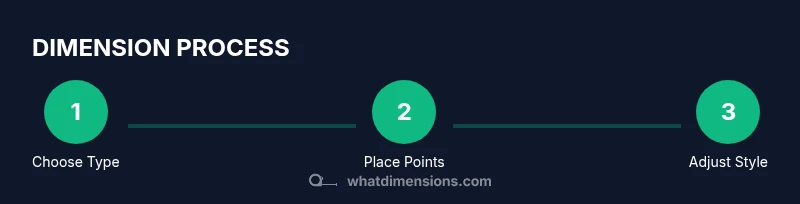
In AutoCAD, the dimensions command (DIMENSION) adds precise measurements to your drawing. You'll choose a dimension type (linear, aligned, angular, radius, or diameter), pick the defining points, and place the annotation on the desired layer. Then you’ll adjust style and precision to suit your drafting standards. This quick guide covers visual cues, settings, and common pitfalls.
What the Dimensions Command does in AutoCAD
According to What Dimensions, the dimensions command is a core CAD tool that converts spatial relationships into measurable, annotated values on your drawing. It supports a variety of dimension types and integrates with layers, text styles, and annotation scales. When used correctly, dimensions help stakeholders understand size, tolerances, and fit without ambiguity. The command also ties into global drafting standards, allowing you to standardize arrowheads, text height, and decimal precision across projects. In short, the DIMENSION workflow is the bridge between the geometry you draw and the information your team reads on the sheet.
Planning your dimensioning workflow: setup and standards
Before placing any dimensions, establish a workflow that reduces rework and misinterpretation. Start by setting the correct units and precision (UNITS and DIMSTYLE), ensuring annotation scales match your sheet size, and creating a dedicated annotation layer. Decide on a naming convention for dimensions (e.g., D-Width, D-Height) and commit to a single style family for arrows, text height, and decimals. If you work across disciplines, define how architectural, mechanical, and electrical drawings should align in the common CAD environment. Planning minimizes clutter and keeps your documents readable for reviewers and clients alike.
Choosing the right dimension type: Linear, Aligned, Angular, Radius, Diameter
AutoCAD offers several dimension types to capture measurements accurately. Linear dimensions measure distance along an axis, while aligned dimensions measure between two points on the slope of the geometry. Angular dimensions annotate angles between lines or edges. Radius and Diameter dimensions annotate circular features such as holes or shafts. Selecting the right type reduces the need for post-editing. As you work, consider how the dimension will be interpreted in fabrication or construction to avoid ambiguous notes. Consistency across the drawing helps maintain clarity.
Step-by-step: creating a basic linear dimension
- Activate the dimension command by typing DIMENSION or selecting it from the Annotate tab. 2) Choose the Linear subtype. 3) Pick the first point on the feature, then the second point to define the measurement. 4) Click to place the dimension line away from the geometry where it won’t obscure details. 5) Adjust the placement grip if the dimension overlaps other geometry. 6) Confirm the dimension by clicking, then modify its style if needed. This process establishes a baseline for subsequent measurements and ensures consistent spacing.
Step-by-step: aligned and baseline dimensions
- Start the DIMENSION command and switch to Aligned. 2) Define the first and second points along a non-orthogonal edge to align the dimension with the feature. 3) For a baseline dimension, repeat the steps while using the first dimension as the baseline reference. 4) Drag the text to improve readability and avoid overlaps. 5) Use DIMSTYLE to maintain uniform appearance across all baselines. 6) Validate alignment by comparing related features to ensure proportional accuracy.
Working with 3D objects and dimensions
Dimensional annotation in 3D space can be projected to 2D views or applied directly to 3D curves, faces, or edges. Use the DIMENSION tool with appropriate projection views (TOP, FRONT, RIGHT) to ensure the dimension references concrete geometry. If geometry is hidden or partially occluded, adjust the view, use temporary Hide/Isolate commands, or create section views to reveal the relevant edges. In practice, dimensional accuracy in 3D models supports fabrication processes and assembly tolerances.
Using dimension styles and precision controls
DIMSTYLE controls how dimensions appear: arrowheads, text height, decimals, and overall scale. Access it via the DIMSTYLE or Properties dialog. For consistency, create templates for different drawing types (e.g., sheet metal, architectural plans, or mechanical layouts). Adjust precision to the project’s tolerance (for example, 0.01
0.0 mm) and ensure that text is legible at the intended print size. Remember to apply the selected style to new dimensions to maintain uniformity.
Managing annotation scales and layers for clean drawings
Annotation scaling ensures dimensions look consistent across viewports and sheets. Use the Annotation Scale (ANNOAUTOSCALE) and set up layer-based dimension visibility rules. Place dimensions on dedicated annotation layers and lock layer states to prevent accidental edits. When printing, verify that the scale matches the target sheet and that dimension text remains legible after plotting. Proper layer and scale management reduces surprises in the final deliverable.
Common pitfalls and how to troubleshoot
Common issues include cluttered dimension lines, overlapping text, and inconsistent styles. If dimensions are misplaced, use grips to reposition and re-run DIMSTYLE for consistency. When dimensions don’t update after geometry changes, try REGEN and audit the drawing for annotation scale mismatches. If text is too small, increase text height or adjust the dimension style. For 3D drawings, ensure projected dimensions reference the intended faces and edges rather than hidden or hidden-line geometry.
Best practices for architectural, mechanical, and electrical layouts
Architectural drawings benefit from clear, non-cluttered dimensions placed on exterior envelopes and room boundaries. Mechanical designs require precise dimensions with tolerances and fit annotations. Electrical schematics should emphasize accessibility and readability, often using fewer but larger dimension annotations. In all cases, standardize layer names (D-, Ax-, etc.), apply a unified DIMSTYLE, and check dimensions against the shop drawing or fabrication spec to minimize interpretation risk.
Example walk-through: annotating a simple cabinet drawing
Imagine a cabinet face with a door, shelves, and mounting holes. Start by dimensioning overall height and width with linear dimensions. Add vertical distances between shelves with aligned dimensions, and annotate hole diameters with diameter dimensions. Use a consistent arrow style and place text away from the edge to avoid overlap. Review the sheet to ensure there are no missing measurements and that all dimensions align to the same baseline. If the cabinet changes, update the dimensions and recheck the entire annotation set.
Exporting, plotting, and reviewing dimensions in deliverables
Dimensions are part of the CAD file and will export with DWG or PDF, provided the dimensions remain within the chosen print scale. When plotting, verify the dimension line weights, text height, and decimal precision on the paper size. Review the final deliverable by cross-checking dimensions against the source geometry and any associated bill of materials. Keeping a tidy annotation strategy speeds up review cycles and reduces revision rounds. The integration of standardized dimensions supports faster approvals and fewer questions from stakeholders.
Tools & Materials
- AutoCAD software (latest version)(Licensed or educational version with DIMENSION commands)
- Computer or workstation capable of CAD tasks(Stable performance for 2D/3D drawing)
- Mouse or pen input device(Precise point selection)
- Drafting ruler or digital ruler(Helpful for quick checks)
- Calibrated monitor with color-accurate display(Ensures readable annotations)
Steps
Estimated time: 15-25 minutes
- 1
Open your drawing and prepare the workspace
Launch AutoCAD and load the drawing. Ensure the correct units, grid, and snap settings are active to make dimension placement predictable.
Tip: Set units (UNITS) and annotation scale to match your project. - 2
Choose the dimension type
From the Annotate tab, select the DIMENSION command, then pick the subtype (Linear, Aligned, Angular, Radius, Diameter) based on what you need.
Tip: Use the 'DIMSTYLE' command to apply a consistent style. - 3
Specify dimension endpoints
Click the first point (start) and second point to define the measurement. AutoCAD previews the dimension line.
Tip: Use object snaps (F3) and perpendicular/inline snaps for accuracy. - 4
Place and adjust the dimension
Place the dimension line where it won't clutter geometry. Move the text, rotate, or offset using grips if needed.
Tip: Keep annotations readable by avoiding overlaps. - 5
Adjust style and precision
Open DIMSTYLE or Properties to change arrowheads, text height, and decimal precision.
Tip: Match your project’s standard sheet size and tolerance. - 6
Review and finalize
Check all dimensions for consistency across the drawing. Update any dimensions when the geometry changes.
Tip: Regenerate (REGEN) after edits to refresh visuals.
Quick Answers
What is the purpose of the dimensions command in AutoCAD?
The dimensions command adds precise measurements to your drawing, improving clarity and accuracy. It supports multiple types and styles to suit 2D plans and 3D models.
The dimensions command adds precise measurements to a drawing, with multiple types and styles to fit 2D and 3D work.
Which dimension types are available in AutoCAD?
Common types include Linear, Aligned, Angular, Radius, and Diameter. Each type serves different measurement needs and annotations.
Common types include Linear, Aligned, Angular, Radius, and Diameter.
How do I adjust dimension style and precision?
Use the DIMSTYLE command to define how text, arrows, and decimals appear. You can save these settings as templates for future drawings.
Use DIMSTYLE to adjust how dimensions look and set decimals, arrows, and text.
Can I dimension 3D objects or is it only for 2D?
Dimensions can annotate 3D objects as projected measurements. However, ensure the geometry is accessible and dimension lines do not intersect complex faces.
Yes, you can dimension 3D objects by projecting distances.
How do I export dimensions to other formats?
Dimensions are part of the drawing file; you can export as DWG, PDF, or image formats while preserving annotation. Use PLOT or EXPORT as needed.
You can export or print drawings with dimensions included.
What are common mistakes to avoid with dimensions?
Avoid clutter, ensure consistent style, and verify all dimensions reflect current geometry after edits.
Avoid clutter and keep styles consistent; verify after edits.
Watch Video
Main Points
- Use the DIMENSION command to annotate drawings precisely
- Choose the correct dimension type for each measurement
- Keep dimensions on a dedicated layer and consistent style
- Verify dimensions after edits to maintain accuracy