Why Dimensions Fail in AutoCAD: A Troubleshooting Guide
Learn proven steps to diagnose and fix AutoCAD dimension issues. This guide covers DIMSTYLE, annotation scale, DIMASSOC, and best practices to keep dimension accuracy consistent across layouts.


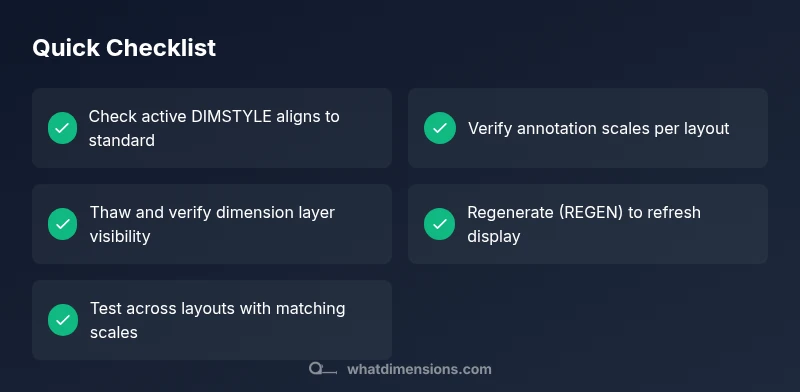
Most AutoCAD dimension issues come from a mismatched annotation scale or an incorrect dimension style. Quick fixes: switch to the correct DIMSTYLE, ensure the annotation scale matches the current viewport, confirm the dimension layer is thawed and visible, and run Regen to refresh the display. If the problem persists across layouts, verify that DIMASSOC is enabled (set to 2) and coordinate systems align.
Why dimension is not working in autocad
If you’re asking why dimension is not working in autocad, you’re not alone. In practice, the problem isn’t a single bug but a chain of configuration choices that drift over time. According to What Dimensions, dimension accuracy in AutoCAD hinges on correct DIMSTYLE and an annotation scale that matches the current view. When you jump between model space and paper space, or you apply different DIMSTYLE definitions across layouts, dimensions can resize unexpectedly or fail to render. The goal of this section is to help you identify where the mismatch originated and establish a dependable baseline so future projects stay consistent. We’ll explore common culprits, practical checks, and how to reestablish a robust workflow that keeps dimensions precise, legible, and correctly associated with geometry across all sheets.
Common culprits: DIMSTYLE, annotation scale, and DIMASSOC
Dimension failures usually trace back to three core settings: the active dimension style (DIMSTYLE), the annotation scale that governs size in each viewport, and the associative dimension setting (DIMASSOC). If the chosen DIMSTYLE doesn’t fit the drawing standards, dimensions can appear oversized, undersized, or not show up at all. Annotation scale inconsistencies crop up when model space dimensions are not properly mapped to paper space scales, so a single drawing renders differently on various layouts. Finally, if associative dimensions (DIMASSOC) aren’t enabled or are inconsistently applied, edits to geometry won’t propagate to the dimensions, producing stale or broken measurements. These factors often work together to create the symptoms you’re seeing.
The role of units and drawing scales
AutoCAD’s unit setup and the drawing scales of layouts directly influence how dimensions are displayed. If the drawing uses metric units while the DIMSTYLE assumes imperial units, the numbers will appear nonsensical, even though the geometry is correct. In addition, a mismatch between the model space units and the paper space annotation scale causes dimension text and leaders to drift. Always verify that the drawing unit system matches the DIMSTYLE expectations and that each layout’s annotation scale is configured to reproduce the intended size on print.
How to inspect and reset a DIMSTYLE
To diagnose DIMSTYLE problems, open the Dimension Style Manager and inspect the active style. Check the primary settings—text height, arrow size, extension line offset—and compare them to your project standard. If you notice inconsistencies, either edit the current DIMSTYLE or apply the correct standard style to the drawing. When in doubt, create a new style named after the project or department, set its properties to the standard values, and assign it as current. This method prevents cascading differences across blocks and sheets.
Working with annotation scaling across layouts
Annotation scale links the size of dimension text and leaders to the viewport scale. If you have multiple layouts with different scales, you must ensure each viewport uses the appropriate annotation scale. Consider enabling annotative objects for dimensions, which lets the same dimension automatically adjust across scales. If annotative mode isn’t appropriate, manually set the correct annotation scale for each layout via the properties panel or the DIMSTYLE dialog, then validate by placing a test dimension in each viewport.
Practical quick fixes you can apply now
Start with the simplest steps: verify the dimension layer is thawed and visible, and ensure the active DIMSTYLE is the standard for the project. Then, confirm the annotation scale in the active layout matches the viewport’s scale. Regen the drawing to refresh the display, and check that DIMASSOC is set to 2. If dimensions still appear incorrect, copy the geometry into a new clean drawing as a test; if the problem disappears, the issue is drawing-specific. Document changes for future projects.
How to avoid future dimension issues: best practices
Create and enforce a single DIMSTYLE standard across projects to minimize drift. Use a single annotation scale for each layout and consider enabling annotative dimensions for automatic scaling. Regularly audit sheets before release: run a quick Regen, check dimension visibility, and confirm dimension text height remains legible at print size. Finally, keep a change log for any DIMSTYLE or scale adjustments to maintain consistency across teams and projects.
Using tools and commands to verify dimensions
Leverage commands like DIMSTYLE, DIMASSOC, REGEN, and SCALELISTEDIT to verify and correct dimensions. The DIMSTYLE tool helps you compare styles; DIMASSOC ensures values propagate with geometry; REGEN refreshes the model to reflect edits; SCALELISTEDIT can adjust available scales to fit your plotting workflow. Practice these checks on a test drawing to build muscle memory before applying changes to live projects.
Final checks before sharing your CAD drawings
Before sending a file to a collaborator or submitting for review, perform a final dimensional sanity check: place test dimensions on critical edges, print a small sheet at 100% scale, and verify that text height remains legible. Cross-verify with the project’s dimension standard and confirm that all sheets share the same DIMSTYLE and annotation scale. The effort pays off in fewer revision cycles and cleaner deliverables.
Steps
Estimated time: 30-45 minutes
- 1
Check the active DIMSTYLE
Open the Dimension Style Manager and inspect the current dimension style. Compare its settings to your department standard. If mismatched, switch to the standard or create a new one that matches the guideline.
Tip: Document the chosen DIMSTYLE for future projects to reduce rework. - 2
Verify annotation scale in layouts
In each layout, check the annotation scale value and ensure it matches how the drawing will be printed. If you use annotative dimensions, enable them for consistent scaling across viewports.
Tip: Use a test dimension in each layout to confirm size consistency. - 3
Inspect the dimension layer state
Open the Layer Properties Manager and confirm the dimension layer is thawed, visible, and not locked. A dim layer that’s off will render nothing even if the style is correct.
Tip: Locking layers is common in complex sheets; double-check you’re not on a hidden layer. - 4
Check DIMASSOC setting
Ensure associative dimensions are enabled (DIMASSOC = 2). If set to 0, the dimension won’t update with geometry changes.
Tip: If DIMASSOC is wrong, reselect the dimension and re-attach to the geometry. - 5
Refresh and regenerate
Run REGEN to refresh the model. If needed, save, reopen, or copy geometry to a new file to rule out file-specific corruption.
Tip: Frequent regenerations reduce stale display issues during editing. - 6
Test across layouts
Place identical dimensions in several layouts with different scales to confirm consistency. Adjust the annotation scale until each displays correctly.
Tip: Keep a reference sheet that notes the proper scales per layout. - 7
Audit units and drawing scale
Make sure the model units align with the dimension style’s unit expectations and that the print scale matches your intended output.
Tip: Unit mismatches are a common root cause—fix at the source (drawing units first). - 8
Document standards
Create a short standards guide for dimensions including DIMSTYLE, annotation scale, and DIMASSOC settings. Share with your team to prevent drift.
Tip: Update the guide after major projects or software updates.
Diagnosis: Dimension values are incorrect or not displaying in AutoCAD
Possible Causes
- highActive DIMSTYLE does not match drawing standards
- highAnnotation scale mismatch between model space and paper space
- highDimension layer is frozen, off, or locked
- mediumDIMASSOC setting is 0 or inconsistent
- lowViewport or UCS issues causing misalignment
Fixes
- easyOpen the Dimension Style Manager and confirm the active DIMSTYLE matches project standards
- easySet or match the correct annotation scale in each layout; use SCALELISTEDIT to adjust
- easyThaw/unfreeze the dimension layer and ensure it is not on a locked layer; check LAYERS panel
- easyEnsure DIMASSOC is set to 2 for associative dimensions and use DIMASSOC accordingly; Regen if needed
- easyRegenerate the drawing (REGEN) and repair references; reopen if issues persist
Quick Answers
What is a DIMSTYLE and why does it matter?
A DIMSTYLE defines how a dimension is drawn, including text height, arrows, and offsets. Using the wrong style can make numbers hard to read or misrepresent distances. Align the active DIMSTYLE with your project standard to ensure consistency across sheets.
DIMSTYLE controls how dimensions appear. Use the standard for the project to keep things consistent.
How do I check annotation scale in AutoCAD?
Open each layout and verify the annotation scale matches the intended print size. If you use annotative dimensions, confirm they adjust automatically across viewports; otherwise set scales manually for each layout.
Check each layout's scale and adjust so the dimensions print at the right size.
Why are some dimensions not showing in model space?
Dimensions may be on a hidden or locked layer, or the DIMSTYLE may not apply to the current view. Verify the dimension layer is thawed and visible, and ensure the active DIMSTYLE matches project standards.
Dim visibility can be blocked by the layer or style; check both.
How do I fix dimensions across multiple layouts?
Match annotation scales across layouts, ensure DIMSTYLE consistency, and verify each viewport uses the correct scale. Consider annotative dimensions to simplify multi-layout management.
Keep scales aligned and use annotative dimensions when possible.
What is DIMASSOC and how to enable it?
DIMASSOC controls whether dimensions stay linked to geometry. Set DIMASSOC to 2 for full associative behavior and update dimensions automatically when geometry changes.
DIMASSOC should be 2 for automatic updates.
Is there a safe way to reset AutoCAD settings for dimensions?
Reset only the dimension-related settings or create a clean test drawing to experiment. Full reset should be done with caution and backups in place.
Test changes first in a copy, then reset if needed.
Watch Video
Main Points
- Standardize your DIMSTYLE across drawings
- Align annotation scale with layout viewports
- Verify dimension layers are visible
- Use Regen and DIMASSOC to refresh and maintain accuracy