How to Make Equal Dimensions in AutoCAD
Learn to create equal dimensions in AutoCAD using parametric constraints and linked dimensions. This How-To from What Dimensions covers setup for consistent drawings and practical steps to keep dimensions synchronized across views.


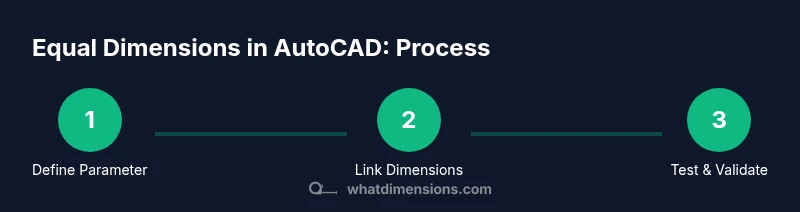
According to What Dimensions, you can ensure equal dimensions in AutoCAD by linking multiple dimensions to a single parameter and using the Parametric tools. This quick path helps keep values synchronized as you edit geometry, reduces rework, and improves design intent across multiple views. The guide covers setup, editing, and best practices.
What EQ Dimensions Mean in AutoCAD and Why You Should Use Them
Equal dimensions, often abbreviated as EQ dimensions, ensure that two or more length values stay the same as the design evolves. In AutoCAD, this is achieved by tying multiple dimensions to a single value via parametric constraints or linked parameters. According to What Dimensions, adopting this approach improves consistency across sheets, reduces drift when editing geometry, and clarifies design intent for teammates and stakeholders. If you operate in publishing or manufacturing, keeping equal dimensions is essential for repeatability and validation. In practice, you typically start with one base length, define a parameter, and then deliberately link every dependent dimension to that parameter. When the base value changes, all linked dimensions update automatically, preserving relative geometry while avoiding misalignments. The rest of this guide will explain why equal dimensions matter, how parametric constraints work, and concrete steps you can apply today in AutoCAD.
Tools & Materials
- AutoCAD (2020 or newer) with Parametric tools(Ensure the Parametric tab/workspace is available.)
- Computer with compatible specs(Minimum 8 GB RAM; 16 GB recommended; updated graphics driver.)
- Project sample drawing(For practice and testing links.)
- Documentation template(Helps teammates understand parameter usage.)
Steps
Estimated time: 15-30 minutes
- 1
Open AutoCAD Parametric Tools
Switch to the Parametric tab or workspace to access constraints, parameters, and expressions. Confirm that the drawing is set to the appropriate unit system for your project. This upfront step prevents misapplied constraints later.
Tip: Enabling the Parametric workspace early reduces back-and-forth edits. - 2
Create a Numeric Parameter
In the Parameters panel, define a numeric parameter named L (for length). Set a sensible unit and an initial value that matches your base design. This parameter will be the single source of truth for all linked dimensions.
Tip: Use clear, concise parameter names to improve readability. - 3
Link the First Dimension to the Parameter
Select the first dimension you want to tie to L, then bind it to the L parameter via the parameter binding or expression editor. Verify the dimension now reads as linked to L rather than a fixed number.
Tip: Label the dimension in the properties panel for easy verification. - 4
Link Additional Dimensions to the Same Parameter
Repeat the binding process for each additional dimension that should be equal to L. Each linked dimension should show a reference to L in its expression or bindings.
Tip: Avoid mixing units; ensure consistency across all linked dims. - 5
Review Expressions and Dependencies
Open the Expression Manager to review the constraints and ensure there are no conflicting rules. Remove any redundant links that could create circular references.
Tip: Keep a simple, non-overlapping set of constraints. - 6
Test by Editing the Parameter
Change L’s value and observe whether all linked dimensions update in real time. Perform this test in multiple views (plan, elevation) to confirm consistency.
Tip: Test in a copy of the working drawing to avoid disrupting production files. - 7
Save, Document, and Reuse
Save your constraint set and add notes to the drawing explaining the parameter map. Consider creating a reusable template that demonstrates common EQ-dimension configurations.
Tip: Create a small library of parameter templates for future projects.
Quick Answers
What does EQ dimensions mean in AutoCAD?
EQ dimensions mean tying multiple dimensions to one parameter so they stay equal as the design changes. This ensures consistency and reduces manual updates.
EQ dimensions tie multiple measurements to a single parameter so they stay the same when you edit the drawing.
Do I need the full AutoCAD to use parametric constraints?
Parametric constraints are available in recent AutoCAD releases. Check your edition to confirm support for parameters and constraints.
Parametric constraints are supported in newer AutoCAD versions; verify your edition before you start.
Can equal dimensions cross multiple sheets or views?
Yes, as long as the parameter bindings are maintained in the drawing file or referenced blocks, equal dimensions can propagate across sheets and views.
You can keep equal dimensions across sheets if the constraints are preserved in the drawing.
How do I revert from equal to independent dimensions?
Unbind or delete the parameter linkage for the affected dimensions. This will convert them back to independent values.
Unbind the dimensions from the parameter to make them independent again.
How can I audit or update my parameter-driven dims?
Use the Parameter Manager or equivalent tool to review bindings, units, and dependencies. Look for any broken links or conflicting expressions.
Open the Parameter Manager to review and fix bindings and units.
Are there risks with circular constraints?
Yes, circular constraints can cause unsolvable states. Avoid creating dependencies that reference themselves.
Be careful not to create circular references that make constraints unsolvable.
Watch Video
Main Points
- Link dimensions to a single parameter for consistency
- Parametric constraints auto-update linked dimensions
- Document parameter names, units, and ranges
- Test updates in multiple views before finalizing
- Create reusable templates for scalable designs