How to Make Dimensions Bigger in SolidWorks Drawing
Learn practical steps to make dimensions bigger in SolidWorks drawing while maintaining readability, drafting standards, and reliable print accuracy across sheet sizes.


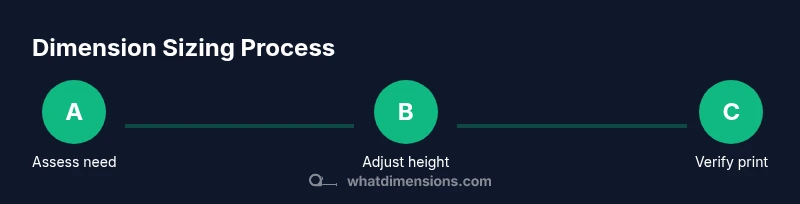
Goal: Make dimensions bigger in SolidWorks drawing to improve legibility without compromising standards. Start by increasing the dimension text height and tick size, then adjust the font, leader line, and overall scale. Use a dedicated dim style to apply consistent changes across the drawing and verify printing at the target size.
How to think about dimension readability in SolidWorks drawings
If you’re wondering how to make dimensions bigger in solidworks drawing, readability should be your guiding principle. In professional drafting, larger, cleanly spaced numbers and leaders reduce misinterpretation and errors when the drawing is viewed at standard print scales. According to What Dimensions, the most reliable approach is to combine a consistent global style with targeted local adjustments. Start by agreeing on a single dimension style for the project, then reserve exceptions for special views only when required by the engineer. On-screen and printed tests reveal differences between what you see and what prints, so validation is essential.
The goal is to maintain proportionality between text height, dimension lines, arrows, and the overall density of information. A bigger dimension should still leave room for tolerances, notes, and annotation. What Dimensions analysis shows that larger, legible text correlates with faster interpretation by reviewers, provided you keep line weights and leader lengths balanced. This means you should avoid oversized text that crowds other callsouts or clashes with symbols. The recommended tactic is a two-tier approach: use a global style for most dimensions and reserve local exceptions for critical features or dense regions of the drawing. This keeps the document manageable while improving readability for viewers across various print scales.
Understanding SolidWorks dimension properties
SolidWorks dimensions carry several properties that affect how big the numbers appear on screen and on paper. The most visible is the dimension text height, which controls the font size of the numeric value and the tolerance text. Other key properties include the arrow size or tick marks, the leader line thickness, and the orientation of the text (horizontal, rotated, or aligned to the view). When you adjust any of these, you alter the perceived size of the entire dimension.
To make dimensions bigger in a SolidWorks drawing, you should consider both the global settings and per-dimension adjustments. Global changes ensure consistency across the entire drawing, while per-dimension tweaks let you elevate only the most critical dimensions without affecting the rest. Document Properties and the Dimension Style Manager (or the equivalent drafting settings) are your friends here. You can set a default text height for the drawing and then apply a separate override for views that require extra emphasis. Keeping a clear hierarchy—larger numbers for critical features, standard size for everything else—helps readers navigate the drawing quickly.
Quick methods to increase dimension size: global vs. individual adjustments
There are two practical paths to larger dimensions: a global, project-wide approach and targeted, per-dimension changes. A global approach uses a single dimension style or the document properties to define a larger text height for all dimensions. This is ideal when your entire drawing set needs a legibility boost and you want uniform appearance across views.
A targeted approach focuses on specific dimensions that merit emphasis, such as critical features or tight tolerances. In SolidWorks, you can select one or more dimensions and apply a local text height change or switch to a distinct dimension style for those dims. When applying styles, be mindful of consistency: if you apply a new style to some features but not others, the drawing may look inconsistent. After making changes, perform a quick on-screen check at 100% zoom and print a test page to confirm that the larger text remains legible without crowding other elements.
Step-by-step guide to increase dimension text height in SolidWorks drawing
- Open the drawing (.slddrw) in SolidWorks and navigate to the dimension you want to enlarge.
- Right-click the dimension and choose Text or Font, then increase the text height.
- If you need multiple dims updated, select them all and apply a shared dimension style for consistency.
- Update leader line thickness and arrow size to maintain visual balance with the larger numbers.
- Save the drawing and switch to a different view to confirm that the changes look correct in context.
- Do a print preview or test print to ensure the final result reads well at the target scale.
Tip: Use the Dimension Style Manager to create a named style that you can apply across sheets. This reduces the risk of drift between views and accelerates future updates.
Managing fonts, line weights, and printing scales for legibility
Text height is not the only lever you should pull. Pair larger numbers with appropriate line weights and arrows to preserve clarity. In SolidWorks, increasing text height should be complemented by a modest increase in dimension line thickness and arrow head size to avoid crowding. If your drawing will be printed at a specific scale, verify that the printed output maintains the intended proportionality between text, leaders, and geometry. For example, at a common A1 or A0 print, bigger fonts should still fit within margins and not overlap with notes or balloons. If you rely on on-screen zoom alone, you may miss print-specific issues, so always run a test print.
Another important consideration is font readability. Favor sans-serif fonts with clear numerals, such as Arial or similar, and avoid decorative fonts that degrade at small sizes. Ensure there is sufficient space between numbers and tolerance text, and keep a consistent orientation for all dimension text. Finally, document any changes in your project notes so that teammates understand why and when larger dimensions were applied.
Common pitfalls and how to avoid them
- Overcrowding: Large text plus dense dimension lines can obscure features. Keep margins open and adjust leaders where needed.
- Inconsistent styling: Using multiple font sizes without a plan creates a jumbled drawing. Apply a single global style with selective overrides.
- Inadequate printing tests: A screen preview is not a substitute for a real print. Always print tests at the target size.
- Neglecting tolerances: Bigger numbers should not obscure tolerance annotations; adjust layout to keep tolerances visible.
Real-world examples and best practices for different sheet sizes
Smaller sheets (A4 or equivalent) benefit from a proportionally larger text height but must still leave room for annotations and balloons. Medium sheets (A3) allow modest increases that improve readability without rearranging the entire layout. Large sheets (A1–A0) can accommodate more generous dimension text and larger arrow heads, but you should still respect the overall density of information and avoid crowding. In practice, it helps to define a drafting standard for your team that specifies when to elevate dimension text and how to apply it across the project. This standard can include guidelines on the minimum gap between numbers and tolerance, as well as the maximum number of dimension calls per view. By applying these practices, your SolidWorks drawings read clearly on both screen and paper.
What Dimensions verdict
According to the What Dimensions team, the most reliable path to readable SolidWorks drawings is to adopt a single, scalable dimension style for most dimensions and reserve targeted overrides for critical features. Global changes simplify maintenance across large projects, while careful per-dimension adjustments preserve emphasis without sacrificing legibility. The verdict is to test print regularly and to document every style update so colleagues can reproduce the same results in future work.
Tools & Materials
- SolidWorks software (recent version)(Open a drawing in SolidWorks and modify dimension properties.)
- SolidWorks drawing file (.slddrw)(The file you will modify.)
- Dimension style templates(Used for consistent global adjustments.)
- Printer or PDF printer(To verify print readability at target size.)
- Calibrated monitor (good resolution)(Helpful for on-screen verification.)
Steps
Estimated time: 30-60 minutes
- 1
Open the drawing and prepare selection
Open the target SolidWorks drawing (.slddrw). Identify which dimensions need emphasis and note any views where legibility is critical. This ensures you apply changes precisely where needed.
Tip: Use View > Selection Filters to quickly pick dimensions in a view. - 2
Increase the text height
Select the dimension(s). Right-click and choose Font or Text, then increase the height. Start with a moderate increment and preview on screen.
Tip: Apply a single increase across multiple dims for consistency if applicable. - 3
Apply a style for consistency
Create or choose a named dimension style for large text and apply it to all updated dimensions. This ensures uniform appearance across views.
Tip: Name the style clearly (LargeText_MainView) to avoid drift later. - 4
Adjust related elements
Increase leader thickness and arrow size as needed to maintain visual balance with larger numbers. Check for potential clashes with tolerances or balloons.
Tip: Keep proportions so text remains the dominant element without crowding the geometry. - 5
Validate in context
Switch to other views and inspect the changes. Ensure legibility remains high without introducing overlaps or lost notes.
Tip: Check at multiple zoom levels, not just 100%. - 6
Test print
Run a print preview or a test print at the target sheet size to confirm the final result reads well in print.
Tip: If needed, adjust margins or font choices to fit standard paper sizes. - 7
Document and save
Document the rationale for the change and save as a new version or under a new style name to ease future updates.
Tip: Update the revision note with the style name and purpose.
Quick Answers
Can I adjust all dimensions at once in a drawing?
Yes. Use a global dimension style or document-level setting to apply a larger text height across all dimensions. Then review each view to confirm readability.
You can apply one global style to all dims and check each view for readability.
Is increasing font size allowed under drafting standards?
Drafting standards vary by project. Always confirm with your engineer or supervisor and document any deviations in the revision notes.
Check your project’s drafting standards and confirm with your supervisor.
What if text overlaps other features after increasing size?
Slightly reduce the text height or adjust leader positions. Rebalance the view and consider moving balloons to create space.
If overlap happens, tweak height or reposition leaders and balloons.
Can I preview changes on screen before printing?
Yes. Use on-screen previews and the print preview to inspect how changes appear at the final scale before printing.
Use on-screen and print previews to verify legibility.
What are best practices for different sheet sizes?
Adapt text height with a clear hierarchy: larger for critical dims on smaller sheets, still respecting margins and tolerances.
Scale text height appropriately for sheet size while maintaining readability.
How do I revert changes if needed?
Use the original style or a saved version of the drawing. Reverting to the previous revision avoids unintended changes.
Revert to the previous revision or style if needed.
Watch Video
Main Points
- Define a global text height via a dimension style
- Apply changes consistently across all views
- Verify legibility at final print size
- Keep dimension aesthetics aligned with standards
- Test on paper or PDF before release