Can You Take Measurements with Your Phone? A Practical Guide
Learn how to measure objects with your smartphone using AR measurement apps, built-in tools, and camera-based features. This guide covers accuracy, best practices, and when to rely on traditional tools for precise results.


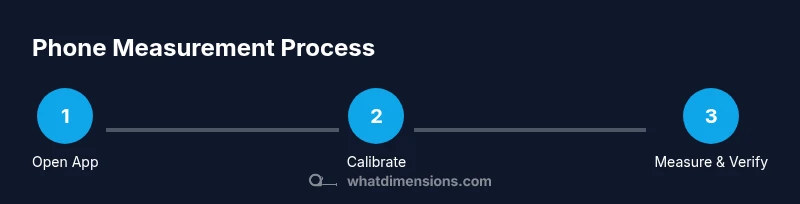
Yes. You can take measurements with your phone using AR measurement apps, built-in tools, and occasionally improved accuracy with LiDAR sensors. Start by selecting a trusted app, calibrate with a reference object, and measure from consistent reference points. Take multiple measurements for reliability, then convert units as needed. For most home tasks, your phone provides quick, useful estimates, not professional precision.
Can you take measurements with your phone? Practical reality for homeowners and students
If you’ve ever wondered, can you take measurements with your phone, the short answer is yes — with caveats. Modern smartphones come with capable cameras and depth sensors, and a growing ecosystem of measurement apps that use augmented reality (AR) to estimate distance, length, width, and height. In many everyday scenarios—checking if a couch fits in a living room, determining if a picture frame will clear a doorway, or planning fabric for a project—the phone can provide fast, actionable estimates. That said, you should treat these numbers as approximate until you verify them with a traditional tool. The best approach is to use your phone for quick checks and rough planning, then confirm critical dimensions with a ruler, tape, or laser measure when precision matters.
How phone measurement works: AR, LiDAR, and optical cues
Most measurement apps rely on the phone’s camera feed and real-time depth data. AR frameworks detect planes, edges, and corners and compute distances by triangulation relative to a reference point. On devices with LiDAR, depth sensing improves accuracy, especially for nearby objects or complex shapes. Even without LiDAR, high-quality cameras and well-designed algorithms can yield useful estimates by comparing features and known reference sizes. The core idea is to convert visual information into a dimension, then present units in inches, feet, or millimeters. You’ll often be asked to place anchors at corners or along edges to establish a measurement baseline.
Choosing the right method: apps vs native tools
There are three core routes to measurements on a phone. First, built-in tools provided by operating systems (e.g., an official Measure app) are easy to use and sufficient for quick checks. Second, third-party AR measurement apps offer advanced features like multi-point measurements, floor plan modes, and object scanning, sometimes with cloud or offline capabilities. Third, professional-grade apps and hardware add-ons can boost accuracy for design work or carpentry. When selecting an approach, consider factors like device compatibility, the object’s texture, lighting conditions, and whether you need area or volume measurements in addition to length.
Calibrating and testing for accuracy
Calibration is crucial for getting credible phone measurements. Start with a reference object whose real-world dimensions you know, such as a credit card, a standard sheet of paper, or a measuring tape laid flat on a known plane. Use this object to calibrate the app’s scale before measuring larger items. After calibration, test by measuring twice then comparing results. If you notice large discrepancies, try a different app or re-calibrate, ensuring your camera is steady and your subject is well-lit. Consistency across multiple attempts is a strong indicator of reliability.
Real-world scenarios: furniture, rooms, artwork, and clothing
Smartphone measurements shine for quick interior planning, such as ensuring a sofa fits through a doorway or estimating rug sizes. They’re also handy for rooms where you’re mapping out wall space for art or shelving. For clothing or textiles, phone measurements can help you compare fabric dimensions or fit, but fabric and drape can introduce variability. When measuring irregular shapes (vases, sculptures, or curved furniture), take multiple measurements from different angles and consider the bounding box rather than a single length.
Limitations and caveats you should know
Camera-based measurements thrive in well-lit environments with flat, solid edges. Glossy surfaces, transparent materials, curved forms, or soft fabrics can reduce accuracy. Movement—either of the phone or the object—also degrades results. Many apps assume a standard unit and may require you to switch between metric and imperial depending on your region. Finally, phone hardware evolves, so measurements from an older device may differ from a newer model; always annotate which device and app version you used.
Ways to improve results with accessories and environment
Stability matters. Use a small tripod or prop the phone against a stand to minimize shake. Improve lighting to reduce shadows and glare, and place reference objects with known dimensions near your target. For accuracy-critical tasks, combine phone measurements with a traditional tool, especially for long lengths or precise cut lines. Keep your app updated to benefit from bug fixes and algorithm improvements.
Next steps: documenting measurements and sharing results
After you collect dimensions, document them clearly in a project notebook or digital notes. Include the device model, app name, measurement method, and the units used. If you’re sharing with a team or supplier, export a measurement log or screenshot with scale references. For room planning, sketch a quick floor plan with annotated dimensions so others can visualize space and object fit.
Tools & Materials
- Smartphone (iOS or Android)(Any recent model with a camera and AR support)
- Measuring apps (built-in or third-party)(Choose apps with good reviews and update history)
- Ruler or tape measure(For calibration and cross-checks)
- Reference object of known size(Credit card, standard paper, or a small card)
- Tripod or stable stand (optional)(Helps keep the phone steady for long measurements)
Steps
Estimated time: 25-40 minutes
- 1
Prepare your phone and tools
Power on your device, update the measurement app if needed, and gather a ruler or tape to cross-check. Ensure adequate lighting and a flat surface for more reliable readings. Have a reference object ready for calibration to set the scale.
Tip: Place a known reference object within the scene early to reduce calibration time. - 2
Calibrate the app using a reference object
Select a reference item with known dimensions (e.g., a credit card) and use it to set the scale in the app. Verify the scale by measuring the reference again and confirm the result matches its real size. Recalibrate if you switch to a different app or device.
Tip: Use multiple reference sizes if the app supports it to improve scale accuracy. - 3
Position and anchor your measurement
Hold the phone steady, align the camera with the object edges, and establish start and end points. For length, measure along a straight line; for width and height, capture perpendicular measurements from the same reference plane.
Tip: Keep the camera parallel to the measurement surface to minimize parallax error. - 4
Capture measurements and record
Take multiple measurements from different angles if needed to confirm consistency. Note the units used and ensure you document the orientation (which edge you measured). Save or screenshot the results for later reference.
Tip: Take at least two independent measurements to check for consistency. - 5
Cross-check with a traditional tool
Compare phone results with a tape measure or laser measure on at least two dimensions. If discrepancies exist, repeat the steps or try a different app. Document any variance and adjust as needed.
Tip: If the item is irregular, measure its bounding box rather than a single length. - 6
Convert units and organize results
If you work in different units, convert to the desired system (metric or imperial) and record all measurements in a standardized format. Create a simple log or diagram for teammates.
Tip: Use a reusable template for future measurements to save time.
Quick Answers
Can a phone measurement app be as accurate as a tape measure?
Phone apps provide convenient estimates suitable for planning, but they generally aren’t a replacement for a tape measure in precision tasks. Always verify critical dimensions with a traditional tool.
Phone apps are great for quick estimates, but for precise work you should verify with a tape measure.
Do I need a LiDAR-equipped phone for accurate measurements?
LiDAR improves depth sensing on supported devices, but many measurements are accurate with regular cameras and AR. Use LiDAR when available, but don’t rely on it exclusively.
LiDAR helps, but you can still measure with standard cameras using AR.
What units can I measure in?
Most apps support metric and imperial units. You can switch between them and convert as needed for documentation or compatibility.
Most apps let you switch between metric and imperial units easily.
How should I calibrate measurement apps?
Calibrate using a reference object with known dimensions, then test by measuring the same object again. If results vary, recalibrate or try another app.
Calibrate with a known object and test results for accuracy.
When should I rely on traditional measuring tools?
For high-precision tasks, furniture construction, or when measurements involve tolerances, use traditional tools as the benchmark.
Use traditional tools for high-precision needs.
Watch Video
Main Points
- Leverage phone tools for quick measurements
- Calibration improves accuracy over time
- Always cross-check with a traditional tool for precision
- Document measurements clearly for sharing
- Use proper lighting and stability to reduce errors