How to Measure Dimensions with Your Phone
Learn how to measure dimensions with your phone using AR and camera-based tools. This guide covers calibration, app selection, practical techniques for furniture, paper, luggage, and more, plus pro tips to improve accuracy in 2026.


You’ll learn how to measure dimensions with your phone using built-in AR measurement tools and companion apps, calibrate for accuracy, and apply best practices for furniture, paper, and luggage. By the end you’ll know which apps to use, the steps to take, and how to record reliable measurements.
Why smartphone measurement matters
According to What Dimensions, using a phone to measure dimensions can streamline planning and shopping workflows. smartphones let you quickly verify fit, compare options, and document exact sizes for furniture, paper, luggage, and more without hauling a physical ruler everywhere. The convenience is especially valuable for designers sketching layouts, students organizing study spaces, and homeowners planning renovations. However, phone-based measurements depend on correct calibration, stable framing, and understanding unit conventions. This section sets the foundation for precise results by clarifying what your phone can and cannot measure, and where to start.
- Understand the difference between linear measurements (length, width, height) and derived measurements (diagonal, area).
- Recognize how camera perspective and distance affect results.
- Choose a measurement approach based on object type (flat vs. curved surfaces).
What Dimensions’ analysis highlights that while phone measurements can be highly convenient, you should verify critical dimensions with a physical ruler for final decisions on tight tolerances. This builds confidence when ordering large furniture or matching paper sizes for print jobs.
Understanding measurement basics
Before you measure, get familiar with key concepts: units (centimeters vs inches), reference planes, and common measurement errors. Your phone’s measurement tool typically reports dimensions in the unit selected in settings. Always confirm the reference face of the object (which surfaces define the measurements) and ensure the object is stationary during measurement. For irregular objects, you may need multiple measurements (e.g., base width, top width, depth) to capture the true footprint. Remember that a flat surface yields more stable results than a rounded edge. Consistency in where you place your phone camera helps reduce variance across attempts.
- Use consistent endpoints for each dimension.
- Double-check units in the app settings before recording.
- For non-flat items, measure from multiple angles and average results when appropriate.
Choosing the right app or built-in tool
Most modern phones now include an AR-based measuring feature (for example, Measure on iOS and similar AR rulers on Android). Third-party apps can add features like volume estimation, 3D modeling, or object sketching. Start with the native tool for speed and reliability, then explore a trusted app if you need features such as edge snapping, grid overlays, or export options. Always grant location and camera permissions only to reputable apps, and keep your device updated to ensure AR accuracy improves with firmware patches.
- Native apps tend to offer smoother calibration flows.
- Third-party apps may provide advanced exports (CSV, PNG) for records.
- Check reviews and privacy policies before downloading.
What Dimensions recommends testing a few tools on a known object (like a box) to compare results before using them for important projects.
Calibration and setup: the foundation of accuracy
Calibration aligns your phone’s sensors to the real world. A simple calibration test with a standard reference object (e.g., a card, a sheet of paper with a known size, or a ruler) helps the app map depth and scale more accurately. Ensure the object lies flat and fill the on-screen frame without exceeding the edges. During calibration, keep the camera steady and avoid moving objects. If your measurements seem off, recalibrate and re-check the reference object’s size.
- Calibrate when switching lighting conditions or environments.
- Use objects with clearly defined edges for better edge detection.
- Recalibrate after dropping the phone or changing its position dramatically.
This step reduces drift and improves consistency across sessions.
Step-by-step: measuring a flat panel (e.g., table or wall) with a phone
- Activate the phone’s measurement tool and set units to your preferred system. 2) Align the camera with one edge and tap to mark the endpoint. 3) Move along the edge, tapping end points for length and width. 4) Confirm the results and take a screenshot or export the data. 5) Repeat from the opposite edge to ensure accuracy, if needed.
For best results, keep a stable stance and avoid camera shake. If the edge isn’t perfectly straight, measure along multiple parallel lines and use the average.
- Use a tripod or stable surface when possible to minimize shake.
- If measuring a height, measure from floor to ceiling with two vertical references and average the results.
What Dimensions notes that repeating measurements increases confidence when you need exact figures for installation or layout planning.
Step-by-step: measuring a non-flat object (e.g., rounded table, vase)
- Start with the longest straight dimension across the object; place the phone parallel to the edge. 2) Take multiple measurements along different planes (front, back, sides) and record each result. 3) For curved shapes, approximate by bounding boxes or use sectional measurements, then combine them in your documentation. 4) If possible, photograph the object with scale references for later review.
- When using a bounding box method, document width, depth, and height separately.
- If the object has asymmetry, capture measurements from several orientations and note the orientation used.
This approach helps you capture a representative footprint for irregular items.
Recording, storing, and sharing measurements
After collecting data, organize measurements in a consistent format (e.g., a table with object name, date, dimensions, unit, and notes). Use your phone’s export options or cloud storage to save records. When sharing with others (designers, suppliers, or friends), include context such as object type, reference faces, and whether measurements were taken from external edges or bounding boxes. Documentation minimizes miscommunication and speeds up decision-making.
- Keep a backup copy of all measurements.
- Include photos with scale to validate dimensions visually.
- Use a consistent naming scheme for files to improve searchability.
What Dimensions emphasizes clear, well-documented measurements to support accurate sizing in real-world projects.
Tools & Materials
- Smartphone with camera and up-to-date OS(Prefer the latest iOS or Android version for best AR accuracy.)
- Ruler or measuring tape (optional for cross-checks)(Use as a quick reference to verify app results.)
- Flat, stable reference object (e.g., credit card or standard card)(Known dimensions help calibration.)
- Notepad or digital note app(Record measurements with units and date.)
- Stable surface or tripod(Minimizes camera shake during measurement.)
Steps
Estimated time: 30-60 minutes
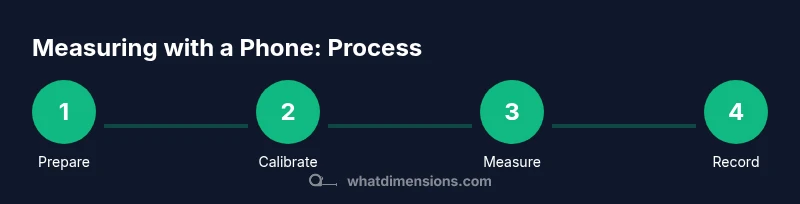
- 1
Prepare your device
Power on your phone, ensure the camera lens is clean, and update the measurement app or native tool to the latest version. Set units (inches or centimeters) and verify permission for camera access. This ensures AR features function correctly when you begin.
Tip: Enable auto-brightness or good lighting to improve edge detection. - 2
Calibrate with a reference object
Place a known-size object within view and follow the on-screen calibration prompts. This anchors the AR depth map to real-world dimensions and reduces drift.
Tip: Use a card or ruler with clearly marked edges for accuracy. - 3
Measure a flat object
Align the camera along the first edge, tap endpoints to define length, then measure the second edge for width. Confirm the dimension by re-measuring to check consistency.
Tip: Keep hands steady or use a stand to prevent motion blur. - 4
Measure a vertical height
Hold the phone vertically and measure from base to top, ensuring the reference surface is level. If the object is tall, measure in two stages and verify results.
Tip: Record both the tallest and average height if the object isn’t perfectly straight. - 5
Measure an irregular surface
For rounded or uneven shapes, capture multiple cross-sections and compute a bounding box or average footprint. Document any deviations from the bounding box.
Tip: When in doubt, document the orientation you used and attach photos. - 6
Cross-check with a manual ruler
Compare app results with a manual measurement for the same edges when possible. Note any discrepancies and adjust your records accordingly.
Tip: Discrepancies should be explained in your notes. - 7
Export and save measurements
Take screenshots or export data to a preferred format (PDF/CSV) and save to cloud storage. Rename files consistently for easy retrieval.
Tip: Back up data to prevent loss. - 8
Apply measurements to a project
Use the recorded dimensions to verify fit for furniture, print layouts, or travel packing. Share with teammates or retailers as needed.
Tip: Provide context (unit, object, date) when sharing.
Quick Answers
How accurate are phone-based measurements compared to a physical ruler?
Phone measurements are generally close for everyday tasks but can vary with lighting, motion, and surface texture. Always verify critical dimensions with a physical ruler when exact tolerances matter.
Phone measurements are close to a ruler in casual use, but you should double-check critical figures with a real ruler.
Can I measure curved or irregular objects accurately with a phone?
Yes, but you’ll typically measure several cross-sections and use a bounding-box approach or average footprint. Document the method so others understand the limits of the data.
Curved objects can be approximated by cross-sections; note the method used.
Do I need internet access to measure with my phone?
Most measurements work offline using built-in AR capabilities. Export features or cloud backups may require internet, but core measuring functions do not.
No internet is needed for basic measurements, though exporting data may require connectivity.
Which apps are best for iPhone vs Android measurements?
Native AR measurement tools on iPhone and Android are reliable starters. Third-party apps can offer advanced options, but verify privacy and reviews before use.
Start with your phone’s built-in measure tool, then explore trusted apps if you need extra features.
How should I record measurements for a project?
Document the object name, date, unit, and the measured dimensions in a simple table. Attach photos showing the object and scale for context.
Keep a simple log with date, object, units, and dimensions.
Can I measure interior dimensions like a closet or cabinet easily?
Interior measurements follow the same principles but require access to edges and corners. Use multiple angles and note any hardware or obstructions that affect the reading.
Measure from the inside edges in multiple directions and note any obstructions.
Watch Video
Main Points
- Use a calibrated phone AR tool for quick measurements
- Record measurements with unit and context for clarity
- Cross-check app results with manual references when precision matters
- Store and share measurements with clear naming and supporting photos
- Calibrate regularly to maintain AR accuracy
- Prefer bounding-box or multiple-angle methods for irregular shapes