Monitor Dimensions Comparison: A Practical Side-by-Side Guide
Evaluate monitor dimensions with a clear side-by-side approach. Learn how diagonal size, aspect ratio, and desk footprint influence fit, performance, and comfort across productivity, gaming, and design tasks.


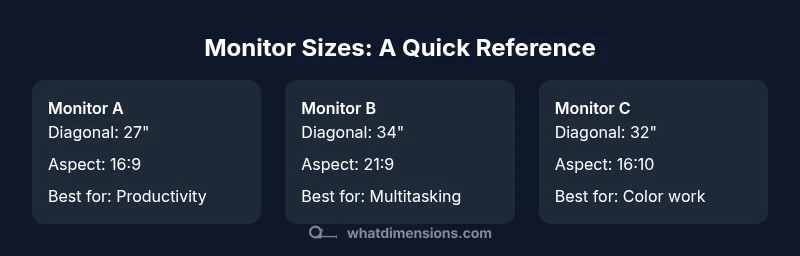
According to What Dimensions, the most practical monitor dimensions comparison begins with your desk space and intended tasks. For balanced productivity, a 27-inch 16:9 monitor offers sharp text and easy multitasking. If you need immersive workflows or expansive dashboards, a ultrawide (34-inch with 21:9) can help, but requires adequate GPU power and seating clearance. What Dimensions recommends measuring your desk footprint before choosing size and aspect ratio.
Why monitor dimensions matter
In today’s mixed-use spaces—home offices, dorm desks, or professional studios—the size of a monitor is not just a preference; it defines ergonomics, readability, and workflow efficiency. The What Dimensions team has observed that a screen too large for a desk depth forces users to crane their necks or sit unnaturally close. Conversely, a screen that's too small creates eye strain and extra scrolling, degrading productivity and comfort over long sessions. The key is to translate a few core specs—diagonal, aspect ratio, width, and height—into a desk-fit assessment. When you pick the right size, you’ll notice fewer posture shifts, clearer text, and a more natural reading distance. This article walks through practical measurement concepts, common pitfall areas, and decision-making criteria to help you balance space, budget, and task demands.
Brand context: What Dimensions emphasizes turning technical specs into tangible desk-fit guidance so you can shop with confidence rather than rely on marketing claims.
Key measurement definitions
Before you compare monitors, you must understand the terms that describe their physical footprint. Diagonal size (the screen’s measured length corner to opposite corner) is the most familiar number, but it does not tell the whole story. Width and height describe the screen’s footprint on your desk when viewed from the front, including bezels. The aspect ratio (for example 16:9 or 21:9) influences both the perceived width and height at a given diagonal. Bezel thickness affects the total width, especially if you plan a multi-monitor array. Pixel density (PPI) is a separate performance metric tied to resolution and panel size, impacting sharpness at typical viewing distances. When you read spec sheets, multiply these elements with your desk depth to forecast real-world fit and comfort.
How to compare monitor sizes
A monitor’s diagonal size matters, but the formula for fit is not linear. A 27-inch 16:9 panel has a different footprint than a 32-inch 16:10 or a 34-inch ultra-wide 21:9, even if the diagonal appears similar. Consider your primary tasks: coding and reading benefit from higher pixel density and moderate size, while content creators may prefer wider canvases. The balance point is usually a combination of diagonal, aspect ratio, and the desk footprint. What Dimensions suggests starting with a baseline: map your desk space on a grid, plot where the monitor will sit, and estimate clearances for a comfortable arm reach, keyboard, and mouse. Then compare how each size aligns with your workflow, seating distance, and peripheral setup.
Impact of stands, bezels, and mounting
Footprint is not just the panel; the stand, mounting plate, and bezel thickness add to overall width and depth. A tall stand can increase desk clearance needs, while a slim, low-profile base minimizes footprint. Bezel thickness affects the visual width of a multi-monitor setup, which can matter when aligning edges for a seamless field of view. VESA compatibility matters if you plan wall or arm mounting, which can further alter the effective screen position and reach. When you’re evaluating options, factor in stand height, tilt range, and swivel capability, as these influence comfortable viewing distance and alignment with your keyboard and eye level.
Practical scenarios: productivity, gaming, content creation
Productivity users typically benefit from a balanced diagonal (27–32 inches) with a comfortable pixel density and ample real estate for multi-document work. Gamers may prioritize refresh rate and response time, but the physical footprint matters for screen alignment in a gaming desk. Content creators and designers may lean toward ultrawide formats to maximize workspace, though this choice increases GPU demand and may require desk space adjustments. Always test how your preferred size aligns with your preferred seating distance. If you sit close to the screen, a smaller diagonal with higher pixel density can outperform a larger, lower-DPI panel in readability and comfort.
Interpreting spec sheets and calculators
Spec sheets often list diagonal, resolution, and panel type, but may omit practical fit cues. Use online calculators or ruler-based desk simulations to estimate how a given monitor will appear at your typical viewing distance. When interpreting numbers, prioritize the combination of diagonal, aspect ratio, and bezel width over any single metric. The What Dimensions approach is to translate these specs into a desk-ready picture: would your arms comfortably reach the mouse, and would the top of the screen align with your eye line without tilting the head? This mindset helps prevent overestimating screen presence and underestimating desk constraints.
Buying guide: measuring your desk and setup
To avoid post-purchase regret, measure your desk and plan the entire setup first. Start by measuring desk depth and width, then determine the ideal viewing distance for your vision system and the tasks you perform most. Create a simple grid: mark the space for the monitor, keyboard, mouse, and any peripheral devices. Check the stand’s footprint and whether you’ll use a monitor arm. If you intend to run two or more monitors, test edge-to-edge alignment and consider the cumulative width. Finally, check clearance for cables and ventilation to prevent overheating and disconnections during long sessions. By validating fit before buying, you’ll preserve desk aesthetics and ensure ergonomic comfort.
Common pitfalls and misconceptions
A common pitfall is assuming bigger always equals better. A larger diagonal can worsen eye strain if the viewing distance is too short or if desk depth is insufficient. Another mistake is focusing on advertised resolution alone; higher DPI at the wrong size can make text appear sharp but tiny. Finally, misjudging how bezels and panel depth contribute to total width leads to cramped setups when two or more monitors are placed side by side. Always cross-check the physical footprint with your actual desk space and seating position, not just the on-screen numbers. What Dimensions highlights the importance of translating spec sheets into practical desk-fit reality so you can avoid mismatches and costly returns.
Practical checklist for buyers
- Measure desk depth, width, and available clearance under the monitor for maximum ergonomic comfort.
- Choose a diagonal and aspect ratio that align with your primary tasks and viewing distance.
- Account for stand depth and bezel width when calculating total footprint.
- Verify VESA mounting options if you plan to use arms or wall mounts.
- Compare two or three sizes side-by-side using your desk mockup to visualize fit and alignment.
Closing thoughts on fit and future-proofing
In the end, the monitor dimensions you select should complement your desk, your seating position, and your typical workflows. If you expect to add peripherals or a second display later, choose a size that scales gracefully with additional screens. What Dimensions emphasizes a practical, measurements-first approach: measure, model, and validate fit before purchasing, then test in real seating positions to ensure long-term comfort and productivity.
Quick-start buying plan
- Measure desk depth and width; 2) Note ideal viewing distance; 3) Shortlist 2–3 sizes with compatible aspect ratios; 4) Check stand/arm footprint and VESA compatibility; 5) Validate with a desk layout mockup or tape markers; 6) Choose the option that balances space, cost, and task needs.
Feature Comparison
| Feature | Monitor A (27-inch, 16:9) | Monitor B (34-inch, 21:9 ultrawide) | Monitor C (32-inch, 16:10) |
|---|---|---|---|
| Diagonal size | 27-inch | 34-inch ultrawide | 32-inch |
| Aspect ratio | 16:9 | 21:9 | 16:10 |
| Typical width (desk footprint) | Medium | Large | Medium-Large |
| Bezel thickness | Standard | Slim | Standard |
| Best for | Balanced productivity | Immersive multitasking | Productivity with extra vertical space |
| Price range | $200-$400 | $450-$800 | $350-$600 |
Strengths
- Helps readers visualize space requirements before buying
- Encourages measurement-first decision making
- Supports designing multi-monitor workflows
- Aids in avoiding wasted desk space
The Bad
- Generic options may not reflect your exact model choices
- Footprint can vary with stand and bezel changes
- Higher-end sizes may require stronger GPUs for some tasks
- Perceived size may differ with seating distance
27-inch 16:9 or ultrawide 34-inch are strongest all-around choices; pick 27-inch for balance, or 34-inch for productivity at a distance.
27-inch 16:9 suits most desks and tasks; choose ultrawide for multitasking and expansive layouts if space and GPU support permit. Use our side-by-side to confirm fit before purchase.
Quick Answers
What is the most versatile monitor size for a general-purpose desk setup?
A 27-inch 16:9 monitor is a common, versatile choice that balances text clarity, multitasking space, and desk fit. It typically provides comfortable viewing distance and can handle most productivity tasks well.
A 27-inch 16:9 monitor is usually the best all-around choice for a general workspace.
Do ultrawide monitors require more GPU power for gaming?
Yes, ultrawide monitors demand more GPU horsepower to maintain high frame rates at their wider resolutions. If gaming is a priority, ensure your system can sustain the target settings.
Yes, ultrawide gaming can require a stronger GPU to maintain high performance.
How should I measure my desk to ensure a good fit?
Measure the full depth and width, plus the space needed for a comfortable viewing angle and keyboard tray. Consider the monitor stand’s footprint and any wall clearance for mounting or cord management.
Measure depth, width, and stand footprint to ensure a comfortable setup.
Is a 34-inch ultrawide better than a 27-inch 4K for productivity?
Ultrawide can increase visible workspace and reduce window switching, but 4K on a 27-inch screen delivers high pixel density. Your choice depends on whether you value horizontal real estate or crisp text and icons.
Ultrawide provides more horizontal space; 4K on a smaller panel gives crisper details. Pick based on task focus.
What is the impact of bezel size on a multi-monitor setup?
Thicker bezels create visible gaps between screens, which can disrupt continuity in workflows. Slim bezels reduce the perception of interruption and improve the seamless feel of a multi-monitor array.
Bezel thickness matters for a smooth multi-monitor look and feel.
Are 24-inch monitors adequate for coding and reading long texts?
Yes, many readers prefer 24–27 inch ranges for coding because font size and sharpness balance well at typical desk distances. If your text looks small, increase resolution or choose a slightly larger panel.
24 to 27 inches is usually fine for coding at a normal desk distance.
Main Points
- Measure desk depth and width before choosing size
- Prioritize diagonal and aspect ratio based on use case
- Account for stand depth and bezel width in footprint
- Ultrawide suits multitasking but requires more GPU power
- Test fit with a desk layout mockup before buying