Display Dimensions Calculator: Learn to Measure Diagonals
Learn how to calculate a display's diagonal size from width and height with a simple, educational calculator. Perfect for designers, homeowners, and students needing exact size specs for monitors, TVs, and tablets.


Understanding the math behind the calculator
The diagonal of a rectangle is the distance between opposite corners. If you know the width (W) and height (H) of a display, the diagonal D can be calculated with the formula D = sqrt(W^2 + H^2). Since our calculator uses only basic operations, you can write this as D = round(pow(W^2 + H^2, 0.5), 2). This confirms why a simple two-number input can yield a precise diagonal measurement. Keep in mind that real-world displays include bezels around the screen, so the actual picture area may be slightly smaller than the raw diagonal implies. For designers, accounting for bezel and aspect ratio is important when planning layouts.
- Key idea: diagonal = sqrt(width^2 + height^2)
- Tool behavior: rounding to two decimals improves readability for spec sheets.
Tip: When measuring, use consistent units (inches) to keep the calculation straightforward and reduce conversion errors.
When to use a display dimensions calculator
A display dimensions calculator is helpful in multiple scenarios. Designers choose monitors for color grading, video editors compare TVs for living rooms, and product developers ensure printed layouts align with media assets. Homeowners planning multimedia setups rely on precise size estimates to prevent oversizing or undersizing furniture and mounts. Students can verify classroom projectors or displays for presentation spaces. By providing a reliable diagonal estimate, the calculator supports consistent dimensioning across projects and vendors.
Use cases include:
- Selecting a monitor that fits a specific desk space
- Matching TV size to room viewing distance
- Planning wall art or shelves beside screens
- Verifying aspect ratio compatibility with a given mount
Step-by-step example: from width and height to diagonal
Let width = 11 inches and height = 6 inches. The calculation uses the exact inputs:
- W^2 = 121
- H^2 = 36
- Sum = 157
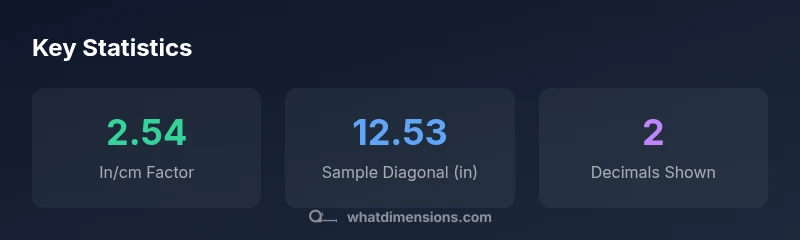
- D = sqrt(157) ≈ 12.53 inches To match the calculator’s behavior, we express the result as: diagonalInches = round(pow(1111 + 66, 0.5), 2) → 12.53 inches. If you want centimeters, multiply by 2.54 (12.53 in × 2.54 ≈ 31.8 cm).
Common errors and how to avoid them
- Don’t confuse the display’s bezel with the active screen: bezel margins reduce the usable area but won’t change the diagonal calculation. - Always input dimensions in the same unit to avoid conversion mistakes. - Round results consistently (two decimals) for budgeting, spec sheets, and procurement.
How to present results to stakeholders
Present the diagonal in both inches and centimeters for international teams. Include the width and height inputs so others can reproduce the calculation. When space is tight on a spec sheet, show D ≈ 12.53 inches (31.85 cm). Include a quick note that the bezel and aspect ratio can shift perceived size on the wall or desk.
Calculator configuration tips
Use the two-input layout (width and height) to keep things simple. Always round the diagonal to two decimals for consistency. If you later add an option to convert to centimeters, clearly label the conversion factor and provide a secondary output field for centimeters.
Real-world scenarios and case studies
In professional workflows, sizing accuracy influences layout planning for digital signage, classroom displays, and home entertainment setups. A calculated diagonal helps you verify that a mounted display won’t protrude beyond a wall frame or obscure furniture. Case studies show that teams who standardize on a diagonal-first approach reduce returns and mis-orders by clarifying space requirements before purchasing.
Accessibility, accuracy, and tolerance
Accessibility considerations include clear labeling, unit visibility, and legible fonts on whiteboards or documentation that uses the calculator. For accuracy, always use measurement tools calibrated to your project (tape measures, calipers) and document whether bezel is included. Small tolerances (±0.1 in) are often sufficient for planning purposes, but specify them in stakeholder communications to avoid ambiguity.