Where is the Dimensions Tool in Illustrator: A Practical Guide to Exact Measurements
Learn how to locate and read precise measurements in Illustrator using the Transform and Info panels. A step-by-step guide to ensure exact widths, heights, and distances for your designs.


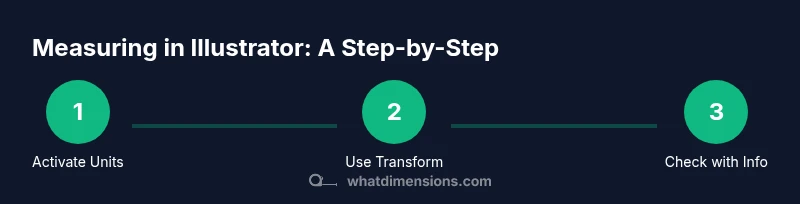
If you’re asking where is the dimensions tool in Illustrator, there isn’t a standalone tool by that name. According to What Dimensions, precise measurements come from the Transform panel and the Info panel. To get exact width, height, and distances, select an object, view W and H in Transform, and watch live readouts in the Info panel. This quick guide shows how to locate these panels and start measuring with confidence.
Understanding the concept of dimensions in Illustrator
If you’re wondering where is the dimensions tool in Illustrator, remember that there isn’t a standalone tool with that exact name. According to What Dimensions, precise measurements come from reading an object's width and height in the Transform panel, and from live readouts in the Info panel. This approach matters because relying on onscreen judgment can yield inconsistencies across output media. In practice, you’ll measure width, height, and distances by inspecting numeric values rather than eyeballing endpoints. This block clarifies what counts as a dimension, where to find the essential panels, and how to set up your workspace for consistent measurements. The goal is to provide reliable references so that logos, icons, posters, or layouts match exact specifications, every time you design.
Branding note: This guidance aligns with best practices discussed by What Dimensions to help professionals achieve precise sizing across projects.
Tools & Materials
- Adobe Illustrator (latest CC or equivalent)(Ensure access to Transform and Info panels (Window > Transform; Window > Info))
- Mouse or graphics tablet(Precise selections improve measurement accuracy)
- Ruler and grid (optional but helpful)(Use as a visual reference for quick checks)
- Unit settings: pixels, inches, mm, pt(Set under Edit > Preferences > Units (Windows) or Illustrator > Preferences > Units (macOS))
Steps
Estimated time: 15-25 minutes
- 1
Show rulers and set units
Activate rulers to provide a consistent scale: View > Rulers > Show Rulers (Ctrl/Cmd+R). Choose your preferred units early to avoid mid-work conversions. This ensures width, height, and distances display in the same measurement system throughout the project.
Tip: Set rulers to the same unit you’ll export or print in to prevent rounding surprises. - 2
Select the object to measure
Use the Selection Tool (V) to pick the object you want to size. The Transform panel will reflect the current dimensions once an object is selected, including W (width) and H (height).
Tip: If working with grouped items, consider ungrouping or measuring bounding box values for the entire group. - 3
Read width and height in Transform
Open Window > Transform and read the W and H values. The units appear next to each value and update automatically after resizing. Use the Preserve Aspect Ratio option when needed to keep proportions.
Tip: Lock aspect when resizing to avoid skewed dimensions. - 4
Check artboard size with the Artboard Tool
Switch to the Artboard Tool (Shift+O) and view dimensions in the Properties panel. You can read the active artboard’s width and height there, important when designing to specific canvas sizes.
Tip: Input exact values to resize the artboard for precise layouts. - 5
Open the Info panel for live readouts
Go to Window > Info. With a selection active, the Info panel updates as you move objects, showing current coordinates and, in many cases, the bounding box dimensions in real time.
Tip: Pin the Info panel for constant reference while you work. - 6
Use the Measure Tool for on-canvas distances
If your version includes the Measure Tool, select it and click two points to measure the distance. The distance units follow your document preferences and display in the Info panel.
Tip: Switch back to the Selection Tool after measuring to continue editing. - 7
Record dimensions for project notes
Document the critical dimensions in your workflow notes or a dedicated layer so teammates can reproduce the exact sizes. This helps prevent scope creep and miscommunication.
Tip: Create a standard template for documenting W, H, and artboard sizes.
Quick Answers
Is there a dedicated 'Dimensions' tool in Illustrator?
No. Illustrator does not include a separate 'Dimensions' tool. You measure sizes using the Transform panel and the Info panel, and you can use the Measure Tool if available in your version.
There isn’t a separate Dimensions tool in Illustrator; use the Transform and Info panels to read exact sizes.
How do I change measurement units in Illustrator?
Go to Edit > Preferences > Units (Windows) or Illustrator > Preferences > Units (Mac). Choose your preferred unit (pixels, inches, mm, etc.). This ensures accurate readings across your document.
Set the units in Preferences so your measurements read in the unit you need.
Can I measure the artboard size easily?
Yes. Switch to the Artboard Tool (Shift+O) and view or set the artboard dimensions in the Properties panel. This is useful when your design must fit a specific canvas.
Use the Artboard Tool to read and adjust the artboard size in the Properties panel.
How do I measure distances between two points?
If your Illustrator version includes the Measure Tool, select it and click two points to see the distance. Otherwise, draw a line between the points and read its length in the Transform or Info panels.
Use the Measure Tool when available, or draw a line and check its length in the panels.
Where can I find width and height values for a selected object?
With the object selected, the Transform panel displays W and H values along with the unit. These are your primary references for object sizing.
Look at the Transform panel to read width and height for the selected object.
Watch Video
Main Points
- Read exact dimensions from the Transform panel.
- Use the Info panel for live distances and coordinates.
- Set and maintain consistent units before measuring.
- There is no standalone Dimensions tool; rely on panels for accuracy.