Can You Add Dimensions in Illustrator? A Practical Guide
Learn how to add precise dimensions in Illustrator using the Transform panel, rulers, guides, and annotations. A complete educator-friendly guide for designers needing exact size references across print and digital projects.


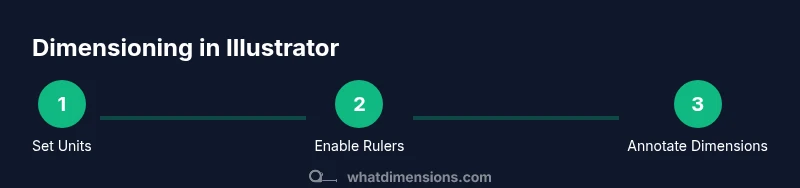
You can add precise dimensions in Illustrator by using the Transform panel to set exact width and height, enabling rulers and guides, and creating dimension annotations with lines and text. This approach applies to both print and digital projects, letting you define sizes, spacing, and labeling with confidence. Be sure your document units match your target output (inches, millimeters, or points).
Can you add dimensions in Illustrator? A practical overview
If you're wondering can you add dimensions in Illustrator, the short answer is yes, with a workflow that emphasizes precise numeric control, consistent units, and clear annotations. According to What Dimensions, precise size references are essential for consistency across print and digital layouts. In professional design, the ability to define exact widths, heights, and distances prevents misalignment during production and helps every stakeholder understand scale at a glance. This section introduces the core idea: Illustrator supports exact sizing through the Transform panel, rulers and guides, and annotation techniques that translate virtual vectors into measurable dimensions. We will cover unit setup, how to lock a shape to a specific size, how to measure spacing between objects, and how to annotate dimensions without cluttering the artwork. By the end, you'll have a repeatable method you can apply to logos, UI elements, diagrams, and technical drawings.
Set up units and enable rulers for precise measurement
Before you can rely on dimensions in Illustrator, establish consistent measurement units and visible rulers. Go to Edit > Preferences > Units (Windows) or Illustrator > Preferences > Units (macOS) and choose the unit for General, Stroke, and Type. For most print work, inches or millimeters are common; for screen design, pixels may be preferred. Turn on rulers (View > Rulers > Show Rulers) and drag guides from the rulers to define a baseline. Use the View > Guides & Grid options to adjust color and snapping behavior, ensuring objects snap cleanly to your alignment references. When rulers and guides are in place, you can begin placing objects with confidence and rely on the Transform panel to set exact dimensions. Keeping units consistent across documents reduces conversion errors and speeds up handoffs to printers or developers.
Using the Transform panel to lock exact width and height
The Transform panel is the central tool for enforcing exact size. Select the artwork you want to resize, then open Window > Transform. In the W (width) and H (height) fields, type the numeric values you need and press Enter. Illustrator will scale the selection around its current anchor point, so if you want growth from a corner, adjust the reference point icon in the panel first. You can also tie width and height to a single value for proportional scales by maintaining the aspect ratio link next to the fields. For precision, use decimal values when working with print or high-density displays, and verify after applying changes by re-checking W and H. When you adjust dimensions, the stroke and effects may scale as well, so consider converting to outlines or preserving appearance as needed.
Measuring distances between objects with alignment tools and the Info panel
Beyond scaling a single object, you often need to measure the gap between elements. Use the Align panel (Window > Align) to distribute objects evenly and the Info panel (Window > Info) to read live measurements while you move objects. Enable Smart Guides (View > Smart Guides) to get contextual distance hints as you drag. The Info panel updates with the distance between the selected anchor points or edges, allowing you to fine-tune spacing to exact pixel values. If you work with multiple artboards, consider creating temporary guides to map distances across layouts. Document-wide consistency is easier when every distance has a defined target value, and you can lock down those numbers in the Transform panel for final export.
Creating dimension lines and annotation for technical drawings
For technical diagrams, you typically annotate dimensions with dimension lines, arrowheads, and labeled text. Start by drawing a line with the Pen tool along the measurement, then add arrowheads using the Stroke panel and Arrowheads presets. Create a parallel line offset using the Offset Path effect or duplicate lines at a precise distance. Bring in a text box near the dimension to display the value, unit, and any necessary notes. Use consistent typography—prefer a legible sans-serif with adequate tracking—and align the text with the dimension lines. Group the entire annotation set so you can reposition it as a single unit without breaking the relationship between lines and labels.
Annotating dimensions with text and typography
Text formatting greatly affects readability. Choose a font that remains legible at small sizes, such as a clean sans-serif, and set a baseline offset that keeps numbers aligned with the lines. Use a single unit for all measurements in a document to avoid confusion, and include a legend if you mix units (e.g., mm and inches). If your project will be viewed on multiple devices or printed at different scales, consider using point sizes that scale well and converting text to outlines if you plan to resize artwork. Remember to maintain adequate contrast between dimension text and background to ensure legibility in both light and dark themes.
Working with artboards and document size to plan dimensions
Dimensions are not just about single objects; they relate to the overall canvas. Set your artboard size to your target finished size (File > Document Setup > Edit Artboards). This helps you visualize margins, bleed, and safe zones early in the design process. When you resize the artboard, use the Transform panel to verify that key objects maintain their relative sizes and positions. Document presets can speed up new projects by applying unit choices, stroke defaults, and grid settings automatically. If you collaborate with others, a clearly defined artboard strategy reduces back-and-forth by making the intended dimensions explicit from the start.
Ensuring accuracy across print and digital outputs
Different outputs require different units and tolerances. When preparing for print, use inches or millimeters and verify with print proofing; for digital screens, use pixels and consider device pixel ratio. Keep in mind that effects like strokes or filters can alter perceived dimensions; if precision is critical, expand strokes or convert to outlines after finalizing measurements. Export formats (PNG, JPG, SVG, PDF) can introduce scaling; always perform a final dimensional check after export, and provide a separate document with exact measurements for developers or printers. With consistent units and checks, the risk of dimension drift decreases significantly.
Common mistakes and how to avoid them
A few recurring errors can undermine dimension accuracy. Relying on eyeballing distances instead of reading values in the Transform panel leads to misalignment. Forgetting to enable the correct units or switching units mid-project creates inconsistencies. Overloading the artboard with dimension lines without clearing space around annotations makes pages look cluttered. Finally, relying on raster effects for precise measurements can cause scaling issues; keep vector lines for all critical dimensions and use text notes for clarity.
Practical workflow: a sample project from start to finish
Imagine you are designing a brochure with a grid of panels sized at 2.5 inches by 3.5 inches, spaced 0.25 inches apart. Start by setting units to inches and turning on guides. Create the panel frames with exact width and height via the Transform panel. Add a dimension annotation for width (2.5 in) and height (3.5 in) along the corresponding edges, then space lines by 0.25 in using a duplicate-and-offset approach. Keep the annotation group on a separate layer so you can toggle visibility. When you export for print, ensure bleed margins are included and that all text remains legible after scaling. This concrete example demonstrates how precise dimensions improve consistency across every page.
What Dimensions recommends for consistent results
According to What Dimensions, a reliable workflow combines precise numeric control, structured annotation, and standardized presets. Use the Transform panel for exact sizes, the Info panel for live measurements, and a dedicated layer for dimension lines. Create reusable templates with unit-consistent settings to speed up future projects and reduce human error. The What Dimensions Team emphasizes documenting decisions about units, scale, and annotation styles so other designers can reproduce results.
Final thoughts and next steps
Mastering dimensions in Illustrator is not just about numbers; it is about communicating intent clearly. By combining rulers, precise transforms, and well-placed annotations, you can produce artwork that prints true to size and reads successfully on screen. Practice with a small project first, then scale up to more complex layouts. Remember to maintain a clean layer structure and to test across outputs. The What Dimensions team recommends documenting your dimensioning conventions as part of your design system, so future projects stay consistent, efficient, and accurate.
Tools & Materials
- Adobe Illustrator CC or newer(Ensure you have a recent version with Transform panel and measurement features.)
- Rulers and guides (software)(View > Rulers; drag guides to establish baselines and reference lines.)
- Transform panel access(Window > Transform; use for exact W and H settings.)
- Type tool for annotations(Choose legible fonts for dimension labels.)
- Smart Guides and alignment tools(Helpful for alignment but not strictly required.)
Steps
Estimated time: 25-40 minutes
- 1
Open document and set units
Open your Illustrator file and set the document units to your target measurement system (inches, millimeters, or pixels) in Preferences. This ensures all subsequent dimensions are consistent. Verify the unit indicator in the Application Bar so you don’t confuse inches with millimeters as you work.
Tip: Always start with unit consistency to avoid conversion errors later. - 2
Show rulers and enable guides
Turn on rulers (View > Rulers > Show Rulers) and drag guides from the rulers to establish a measurement framework. Use guides to align objects precisely and to set baseline distances between elements.
Tip: Use different guide colors for different reference types (e.g., margins vs. panel gaps). - 3
Select an object and set exact width/height
Select the object to size, then open Window > Transform. Enter the numbers in W and H, and press Enter. If you want to scale from a corner, adjust the reference point first.
Tip: Maintain the aspect ratio by clicking the link icon if proportional scaling is needed. - 4
Lock proportional sizes or separate dimensions
Decide whether width and height should stay linked. Use the small chain link to keep ratios when necessary; unlink to set independent values.
Tip: For logos, keep aspect ratio to avoid distortion. - 5
Measure gaps with live readings
With multiple objects, use the Info panel and Smart Guides to read distances as you move items. Readouts update in real time for precise spacing.
Tip: Drag gradually and verify values in the Info panel. - 6
Draw dimension lines and arrows
Use the Pen tool to create dimension lines along the measurement, then apply arrowheads in the Stroke panel. Duplicate and offset to show parallel measurements.
Tip: Keep lines thin for clarity (e.g., 0.25–0.5 pt depending on scale). - 7
Annotate with clear dimension text
Place a text box near the dimension line to display the value and units. Use a legible font and align the text with the lines for readability.
Tip: Prefer a mono-spaced font for technical drawings. - 8
Group and organize your annotations
Group dimension lines, arrows, and text into one object set and place on a dedicated layer. This makes it easy to toggle visibility during edits.
Tip: Name the layer clearly (e.g., Dimensions). - 9
Check against artboard and export settings
Verify that the dimensions fit within the artboard margins, bleed, and export target. Adjust any objects if necessary before final export.
Tip: Always export a test page at final size. - 10
Prepare for print or digital output
Choose appropriate export formats (PDF for print, SVG for scalable graphics, PNG/JPG for raster needs). Ensure units and dimensions remain intact after export.
Tip: Embed fonts or convert text to outlines if needed. - 11
Document your conventions
Create a short style guide for dimensions: units, font choices, line weights, and color rules. This ensures repeatable accuracy across projects.
Tip: Save as a template for future work. - 12
Review and iterate
Review the completed dimensioning with teammates or clients to confirm accuracy and readability. Iterate based on feedback to improve future outcomes.
Tip: A quick peer review saves time later.
Quick Answers
Is there a native 'dimension' tool in Illustrator?
Illustrator does not include a dedicated dimension tool. You measure and set sizes with the Transform panel, rulers, and guides, then annotate with lines and text.
There isn’t a built-in dimension tool in Illustrator; you use the Transform panel and rulers to measure and set sizes, then add annotations.
Can I measure distances between objects accurately?
Yes. Use the Info panel to read live measurements and Smart Guides to preview distances as you move objects. Align and distribute to maintain even spacing.
Yes—use the Info panel and Smart Guides for precise distance readings.
What units should I use for print projects?
For print, use inches or millimeters and set those units in Preferences. Verify bleed margins and ensure output matches the printer’s specification.
Use inches or millimeters for print and double-check bleed margins.
How can I annotate without cluttering the design?
Place dimension lines and text on a dedicated, labeled layer. Use consistent colors and font sizes to keep annotations readable without overpowering the artwork.
Keep annotations on a separate layer to avoid clutter.
Will dimensions scale if I resize the artwork?
If you resize the whole artwork, dimensions adjust accordingly. If you need fixed measurements, adjust the artboard or use scaling preferences that preserve certain elements.
Dimensions track with the objects unless you lock specific elements.
Can I export a version with dimensions for printers?
Yes. Export to vector-friendly formats like PDF or SVG that preserve the dimension lines and labels for printers and developers.
Export a vector-friendly file with dimension lines intact.
Watch Video
Main Points
- Set consistent units before drawing
- Use Transform for exact sizes
- Annotate with clean, legible typography
- Organize dimensions on a separate layer
- Test outputs to ensure size fidelity