What Dimensions Are Google Slides: A Complete Size Guide
Learn the exact Google Slides dimensions, including default 16:9 and 10 x 5.625 in, how to set custom sizes, and tips for printing and exporting—based on What Dimensions insights.


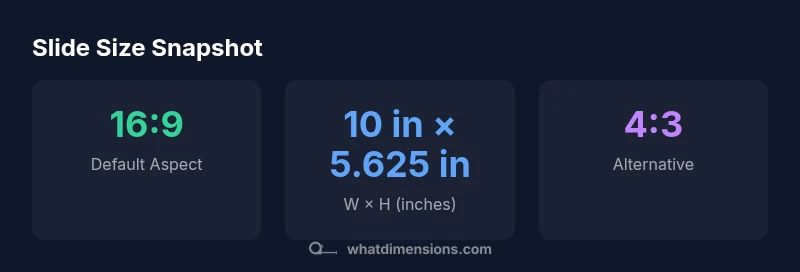
Google Slides defaults to a widescreen 16:9 slide size (10 inches wide by 5.625 inches tall). You can switch to 4:3 (10 × 7.5 inches) or set a custom size via File > Page setup. Exported image pixels depend on the chosen resolution, so adjust accordingly for print or high‑quality sharing.
Understanding Google Slides dimensions
Slide design starts with understanding dimensions: width, height, and aspect ratio. In Google Slides, the size you pick governs how content scales on screens, projectors, and printed handouts. The most important concept is the aspect ratio — the proportional relationship between width and height — rather than any single measurement. With the right ratio, your text boxes, images, charts, and shapes stay aligned when shown on different displays.
According to What Dimensions, dimensions are not arbitrary; they are chosen to optimize readability and layout across devices. In practice, most presenters rely on one of two standard ratios: 16:9 for modern displays and 4:3 for legacy equipment or print. Once you decide on a ratio, you can lock in a size that preserves your layout across different audiences. Recognize that even with a fixed ratio, the physical size you choose affects how many elements fit on a slide and how much breathing space your content has. This is especially relevant for slide decks intended for large venues or small laptops, where crowding or excessive white space can harm clarity. In short, choosing the right dimensions lays the groundwork for a clean, legible, and responsive presentation.
Default settings: 16:9 widescreen and 10 x 5.625 in
Google Slides defaults to a widescreen 16:9 slide size. In practical terms, that translates to 10 inches wide by 5.625 inches tall. This size balances readability with the space needed for titles, bullets, images, and charts on a range of screens. If your goal is to present on modern projectors, laptops, and large displays, 16:9 is typically the safest bet. You can quickly verify this in the Page setup dialog, where the ratio is shown and can be swapped for an alternative. Beyond the inch measurement, keep in mind that standard dimensions map to a 16:9 aspect so your assets don’t clip unexpectedly when projected. For educators, business presenters, and designers, these defaults provide a reliable starting point. If you are printing handouts or designing for specific devices, you may want to adjust height while maintaining a 16:9 ratio, or switch to a 4:3 option to match older projectors.
How to change slide size: step-by-step
Changing slide dimensions is straightforward and can be done in a few clicks. Open your presentation, then go to File > Page setup. You’ll see a dropdown for the aspect ratio with options like Widescreen (16:9) and Standard (4:3). If you need a custom size, select Custom and enter your desired width and height in inches, centimeters, or pixels. The important part is to keep proportions, unless you have a specific host device or print requirement. For example, to keep 16:9 while using inches, set 10 in × 5.625 in; to move to 4:3, set 10 in × 7.5 in. You can also choose cm or in and type precise values. After applying changes, review your slide layout to confirm that text boxes and images haven’t shifted or cropped. It’s often helpful to temporarily duplicate slides to compare how different sizes affect spacing, alignment, and readability. Designers should test on multiple devices whenever possible to catch anomalies in margins or alignment early.
Printing, exporting, and pixel considerations
Slide dimensions matter not only on screen but also when exporting assets or printing handouts. When you export slides as images (PNG/JPG) or PDFs, the pixel dimensions or print size depend on the chosen export resolution and the slide size. A 16:9 deck at the default 10 in × 5.625 in will yield certain image widths when saved at standard resolutions; increasing resolution increases pixel width and height accordingly. For print workflow, exporting to PDF is common because it preserves vector elements and layout. If you plan to print at larger sizes, consider testing with a custom 16:9 or 4:3 dimension that matches your print sheet (for example, A4 or Letter size). Always preview exported files at the target size to ensure fonts, graphics, and charts remain legible. Reducing the number of overlapping elements, using high-contrast text, and avoiding overly small font sizes help maintain readability across formats.
Practical guidelines for designers and presenters
- Start with the default 16:9 and adjust only if your display environment requires it.
- When presenting in large rooms, verify that your slide width fills the screen without stretching text.
- For print handouts, consider a 4:3 size or even a custom size that matches the page layout.
- Save assets with sufficient resolution, ensuring images remain crisp when exported.
- Keep a consistent margin and safe zone to avoid clipping on edge displays.
- Use Slide Master to maintain consistent alignment across all slides.
- If you frequently switch devices, maintain a common aspect ratio to minimize layout tweaks between devices.
Common pitfalls and quick fixes
- Pitfall: Changing size without updating fonts; fix by increasing font sizes to maintain legibility.
- Pitfall: Cropped images due to aspect ratio mismatch; fix with proper aspect ratio during insertion or resizing.
- Pitfall: Inconsistent margins; fix by using alignment guides and grid snapping.
- Pitfall: Exported images with low resolution; fix by selecting higher export resolution or export as PDF when possible.
- Pitfall: Obscured content on nonstandard screens; fix by testing on different projectors or displays.
When to use non-standard sizes
There are scenarios where a non-default size makes sense: immersive displays, constrained screens, or unique print layouts. In such cases, adopt precise custom dimensions that align with your display or print target. Always validate the final layout on multiple devices before publishing. The main takeaway is: choose a size that preserves readability and alignment, then test across the environments where your presentation will appear.
Google Slides slide size options
| Name | Dimension (inches) | Notes |
|---|---|---|
| Default widescreen | 10 × 5.625 | 16:9 aspect ratio |
| Standard (4:3) | 10 × 7.5 | Traditional classroom/print |
| Custom size | Any width × height | Set via File > Page setup |
Quick Answers
What is the default Google Slides size?
The default is a widescreen 16:9 slide size, typically 10 inches wide by 5.625 inches tall. This ratio fits most modern displays and projectors. If you need a different fit, you can switch to 4:3 or set a custom size.
The default is 16:9, about 10 by 5.625 inches. You can change it if needed.
Can I set a custom slide size in Google Slides?
Yes. Use File > Page setup and choose Custom to enter exact width and height in inches, centimeters, or pixels. Maintain or adjust the ratio as required for your display.
Yes—go to Page setup and pick Custom, then enter the exact width and height.
Do slide dimensions affect print quality?
Yes. Print quality depends on the chosen page size and export method. For print, export to PDF or use a high-resolution image export and ensure your content scales appropriately for the print size.
They affect print clarity; use PDF or high-res exports for best results.
How should I export slides for high resolution?
Export settings determine pixel dimensions. For sharp images, select a high export resolution or export as PDF when possible. Always check a sample print or view on a large screen.
Export at high resolution or use PDF to keep elements crisp.
Are there standard sizes for widescreen displays?
The standard widescreen is 16:9. If your venue uses older projectors, you may switch to 4:3. For unusual screens, use a custom size that preserves the layout.
Yes—16:9 is the norm; switch to 4:3 if needed.
Does Google Slides support A4 or Letter page sizes?
You can use custom sizes to approximate A4 (8.27 × 11.69 in) or Letter (8.5 × 11 in). Set the exact dimensions in Page setup and adjust margins and font sizes accordingly.
Yes, with custom sizes you can approximate A4 or Letter.
“Appropriate slide dimensions are not just about fit; they’re about ensuring your content remains legible and visually balanced across every display.”
Main Points
- Start with 16:9 as the default unless the venue requires a different ratio
- Use exact inch measurements for on-device design or printing
- Switch to 4:3 for older projectors or print layouts
- Always preview exports at target size to avoid pixel issues
- Test layouts across devices to preserve readability and alignment