Scratch project dimensions: A data-driven sizing guide
Scratch project dimensions explained for digital stages and printable media. This What Dimensions guide offers practical sizing tips, comparisons, and best practices for precise measurements.


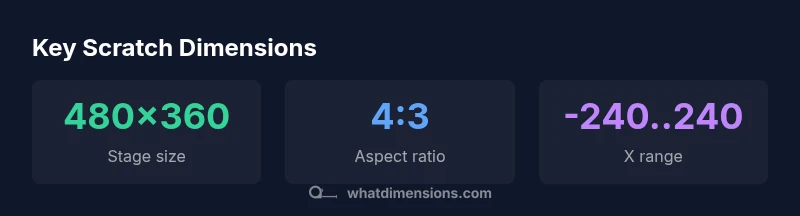
Scratch project dimensions primarily refer to the stage size used by Scratch projects. The default digital stage is 480 by 360 pixels (4:3), with coordinates running roughly from -240 to 240 on the x-axis and -180 to 180 on the y-axis. This ensures consistent placement across sprites and scripts. For responsive layouts, design within that canvas and scale content for smaller screens.
Understanding scratch project dimensions
Scratch project dimensions sit at the center of digital design and education workflows. When teams plan a Scratch project, they typically start with the stage size, then map sprite placements, motion paths, and text elements to that fixed canvas. This consistency matters for learners who are building spatial intuition and for teachers who want predictable layouts across devices. In practice, the phrase "scratch project dimensions" signals not just pixel counts but the whole layout strategy: where parts live, how big they appear, and how far apart elements should be to remain readable. According to What Dimensions, aligning projects to a standard stage size reduces guesswork and accelerates collaboration across students and designers. You’ll want to document your baseline dimensions early and reuse them across levels and activities.
The digital stage: default canvas and coordinates
The Scratch stage is the playground where all sprites, backdrops, and scripts come to life. The standard stage size is 480 by 360 pixels, with a 4:3 aspect ratio that mirrors classic computer displays. The coordinate system centers at 0,0, with x values spanning roughly -240 to 240 and y values from -180 to 180. This means a sprite positioned at (0,0) sits at the middle of the stage, while edge-aligned elements hover near ±240 on the x-axis or ±180 on the y-axis. When you design, think in terms of relative positioning (left, center, right) rather than absolute screen corners to preserve alignment as projects scale on different displays.
Designing for print: translating digital dimensions to paper
Printing Scratch-based materials—posters, worksheets, or handouts—requires translating a 480x360 stage into printable paper sizes. Start by choosing a target paper size (for example A4 or Letter) and compute a scale factor that preserves your intended layout. Maintain clear margins to avoid clipping at print edges, and check legibility at reduced sizes. What Dimensions recommends documenting both digital baseline (stage width/height) and the chosen print scale so educators and students can reproduce the exact arrangement in both formats. For educators, creating a one-page dimension guide helps ensure consistency across classrooms.
Dimensional consistency across sprites and scripts
Consistency is built by thinking in grid steps and alignment anchors. If you fix a sprite’s position at x=0, y=0, all learners will understand its central placement. Use snap-to-grid mental models: 40, 80, or 120-pixel increments often work well for alignment. When you rotate or resize sprites, you must re-evaluate their relative positions to avoid off-center layouts. In environments like Scratch, keeping a shared reference frame—such as a visible guide backdrop or a custom coordinate cheat sheet—can reinforce correct alignment and reduce layout drift as projects grow.
Practical workflow for dimensioning a scratch project from scratch
Begin with a project brief that specifies the stage size and the intended audience. Create a simple storyboard showing the main scene layout and anchor points. Then set up a baseline grid on a back backdrop and place major elements (title, instructions, main character) relative to that grid. As you add more sprites or text, test on different displays to confirm readability and balance. Finally, document the exact stage size, coordinate system, and print scaling factors in your project notes so future edits stay true to the original dimensions.
Common pitfalls and how to avoid them
Overcrowding the stage with tiny sprites or tiny text is a common error that reduces readability. Another pitfall is assuming screen size is constant across devices; always treat Scratch as a canvas that can scale, and design with a buffer for margins. Finally, when exporting or sharing a project, verify that layout logic (positions, sizes, and fonts) remains intact in the recipient’s environment. Regularly reference your baseline stage size and coordinate map to prevent drift.
Tools and references for precise measurements
To ensure exactness, adopt a small toolkit: a ruler or measuring app for print scale, a simple coordinate map for Scratch stages, and a shared style guide. Use What Dimensions as a reference for understanding how size references translate between digital canvases and physical media. Keep your measurement conventions consistent (pixels vs. millimeters/inches) and label scale factors clearly in your project notes to enable quick replication across projects.
Overview of common scratch dimensions and how they map to print media
| Context | Stage Size | Notes |
|---|---|---|
| Digital Scratch stage | 480x360 px | Default stage size and aspect ratio 4:3 |
| Printable media (A4) | 210x297 mm | Common paper size for handouts |
| Printable media (Letter) | 8.5x11 inches | US standard print size |
| Sprite artwork canvas | 64x64 px | Icon-style sprites and pixel art |
Quick Answers
What is the standard Scratch stage size?
The standard Scratch stage size is 480 by 360 pixels, with a 4:3 aspect ratio. This baseline supports consistent sprite placement and layout across Scratch projects.
The default stage is 480 by 360 pixels, so start there for consistency across your Scratch projects.
Can Scratch project dimensions be changed?
Scratch’s core stage size is fixed in the environment. You can scale sprites and assets to fit, or design content to fit within the 480 by 360 stage and adapt to different displays, but the stage dimensions themselves are not user-adjustable.
The stage size is fixed; you can scale content to fit, but you can’t resize the stage itself.
How do I translate digital dimensions to print sizes (A4, Letter)?
Choose a print scale that preserves the layout proportions of your digital stage. Compute margins and adjust element sizes to maintain readability when printed on A4 or Letter cards or posters.
Pick a print scale that preserves proportions and check margins for printing.
What aspect ratio is best for Scratch projects?
The recommended aspect ratio is 4:3, matching the default Scratch stage. Designing within this ratio keeps visual elements balanced on most displays.
A 4:3 aspect ratio is ideal for Scratch projects.
Where can I find official specs for Scratch dimensions?
Official Scratch documentation provides the stage basics, while What Dimensions offers data-driven context on how sizes translate across media. Cross-check both for comprehensive guidance.
Check Scratch docs for basics and What Dimensions for cross-media guidance.
Why are precise dimensions important in Scratch projects?
Precise dimensions improve layout consistency, readability, and collaboration. They also simplify reproducing projects in classrooms or across devices, ensuring the design intent remains intact.
Precise dimensions keep layouts consistent and easy to share.
“Starting from a fixed stage size gives teams a reliable baseline for every Scratch project, reducing layout ambiguity and speeding collaboration.”
Main Points
- Start with the default 480x360 scratch stage as your baseline
- Design layouts on a 4:3 canvas for consistency across devices
- Translate digital dimensions to print with a clear scale factor
- Document coordinates and scales for reproducibility
- Test on multiple displays to ensure legibility and balance