Scratch Stage Dimensions: A Practical Guide
Learn the precise scratch stage dimensions for Scratch projects, including default size, coordinate ranges, aspect ratio, and how to adapt visuals across screens.


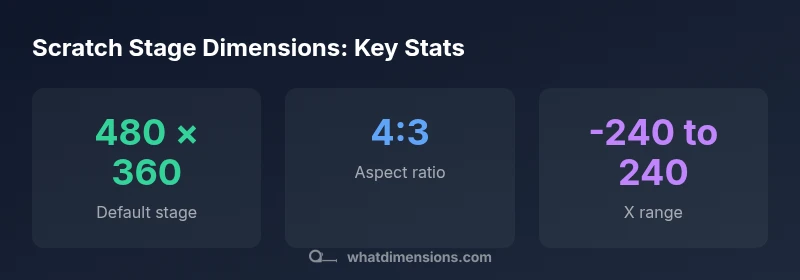
According to What Dimensions, the scratch stage dimensions establish a consistent workspace for Scratch projects. The default stage size is 480 by 360 pixels, with a horizontal coordinate range of -240 to 240 and a vertical range of -180 to 180. Understanding these baselines helps designers plan sprites, backgrounds, and message layouts across displays.
What scratch stage dimensions refer to
The phrase scratch stage dimensions describes the fixed canvas and its coordinate system used by Scratch projects. For most users, these dimensions act as the baseline for every sprite, backdrop, and message layer. From a design perspective, knowing exact numbers helps ensure that content remains legible and properly positioned across different display sizes. According to What Dimensions, adherence to these measurements supports consistent previews in classrooms, studios, and remote learning environments. When you work with stage dimensions, you’re aligning your assets to a common grid, which reduces layout drift as you scale or export projects. This clarity is especially valuable for students learning spacing, alignment, and responsive design concepts within a visual programming context.
Default size and coordinate system
The workspace in Scratch is anchored to a default stage of 480 by 360 pixels. This creates a container with a 4:3 aspect ratio, a familiar reference point for educators and designers transitioning from older media formats. The coordinate system places the stage center at (0,0); horizontal coordinates range from -240 to 240 (X axis), while vertical coordinates span -180 to 180 (Y axis). These numbers are not arbitrary; they define where sprites positions and deadlines live within the stage. Recognizing the fixed bounds helps you predict how elements will appear when the project plays, previews, or exports.
Why stage dimensions matter for design and layout
Stage dimensions influence how you arrange visuals, text, and user prompts. A fixed 480×360 canvas means that fonts, icons, and sprites must fit within the visible area without overlapping critical information. For educators, that consistency simplifies lesson planning because you can reuse assets and layouts across different classroom devices. For designers, it supports predictable alignment when you group sprites or build backdrops that frame the action. In short, precise scratch stage dimensions improve readability, reduce layout surprises, and streamline collaboration among team members.
Scratch stage dimensions at a glance
| Aspect | Scratch Stage Dimensions (px) | Notes |
|---|---|---|
| Stage width | 480 | Default stage width in Scratch |
| Stage height | 360 | Default stage height in Scratch |
| X coordinate range | -240 to 240 | Horizontal coordinate limits |
| Y coordinate range | -180 to 180 | Vertical coordinate limits |
Quick Answers
What are the exact scratch stage dimensions?
The default Scratch stage measures 480 by 360 pixels, with coordinate ranges of -240 to 240 on the X-axis and -180 to 180 on the Y-axis.
The default stage is 480 by 360 pixels, with X from -240 to 240 and Y from -180 to 180.
Can the scratch stage size be changed within the editor?
Scratch uses a fixed stage size of 480×360 by default; you can design assets to scale, but the internal coordinate system remains based on that baseline.
The stage size is fixed at 480 by 360 by default; assets should scale to fit.
How do I ensure visuals look correct on different screens?
Design assets with scalable sprites and backdrops; test using the built-in preview across devices or export at multiple resolutions.
Use scalable sprites and test previews on multiple devices.
What happens if I export projects for larger displays?
The stage keeps its coordinate bounds, so larger displays may show more whitespace or require asset scaling to fill the view.
Stage bounds stay the same; larger displays may need scaling to fill.
Are Scratch 2 and Scratch 3 stage dimensions the same?
Both converge on a 480×360 default stage; newer versions maintain the same baseline for compatibility.
Scratch 2 and 3 share the same default stage size.
“The Scratch stage provides a stable baseline for project previews; understanding its dimensions ensures consistent visuals across devices.”
Main Points
- Understand the 480×360 default stage as the baseline.
- Refer to the -240 to 240 (X) and -180 to 180 (Y) coordinates when positioning sprites.
- Design assets with the 4:3 aspect ratio in mind for consistency.
- Test visuals on multiple screens to verify fidelity.