How to tell dimensions of PowerPoint slide
Learn how to determine PowerPoint slide dimensions, switch between standard ratios, or set exact custom sizes. This guide covers where to look in PowerPoint, common pitfalls, and best practices for consistent dimensions across screens.


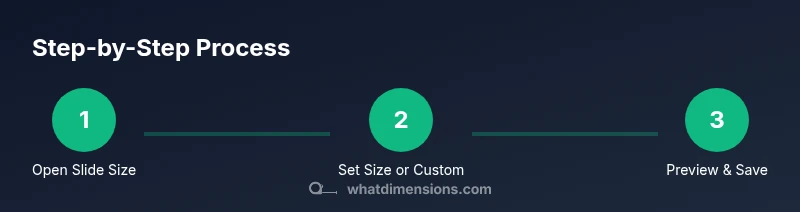
According to What Dimensions, telling PowerPoint slide dimensions begins in the Design tab. Open Slide Size, then read the width and height values shown in inches or centimeters. Choose a built-in aspect ratio (e.g., 4:3 or 16:9) or enter a custom width and height. For accurate exports, consider display density and printer margins.
Understanding PowerPoint Slide Size and Aspect Ratios
PowerPoint slide dimensions define the canvas you design on and are typically expressed as width × height with an aspect ratio. The most common ratios are 4:3 and 16:9. The 16:9 format is widely preferred for modern displays, projectors, and online sharing because it fills most screens without letterboxing. Content crafted to fit a chosen aspect ratio remains consistently proportioned across devices. According to What Dimensions, the true dimension is determined by both the ratio and the unit of measure you select (inches or centimeters). Always align your design grid, text, and imagery to this ratio to avoid distortion when scaling. Understanding these basics helps you communicate size intent clearly to designers, printers, and collaborators.
How to Find Your Current Slide Dimensions in PowerPoint
To tell your slide’s current dimensions, start by opening your PowerPoint file and selecting the slide you want to size. Go to the Design tab and click on Slide Size. In most recent versions, you’ll see a dialog that shows the current width and height values, usually in inches (you can switch to centimeters). If you need more precise control, choose Custom Slide Size (sometimes labeled Page Setup on older versions) to view exact measurements. If you’re on PowerPoint Online, the steps are similar: Design > Slide Size > Custom Size. Once you capture the numbers, you can document them for sharing or adjust content to fit the target dimensions.
Built-in Ratios vs. Custom Dimensions
PowerPoint ships with built-in ratios like 4:3 and 16:9, which you can select from the Slide Size menu. Built-in ratios simplify consistency across slides and ensure your presentation scales cleanly on most screens. Custom dimensions let you specify any width and height (for example, to match a specific poster size or a non-standard display). When you choose a custom size, you should also decide if you want to maintain portrait or landscape orientation. Remember that changing the size later may require reflowing text and repositioning images, so plan your layout ahead of time.
How to Set Slide Dimensions Across Different PowerPoint Versions
Windows PowerPoint (recent versions): Design > Slide Size > Custom Slide Size. Mac: Design > Slide Size > Custom Slide Size (or Page Setup on some versions). PowerPoint Online: Design > Slide Size > Custom Size. In each case, you’ll enter Width and Height in your preferred units, select orientation, and confirm. If you’re exporting for printing, consider whether your file needs a higher resolution image or a specific print size. Keeping a record of the chosen dimensions helps maintain consistency when collaborating with others.
Practical Tips for Consistent Dimensions Across Devices
Design for a universal viewing experience by sticking to standard ratios (16:9 or 4:3) unless there’s a compelling reason to deviate. Before presenting, preview on the display type you’ll use (projector, monitor, or external screen) to confirm no edge clipping occurs. If you plan to share slides online, export at the appropriate resolution and use a compatible aspect ratio to prevent black bars. What Dimensions suggests documenting the slide size in a shared notes file so teammates can reproduce layouts exactly.
Preparing Content When Changing Slide Size
When you adjust slide dimensions, your layout may reflow. Start by locking baseline grids (columns and margins), then reposition decorative elements to avoid crowding. Resize images proportionally, and replace raster-heavy assets with vector equivalents when possible to preserve clarity. If you have a large deck, consider applying the new size to a duplicate copy to compare how content resizes without risking the original. This step minimizes accidental cropping and ensures a polished final appearance.
Quick Troubleshooting Checklist
If dimensions seem off, re-check the exact width and height values in the Slide Size dialog, ensuring you’re viewing the current slide or master. If content crops after changing size, adjust margins and font sizes, then re-run a quick preview. For printed material, verify the export settings and margins align with the intended print size. Finally, confirm that any embedded media scales correctly by testing playback and ensuring no clips occur at the edges.
Common Pitfalls and How to Avoid Them
One common pitfall is changing size after inserting large background images, which can cause distortion or cropping. Another is choosing a non-standard size that won’t align with standard displays, leading to black bars or cropping. To avoid these issues, finalize your aspect ratio before laying out key elements, keep essential content within safe margins, and test the deck on your target devices.
Quick Reference: What to Do Before Your Next Edit
- Decide on the target aspect ratio first (16:9 or 4:3).
- Note the exact width and height in your preferred units.
- Use Custom Slide Size only when necessary, and verify all content fits after changes.
- Always preview on the devices you expect to use for presenting or sharing.
Tools & Materials
- PowerPoint software (Windows/macOS) or PowerPoint Online(Open a presentation with the slide you plan to size and access the Slide Size dialog from the Design tab.)
- Ruler or measuring tool (optional)(Helpful if you need to align printed outputs with a specific width/height outside PowerPoint.)
- Notebook or digital notes(Record the chosen dimensions and any device constraints for teams or clients.)
Steps
Estimated time: 15-25 minutes
- 1
Open the slide you’ll size
Launch PowerPoint and select the slide you intend to resize. Having only one slide selected helps you focus on the exact dimensions without confusion.
Tip: Use a duplicate slide to compare layouts after resizing. - 2
Access Slide Size
Navigate to the Design tab and click Slide Size. If you don’t see it, look for Page Setup or a similar option depending on version.
Tip: In some builds, this option may be labeled Page Setup instead of Slide Size. - 3
Check current dimensions
Read the Width and Height fields in the Slide Size dialog. Note the units (inches or centimeters) and the current aspect ratio.
Tip: If you’re sharing with teammates, record units to prevent misinterpretation. - 4
Choose a ratio or set a custom size
Select a built-in ratio (e.g., 16:9 or 4:3) or switch to Custom Size to enter exact numbers.
Tip: Sticking to a standard ratio reduces layout surprises across devices. - 5
Apply changes and review
Click OK and scrub through slides to verify that text and images don’t crop. Make incremental adjustments as needed.
Tip: If you must adjust, do so in small increments to preserve balance. - 6
Test export or display
Export a test version (PDF or PPTX) and view it on the intended device or projector to confirm fidelity.
Tip: Export settings can influence perceived size; review both screen and print versions. - 7
Document the final size
Record the final width, height, and ratio in your project notes for consistency in future decks.
Tip: Create a quick reference card to speed up future edits. - 8
Share with collaborators
Provide teammates with the exact dimensions so they can reproduce layouts and fonts consistently.
Tip: Consider including a short guide on safe margins to avoid edge cropping.
Quick Answers
Can I change slide size after I’ve added content without breaking the layout?
Yes, you can change slide size after content is added, but you may need to adjust fonts, images, and alignment to prevent clipping. Use the Slide Size dialog to preview changes and tweak elements as needed.
You can change the size after adding content, but you’ll likely need to adjust elements to prevent clipping.
What is the best slide size for presentations on projectors?
For most projectors, 16:9 is the safe default as it fills wide screens without letterboxing. If your audience uses older equipment, 4:3 may be preferable. Always verify with the venue’s display setup.
For projectors, 16:9 is usually best, but check the venue’s equipment.
How do I know which units to use when setting dimensions?
PowerPoint supports inches and centimeters. Choose the unit you or your team are most comfortable with and keep it consistent across the deck. If you plan to print, centimeters can be convenient for precise sizing.
Use inches or centimeters consistently, depending on your workflow.
Will changing size affect embedded media and fonts?
Changing size can affect image scaling and font fit. After resizing, re-check embedded media playback and font readability, and adjust image anchors if needed.
Yes—check media playback and font readability after resizing.
Is there a fast way to apply the same size to an entire deck?
Yes. After selecting Slide Size for one slide, you can apply the same settings to all slides in the presentation. Review a few slides to ensure consistency.
You can apply the same size to all slides in a deck.
What should I do if my slide becomes pixelated after resizing?
If fonts or images look blurry after resizing, replace low-resolution assets with higher-resolution equivalents, or limit the degree of scaling to preserve clarity.
Replace low-res assets or limit scaling to fix pixelation.
Watch Video
Main Points
- Know your target aspect ratio before designing.
- Always verify width and height in the Slide Size dialog.
- Test across devices to avoid cropping and distortion.
- Document final dimensions for team consistency.