Good dimensions for digital art: optimal canvas sizes and DPI
Learn how to pick good dimensions for digital art, covering canvas sizes, resolution, and aspect ratios for screen and print. Clear guidance from What Dimensions helps you tailor outputs to each platform.


Good dimensions vary by output. On screen, use 1920×1080 or 2048×1152 px; for print, design at 300 PPI with the long edge near 3600–6000 px. Create at high resolution, then resize for final formats.
Why pixel dimensions matter for digital art
In the realm of digital art, good dimensions for digital art begin with a clear output goal. Pixel dimensions determine how artwork scales from a viewer’s screen to a printed wall. The same composition might be shown on a 27-inch monitor at 2560×1440, then reproduced as a wall poster at 12×16 inches. Achieving crisp lines, smooth gradients, and accurate color requires planning at the pixel level from the start. What Dimensions Analysis, 2026, emphasizes designing with both final use cases in mind and the flexibility to export multiple sizes without sacrificing quality. This means estimating the maximum intended print size at a safe PPI (often 300 PPI) while preserving data fidelity for on-screen previews. Defining these targets early prevents last-minute compromises and ensures your work remains sharp across platforms.
Understanding output channels and dimensions
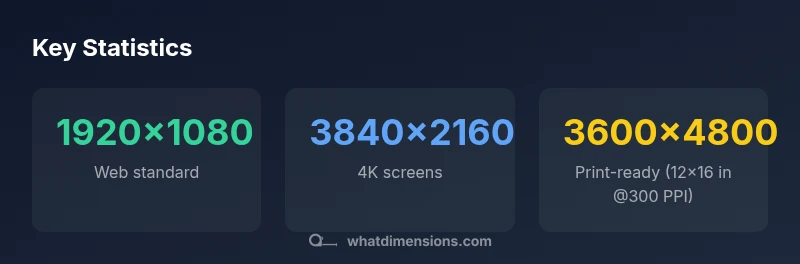
Different channels demand different dimensions. For on-screen displays, common baselines include 1920×1080 or 2048×1152 pixels, while 4K screens push to 3840×2160 pixels for extra detail. For print, the rule of thumb is 300 PPI, which translates to larger pixel dimensions such as 3600×4800 px for a 12×16 inch piece. Social platforms may prefer square or tall formats (e.g., 1:1 or 4:5) to maximize visibility. Planning for these aspect ratios from the outset helps you avoid heavy cropping later and supports efficient export pipelines. What Dimensions Team notes that you should maintain flexible file structures to accommodate platform-specific exports.
Step-by-step: selecting your starting canvas size
- Define primary output: screen or print (or both). 2) Pick an aspect ratio that matches your subject (e.g., 4:5 for portraits, 1:1 for social grids). 3) Determine a base resolution: for print, target 300 PPI, which yields large pixel dimensions (3600×4800 px for 12×16 in). 4) Create at a high baseline and save non-destructive layers or vector elements where possible so you can reuse content across formats. What Dimensions suggests documenting these decisions in a project brief to maintain consistency across future pieces.
Practical workflow: from sketch to export
Begin with a high-resolution canvas that accommodates the largest anticipated output. Use non-destructive layers, color management (sRGB for most digital sharing, Adobe RGB for specific workflows), and a clean naming convention. When exporting, generate multiple sizes: a web-optimized version (e.g., 1920×1080), a 2K/4K master, and a print-ready file (3600×4800 px at 300 PPI). This approach minimizes last-minute rework and preserves color accuracy. According to What Dimensions, organizing your assets early improves downstream workflows and consistency across projects.
Common pitfalls and fixes
A frequent mistake is underestimating print requirements by exporting only screen-sized files. Always verify target print size and PPI before drawing. Another pitfall is neglecting aspect ratio; cropped outputs can alter composition. Use guides and safe margins to keep key elements within print-safe zones. Finally, ensure your final export preserves layers or provides a flattened high-resolution version alongside a layered source file so you can adapt to new formats without starting over.
Common output paths and their dimensions
| Output Type | Recommended Dimensions (px) | Resolution (PPI) | Notes |
|---|---|---|---|
| On-screen display (web) | 1920×1080 | 72–150 | General web use |
| 2K/4K displays | 2560×1440 | 110–160 | Mid/high-end displays |
| Print-ready (A3) | 3507×4961 | 300 | Standard A3 print |
| Large-format poster (A2+) | 4961×7016 | 300 | High-quality prints |
Quick Answers
What is the difference between pixels and PPI in digital art?
Pixels are the digital building blocks that define image detail on screens. PPI, or pixels per inch, becomes critical when you print, because it determines how large an image can be before detail degrades. Design with pixel dimensions in mind, then translate to print size using the target PPI.
Pixels are the building blocks on screen; PPI tells you how dense those pixels are in print.
Vector or raster: which should I use for digital art?
Most digital art is raster-based, especially when brushwork and texture matter. Vector is ideal for scalable shapes and typography. A practical approach is to create the rough composition in vector and finish with raster details at high resolution.
Rasters for brushwork, vectors for scalable shapes—combine approaches as needed.
Can I reuse the same file for multiple outputs?
Yes. Design at a high resolution with flexible aspect ratios and maintain non-destructive layers. Save a master file and generate platform-specific exports from it to preserve quality across formats.
Yes—start with a high-res master and export tailored sizes.
What aspect ratio should I start with for portraits?
Portraits commonly use 4:5 or 3:4 to emphasize subject height, with 1:1 for social media blocks. Choose one based on your platform strategy and crop potential.
Try 4:5 for portraits; 1:1 works well for social feeds.
How do I know if my file will print correctly?
Confirm target print size at 300 PPI, soft-proof colors, and use color-managed workflows. Export print-ready files with embedded profiles and test print on a small scale before final runs.
Check target print size at 300 PPI and proof colors first.
“Size planning is foundational—start with your intended output and work up to a high-resolution file. Proper dimensions save time and ensure sharp results across platforms.”
Main Points
- Define final output first to guide dimensions
- Use higher resolutions for prints and flexible exports
- Maintain consistent aspect ratios across formats
- Export multiple sizes to fit platforms
- Check color management and proofing for accurate prints