Change Dimensions Without Losing Quality
Learn how to change dimensions without losing quality. This guide covers resizing concepts, interpolation methods, upscaling vs downscaling, and tips to preserve sharpness.


Yes — you can change dimensions without losing quality by resizing with intent: preserve the original resolution where needed, choose an appropriate interpolation method, and use upscaling tools only when benefits are clear. This guide explains key concepts, practical workflows, and best practices to maintain sharpness, color accuracy, and detail across different sizes.
What changing dimensions without losing quality means
According to What Dimensions, changing dimensions without losing quality means resizing an image or other media while preserving perceptual sharpness, color fidelity, and metadata. The goal is to achieve new width and height values that fit a project without introducing visible artifacts, blur, or color shifts. This requires understanding the difference between raster and vector data, how resolution interacts with size, and when to scale up versus scale down. A carefully planned workflow begins with working at a high enough resolution, selecting the right file format, and testing results on multiple devices.
Core concepts: resolution, DPI, and sampling
Resolution is the level of detail in an image, commonly expressed as pixels per inch (PPI) for digital displays or dots per inch (DPI) for print. When you resize, you’re trading pixels for physical size, so preserving perceived sharpness depends on sampling quality. Interpolation algorithms estimate new pixels; choosing the right method helps prevent blur or halos. Color accuracy and metadata can also shift if color profiles aren’t managed consistently during resizing.
Vector vs raster: where quality lives
Vector graphics store information as math-based curves, so scaling is lossless. Raster images store pixels, making them susceptible to blur when enlarged. When changing dimensions, use vector sources when possible for logos or icons, and reserve raster resizing for photographs with careful interpolation and sharpening. If you must resize a raster image, work non-destructively on a high-resolution master and save final results in formats that suit output.
Upscaling vs downscaling: when to resize up or down
Upscaling increases an image’s dimensions but often reduces crispness unless aided by advanced algorithms. Downscaling can sharpen perceived detail because removing pixels refines edges, but excessive downsampling can erase texture. A practical rule is to upsample only when necessary for the target display and to compare results at multiple sizes to choose the best compromise.
Interpolation methods explained
Interpolation estimates new pixels during resize. Nearest neighbor preserves edges but looks blocky. Bilinear smooths but can blur. Bicubic and Lanczos generally produce the best balance for photos, reducing jagged edges and preserving detail. For very large enlargements, AI-based upscaling can recover texture, but it may introduce artifacts; always review results with a critical eye across devices.
Non-destructive editing and color management
Resize operations should be non-destructive: work on copies, keep original files intact, and use separate layers or smart objects where possible. Maintain color accuracy by using a calibrated monitor and consistent color profiles (sRGB for web, Adobe RGB or ProPhoto for print workflows). Saving a master in a safe format before exporting resized versions ensures you can retry with different settings later.
Practical upscaling workflow: a step-by-step example
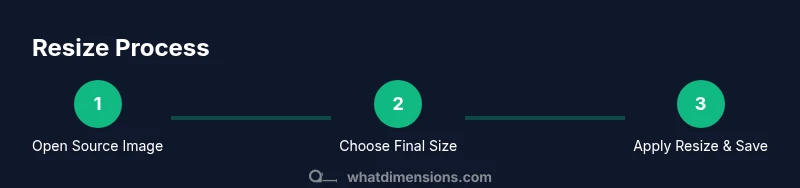
Start with a high-resolution source, define your target size, choose an interpolation method, and test results at multiple scales. If upscaling, apply a controlled AI-based enhancement and then perform light sharpening to restore edge definition. Finally, compare the resized image against the original in terms of texture, color, and detail on several devices to confirm acceptability.
Color spaces and bit depth considerations
Resizing can interact with color space and bit depth. Working in a wider color space (like Adobe RGB or ProPhoto) during editing helps preserve color nuances; convert to the target space (often sRGB) before final export. Higher bit depths (16-bit or 32-bit) reduce banding and provide more room for post-resize adjustments, though the final file format may impose limits.
File formats and compression impacts on quality
JPEG’s lossy compression can blur fine details during resize; PNG or TIFF preserve more texture for intermediate edits. Web-optimized formats like WebP can balance quality and file size, but ensure your pipeline supports the format. Always disable aggressive lossy compression at intermediate steps and recheck final exports at the intended viewing environment.
Common mistakes and how to avoid them
Avoid resizing without checking the effect across multiple displays and devices. Don’t rely on a single resize pass; consider intermediate steps, test crops, and a controlled sharpening pass. Don’t neglect metadata or color profiles, which can shift after export. Save, compare, and iterate until the result meets the project’s quality bar.
Measuring success: visual checks and objective metrics
Rely on human visual judgment alongside objective cues such as edge sharpness, texture preservation, and color consistency. Use side-by-side comparisons, zoomed-in views, and, if possible, perceptual metrics to quantify quality differences. Document settings and results for reproducibility.
Tools & Materials
- Image editing software (e.g., Photoshop, GIMP)(Non-destructive workflow; capable of resizing, exporting, and applying sharpening.)
- AI-based upscaling tool or plugin(For controlled upscaling and texture recovery.)
- Color-calibrated monitor(Essential for accurate color assessment during resizing.)
- Backup storage or version control(Keep original files safe before resizing.)
- Test image set(Optional collection of reference images for validation.)
Steps
Estimated time: Total time: 20-40 minutes per image
- 1
Prepare your source image
Open the file at the highest practical resolution and make non-destructive adjustments (cropping, noise reduction) before resizing.
Tip: Work on a duplicate layer; save a master file. - 2
Define target dimensions
Decide final width and height in pixels and determine whether you will upscale, downscale, or both. Plan for the intended display context.
Tip: Document target aspect ratio to avoid distortion. - 3
Choose interpolation method
Select an interpolation algorithm appropriate for the operation (nearest for stylized effects; bicubic or Lanczos for general resizing).
Tip: Test variants; small diffs can matter at final output. - 4
Upscale with care (if needed)
If upscaling, consider AI-based upscaling for detail preservation, then apply subtle sharpening after resizing.
Tip: Avoid excessive upscaling; evaluate on multiple displays. - 5
Sharpen and color-correct
Apply targeted sharpening and color adjustments after resize to restore perceived sharpness and accuracy.
Tip: Use light sharpening to prevent halos. - 6
Save and verify results
Export in a format appropriate for final use and verify visually and technically (resolution, compression, color space).
Tip: Keep side-by-side comparisons with the original.
Quick Answers
What does 'preserving quality' mean when resizing images?
Preserving quality means maintaining perceptual sharpness, color fidelity, and detail while reaching the target dimensions. It does not guarantee artifacts will never appear, but it minimizes blur and color shifts given the data you started with.
Preserving quality means keeping sharpness and colors close to the original while resizing.
Can resizing ever degrade quality?
Yes. If the target size is too large for the source data or if an unsuitable interpolation method is used, you may see blur or artifacts. A thoughtful workflow reduces these effects.
Quality can degrade if you upscale too much or pick a poor method.
Which interpolation should I start with?
For most photos, start with bicubic or Lanczos. If you need motion, texture, or stylistic effects, experiment with other methods.
Bicubic or Lanczos are good defaults; test alternatives too.
Is AI upscaling always beneficial?
AI upscaling can improve detail for modest enlargements but may introduce artifacts. Always compare results against the original and across devices.
AI helps, but you should test carefully.
Should I resize in steps or once?
For large size changes, resizing in steps can reduce artifacts and improve control. It’s more complex but often yields better results.
Sometimes it’s better to go step by step.
Which file format preserves quality best after resizing?
Lossless formats like PNG or TIFF preserve more detail during processing, especially for multiple edits. Use these for intermediate steps and choose final formats based on use.
PNG or TIFF are safer during processing.
Watch Video
Main Points
- Plan before resizing
- Choose appropriate interpolation
- Upscale cautiously with AI support
- Sharpen after resize, not before
- Test across devices and formats