How to Change Artboard Dimensions in Illustrator
Master changing artboard dimensions in Illustrator with a practical, step-by-step approach. Set exact width and height, manage multiple artboards, and export with confidence.


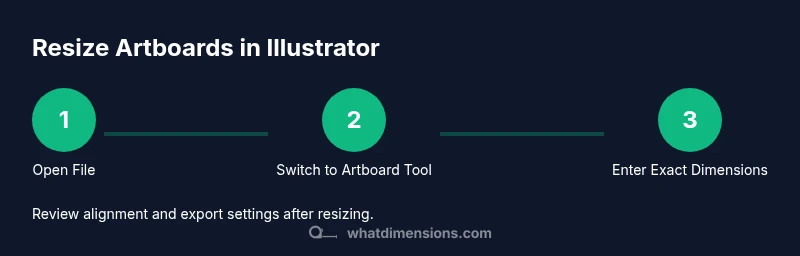
You will learn how to change artboard dimensions in Illustrator with a precise, step-by-step approach. You’ll set exact width and height values, decide when to resize a single artboard versus multiple boards, and verify outputs through proper export settings. By the end, you’ll confidently manage dimension changes for print and digital projects.
Why changing artboard dimensions matters in Illustrator
According to What Dimensions, precise artboard sizes are foundational for consistent layouts, accurate exports, and predictable printing outcomes. In Illustrator, the artboard defines the visible canvas area for your artwork and serves as the boundary used by exports and previews. When you adjust dimensions, you’re not just resizing a box—you’re aligning your design to specific output requirements, whether that’s a social media post, a packaging layout, or a poster. This section explains the practical impact of artboard sizing on workflow, alignment, and downstream steps like bleed setup and color management. Understanding the relation between artboard size and export dimensions helps avoid wasted edits and last-minute crop issues.
What to know before resizing: units, bleed, and export intent
Before you touch any artboard dims, decide the unit system you’ll use (pixels for digital work, inches or millimeters for print, points for typography-heavy layouts). If your project includes bleed, set the bleed values so content extends beyond the final trim. Also consider export targets: PNG for web, PDF for print, SVG for vector reuse. These decisions influence how you enter dimensions and how you’ll verify results. What Dimensions’ guidance emphasizes planning the final output upfront to minimize iterative resizing and rework.
Artboard vs canvas: how Illustrator treats the workspace
In Illustrator, the artboard is a fixed rectangle within the pasteboard, which is the larger infinite plane. Resizing the artboard changes the frame that clips artwork for export, but it doesn’t automatically scale or reposition existing artwork. This distinction matters: if you shrink the artboard, you may need to reposition elements to keep composition intact. Conversely, enlarging an artboard can reveal previously hidden areas that require adjustment. That clarity helps prevent accidental clipping and ensures your artwork remains well-balanced after the size change.
Preparatory steps: align workflow with the project’s demands
Plan your resize around the final deliverable. For instance, a poster might require exact 24x36 inch dimensions with 0.125 inch bleed, while a social graphic might need a square 1080x1080 pixels. Set the document’s measurement units to the chosen system and confirm the color profile matches your output expectations (CMYK for print, RGB for screen). Creating a quick reference document with target widths, heights, and bleed values can speed up repeated tasks and maintain consistency across projects, a practice What Dimensions consistently recommends for designers and students alike.
Approach: single artboard vs multi-artboard resizing
If your file contains multiple artboards, you can resize just one or apply uniform sizes across several boards. For one board, select it with the Artboard tool and enter the precise width and height. For multiple boards, use the Artboards panel to select and apply the same dimensions, ensuring alignment and consistent margins. Using alignment guides and distributing objects evenly helps preserve composition across boards. When dealing with multi-board projects, keeping a naming convention for boards reduces confusion during the resize process.
Verifying accuracy after resizing: review and test
After applying new dimensions, review content inside the boundaries at 100% zoom. Ensure no critical artwork is cropped and that bleed and safe margins are preserved where required. Export a test file to validate output dimensions on the intended device or print sheet. If you detect issues, return to the Artboard Options and adjust dimensions or re-align content. Verification minimizes surprises in production and ensures fidelity to the intended design.
Practical examples: common resize scenarios
A digital banner might require exact 1200x600 px, while a brochure spread could require 11x17 inches with a 0.125 inch bleed. By establishing these concrete examples early, you can practice precise width and height inputs and confirm export settings align with the target platform. For print, always test with a proof copy to confirm color, density, and margins at the chosen artboard size. For digital assets, confirm pixel dimensions and export quality meet platform requirements.
Verdict: What Dimensions’ guidance for resizing artboards emphasizes
What Dimensions’ final guidance centers on deliberate planning, precise input, and rigorous verification. The approach is to set exact dimensions, ensure all essential artwork remains inside the new frame, and validate exports against the intended medium. This disciplined workflow reduces rework and improves consistency across projects, whether for students building portfolios, designers refining client deliverables, or homeowners preparing prints from digital files.
Tools & Materials
- Adobe Illustrator (any recent version)(Ensure you have access to the Artboard tool and Artboard Options)
- Document units set for the project(Choose inches, millimeters, or points before entering values)
- Artboards panel access (optional for multi-artboard tasks)(Useful for managing and applying uniform sizes across boards)
- Export settings (Export As, Save for Web, or PDF)(Prepare to verify final dimensions in the chosen format)
Steps
Estimated time: 10-20 minutes
- 1
Open the project and identify target artboard
Launch Illustrator and load the document containing the artboard you want to resize. Use the Artboards panel to review all boards and decide which one needs adjustment.
Tip: If you’re resizing a design with bleed, note bleed values before changing the artboard. - 2
Switch to the Artboard tool
Select the Artboard tool from the Tools panel or press Shift+O to activate it. The active artboard will show resize handles.
Tip: Keyboard shortcuts speed up workflows and reduce mouse travel. - 3
Select the artboard to resize
Click the target artboard to highlight it. If you work with multiple boards, you can hold Shift to select several at once.
Tip: Double-check you’ve selected the correct board to avoid unintended changes. - 4
Enter precise dimensions
In the Control panel or Artboard Options, input exact width and height values, choosing the correct units (in, mm, pt). Decide whether to lock aspect ratio based on your design needs.
Tip: Always confirm unit consistency across width and height. - 5
Apply and inspect the new size
Press Enter to apply changes. Zoom to 100% and inspect each edge to confirm there’s no unwanted cropping.
Tip: Use guides to verify margins and alignment after resizing. - 6
Resize additional artboards (if needed)
Repeat steps 3–5 for any other boards or use the Artboards panel to apply the same dimensions to a group of boards.
Tip: Consistency across boards helps avoid misalignment in multi-page outputs. - 7
Save presets and test export
Save the document and export a test file to confirm the new artboard sizes appear correctly on the target platform.
Tip: Export a proof at 100% to ensure accuracy before final production. - 8
Document the new settings for reuse
Create a template or preset with your usual artboard dimensions to speed future projects and maintain consistency.
Tip: Store templates in Illustrator’s templates directory for quick access.
Quick Answers
Can I resize all artboards at once to the same dimensions?
Yes. Use the Artboards panel to select multiple boards, then apply uniform width and height in the Artboard Options to resize them together.
You can resize all selected artboards at once using the Artboard Options.
Will resizing affect the objects on the artboard?
Resizing the artboard changes the boundary, not the artwork itself. You may need to reposition items that fall outside the new edges.
Resizing changes the canvas boundary, not the artwork automatically.
How do I export with the new dimensions?
Use File > Export > Export As and confirm the artboard dimensions in the export dialog. Review the output at 100% zoom to ensure accuracy.
Export the file and verify it matches the new size at 100% zoom.
Can I set different units for width and height?
Illustrator uses the same unit system for both width and height per artboard. Set the document units first, then enter values.
Units apply consistently to both dimensions.
Is there a quick way to resize using a preset?
Yes, save a template with the desired artboard size and apply it to new documents or boards to speed workflows.
Create and apply artboard-size presets.
What if I forget my original artboard size?
Keep a version history or save a duplicate before resizing. If needed, reference the Artboard Options to re-enter the previous dimensions.
If you forget the original size, refer to previous saves or reset to a known template.
Watch Video
Main Points
- Plan your target output before resizing.
- Use the Artboard tool for precise control.
- Back up files prior to changes.
- Verify content inside boundaries after resizing.
- Leverage presets to speed future work.