Where Is the Dimensions Tool in SketchUp: A Step-by-Step Guide
Learn where the Dimensions tool lives in SketchUp, how to activate it, and how to place precise measurements in your model. A What Dimensions guide to accurate sizing, units, and annotations for designers and hobbyists.


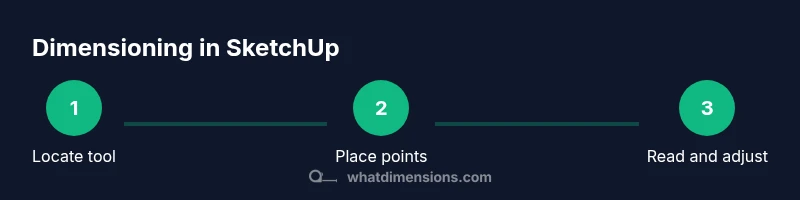
In SketchUp, the Dimensions tool is accessible from the Tools menu (Tools > Dimensions) or via the Large Tool Set on the toolbar. Activate it, then click two points in the model to create a dimension annotation. You can drag the annotation to place it, and you can edit the value by typing. This quick setup gives you precise measurements for accurate modeling.
Why precise dimensions in SketchUp matter
Accurate dimensions are the backbone of reliable design. Whether you’re modeling furniture, planning architectural details, or preparing manufacturing drawings, clear measurements reduce mistakes and rework. The Dimensions tool helps you capture exact distances directly in 3D space, annotate them for teammates, and keep your model aligned with real-world sizes. According to What Dimensions, consistent use of dimension annotations improves communication, speeds up reviews, and supports easier handoffs to fabrication or construction teams. In this guide, we’ll demystify where the tool lives, how to activate it, and best practices for using it across different project types.
Locating the Dimensions tool in SketchUp
The Dimensions tool is part of SketchUp’s annotation and measurement family. In most modern versions, you can access it from the Tools menu (Tools > Dimensions) or from the Large Tool Set on the toolbar. If you don’t see it, enable the tool in the toolbar customization panel or switch to a workspace that exposes the Dimensions icon. Before placing dimensions, verify your unit settings so the numbers read in inches, millimeters, or your preferred system. Standardized units ensure that dimensions remain consistent across scenes, exports, and layouts. This section helps you quickly locate and reveal the tool to begin annotating with confidence.
Activating the Dimensions tool and basic configuration
To activate, select Dimensions from the Tools menu or click the Dimensions icon on the toolbar. Your cursor will indicate you’re in dimension mode. Click the first point on your model, then click the second point to define the measurement. The dimension line and numeric label appear near the points. You can reposition the annotation by dragging, align it with edges, and snap to endpoints for clean geometry. The value reflects the model’s current scale and unit system; you can edit the number directly by typing. For best results, set up your units before you start any dimension-driven tasks.
Placing your first dimension: a practical workflow
Start with a simple edge or feature to learn the placement mechanics. After activating Dimensions, click the start point along the first feature, then the end point on the target feature. Place the annotation where it remains readable but unobtrusive. If you need a dimension between non-adjacent points, choose endpoints or midpoints and place the label away from busy areas. Remember: dimension values update automatically if you scale or move the geometry, so place them after you finalize primary shapes for fewer edits.
Understanding units, tolerances, and readability
Dimension values are shown using the model’s unit system. If you switch units after placing dimensions, you may see changes in the displayed values. To maintain clarity, adopt a consistent unit standard across scenes and exports. You can override display styles (decimal places, fractions, or scientific notation) for teams that require precise tolerances. For large assemblies, consider selective dimensioning—documenting key clearances and critical interfaces while avoiding an overload of measurements that clutter the view.
Common issues and how to troubleshoot
Dimensional annotations can disappear or misalign if geometry moves after placement. If a dimension doesn’t appear, check that the annotation layer is visible and that you didn’t accidentally place it off-screen. If values look wrong after moving objects, verify the active unit system and any global scaling factors. Inconsistent scene visibility, hidden geometry, or locked groups can also affect dimensions. Resolve by ungrouping for targeted edits, or regenerating the annotation after updating geometry.
Tips for efficient dimension workflows in real projects
- Use a consistent layer/section strategy to keep dims organized.
- Place dimensions after major geometry is established to minimize edits.
- Snap to endpoints or midpoints for accuracy and readability.
- Align dimensions with your preferred reading direction (left-to-right or bottom-to-top).
- When sharing designs, export layouts with dimensions enabled or summarize key measurements in notes.
Real-world examples: dimensioning furniture and spaces in SketchUp
For a bookshelf, dimension the height, width, and depth to ensure it fits within a room and aligns with adjacent furniture. For a desk, annotate top view width and front view height to confirm ergonomics. In architectural interiors, place dimensions across openings, window openings, and door frames to verify clearances. Each scenario benefits from documenting critical distances, such as leg spacing on a cabinet or the clearance between a sofa and a wall. The Dimensions tool makes these measurements quick and visible in context.
Alternatives and related tools in SketchUp
Besides Dimensions, SketchUp offers measurement-centric tools like the Tape Measure tool, which aids in creating construction lines and reading distances, and the Protractor-like measuring aids for angular relationships. Using these tools in combination with Dimensions can improve accuracy when working with complex assemblies or curved geometry. Remember to verify scale and units across tools to maintain consistency across your model and export files.
Best practices for sharing and exporting dimensioned models
When preparing files for teammates or clients, ensure your dimensions are visible in screenshots and layouts. Consider creating Scenes that showcase critical measurements, and summarize key dimensions in Layout or PDFs for fabrication guides. Keep your annotation styles consistent (font, size, decimal places) to minimize interpretation differences. Finally, document the units and precision used, so collaborators know exactly what the numbers mean in production or assembly contexts.
Tools & Materials
- SketchUp installed on a supported OS(Ensure you have access to the latest or a stable compatible version.)
- Mouse or 3D mouse(Precise clicking helps when placing endpoints and midpoints.)
- Active model or project scene(A simple model to practice first dimensions on.)
- Toolbar visibility for Dimensions(If not visible, enable via View > Tool Palettes or customize toolbar.)
- Unit settings configured for the project(Set inches/mm or your preferred units before placing dimensions.)
Steps
Estimated time: 15-25 minutes
- 1
OpenSketchUp and locate the Dimensions tool
Launch SketchUp and ensure your workspace displays the Tools or Large Tool Set. Find the Dimensions icon or access it via Tools > Dimensions. If the tool is hidden, customize the toolbar to reveal it.
Tip: If you customize the toolbar, save the setup as a workspace preset for future projects. - 2
Activate the Dimensions tool
Click the Dimensions icon to enter dimensioning mode. The cursor will indicate you’re ready to pick points.
Tip: Using the Large Tool Set can speed up access in larger projects. - 3
Choose the first point
Click the initial point on the geometry you want to measure from, such as an edge endpoint or corner.
Tip: Snap to endpoints for accuracy and readability. - 4
Choose the second point
Click the second point to define the distance. The dimension line and value appear automatically.
Tip: Keep the line readable by avoiding overlap with dense geometry. - 5
Place and adjust the annotation
Drag the dimension to a clear location and align with your reading direction. You can reposition later if needed.
Tip: Place the annotation on a non-cluttered plane to minimize occlusion. - 6
Edit the value if necessary
Click the dimension text to edit the numeric value directly. Change units or decimal places if required.
Tip: Editing values directly helps ensure precise communication with builders. - 7
Review and document
Review all placed dimensions for consistency, then add scenes to showcase key measurements.
Tip: Create a dedicated Scene to demonstrate critical clearances. - 8
Save and share
Save your project with dimensions visible, or export to Layout or a PDF for fabrication planning.
Tip: Standardize dimension styles across a project for clarity.
Quick Answers
Where is the Dimensions tool located in SketchUp?
The Dimensions tool is typically found under the Tools menu (Tools > Dimensions) or in the Large Tool Set on the toolbar. If it’s not visible, customize your toolbar to reveal it.
You can find the Dimensions tool in the Tools menu or the Large Tool Set. If you don’t see it, customize the toolbar to show it.
Can I edit a dimension after placing it?
Yes. Click the dimension text to edit the numeric value or switch units. Changes update in real time as long as the geometry is not locked.
Yes, you can edit the number by clicking the text, and the value updates immediately.
Do dimensions affect model geometry in SketchUp?
Dimensions are annotations that reference geometry. They do not alter the geometry itself, but they reflect the distances between points as documented in the model.
Dimensions don’t change the geometry; they measure and annotate existing distances.
What units should I use for dimensions in a project?
Choose the unit system at the start of the project (inches, millimeters, etc.). Consistency is key across scenes and exports.
Pick a unit system at the start and stay consistent across the project.
Why doesn’t a dimension show up after moving geometry?
If a dimension disappears after moving geometry, ensure the annotation layer is visible and the dimension is still attached to its points. Replacing the endpoint or re-placing the dimension may help.
If a dim disappears after moving, check visibility and re-place if needed.
How can I share dimensions with teammates effectively?
Use Scenes to highlight key measurements and export layouts or PDFs with dimensions visible. Maintain a consistent style for readability.
Show key measurements in Scenes and export clearly labeled layouts.
Are there alternatives to the Dimensions tool in SketchUp?
Yes. The Tape Measure tool helps create construction lines and read distances, complementing Dimensions for complex geometry.
Consider using the Tape Measure tool alongside Dimensions for more complex measurements.
Watch Video
Main Points
- Master the Dimensions tool location in SketchUp
- Place, edit, and align measurements for clarity
- Keep units and precision consistent across the project
- Use Scenes to communicate key measurements efficiently